
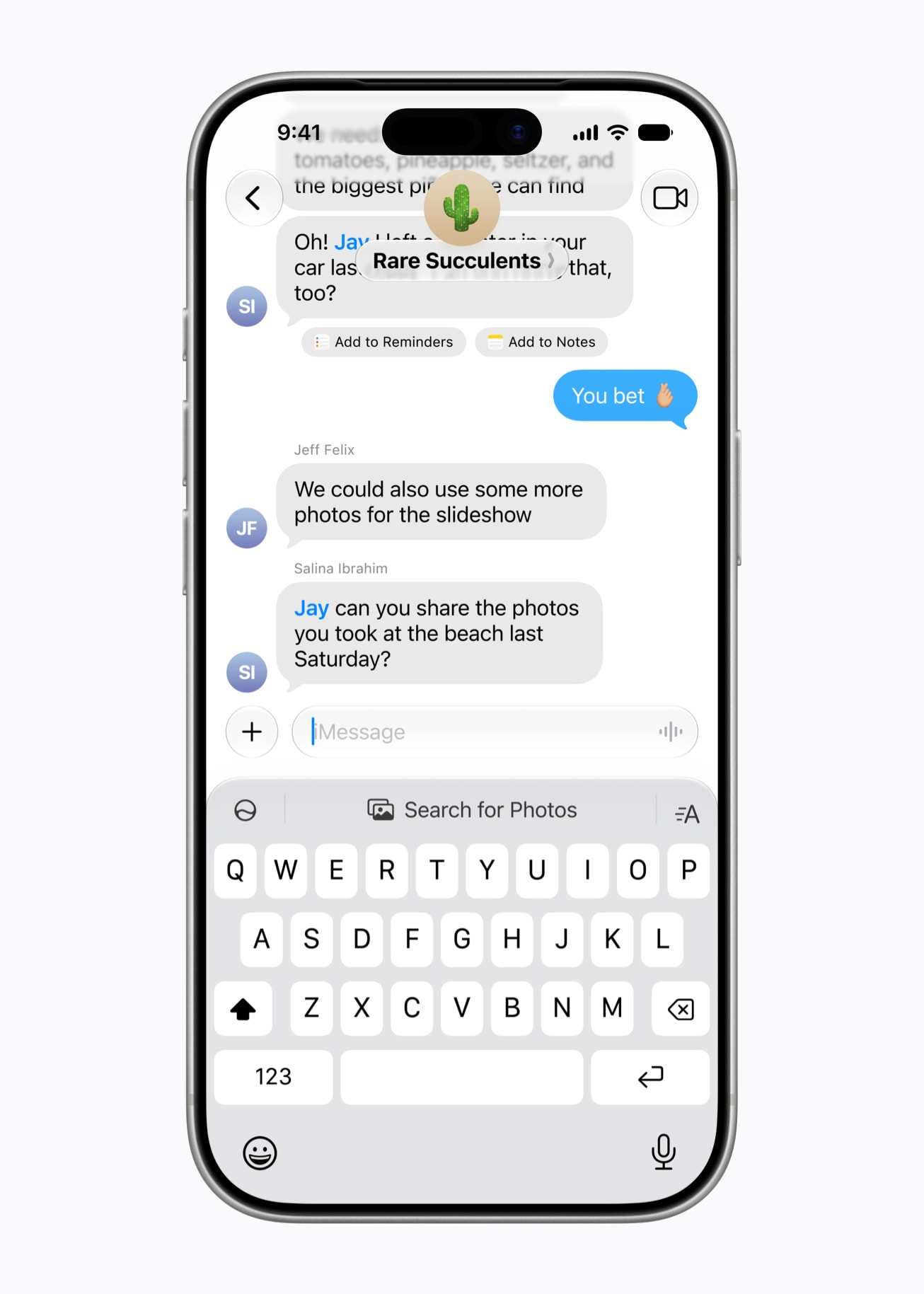
iOS 27 finally lets you clear the icon that sits next to Send in Messages. That small waveform or microphone is easy to hit by mistake. Music pauses. A voice note starts. Or dictation opens when you only meant to send the text.
Apple put the fix under a new Messages row called Show in Text Field. Three choices. One of them is None.
Settings path
Open Settings. Tap Apps near the bottom. Tap Messages. Tap Show in Text Field.
Pick Record Audio for the waveform. Pick Start Dictation for the microphone. Pick None to remove the icon from the text field. None is the quiet option if your thumb keeps grazing the button after Send. The change applies to new and existing threads once you leave the Settings screen.
Audio and dictation still work
None does not turn the features off. It only clears the right-side icon.
To send an audio message, tap the plus button left of the text field, then Audio. For dictation, use the microphone key on the keyboard. If that key is missing, open Settings, General, Keyboard and turn on Enable Dictation.
The rest of Messages in iOS 27 still behaves as before. One-tap suggestions and photo prompts can still appear above the keyboard. Those are separate from the Send-adjacent audio control. You can hide the audio button and still use suggestions when Apple Intelligence is on.
Why the icon gets hit so often
The control sits close to the send arrow. A fast reply can catch it. Start Dictation also interrupts playback for a moment when you tap it by accident. Record Audio, Start Dictation, and None are system settings for Messages. They apply on iPhone and iPad once iOS 27 or iPadOS 27 is installed.
If you are still on the public day build, confirm you are on shipping 24A437 before hunting for the new row. Older releases will not show Show in Text Field. Developer betas can move the row, but the public path is the one most readers will see.
Quick check after the update
After you install iOS 27 from Settings, General, Software Update, open one chat and look at the right edge of the text field. If the icon is still there and you do not want it, set Show in Text Field to None once. Then send a test message. The field should stay clear.
Other small iOS 27 controls live in the same how-to lane on this site. The Liquid Glass Appearance slider and the separate alarm volume tip are useful companions if you are cleaning up defaults after the update. Families turning on Screen Time should still read the Ask to Browse and Time Allowances brief before mixing child accounts into the same Apple ID group.
Photo: Apple
Source: MacRumors (Show in Text Field path) / Apple Newsroom (Messages)