iOS 27 adds a quiet Settings row a lot of people will miss on day one. Alarms can sit on their own volume. The ringer slider no longer has to match.
Apple put the control under Sounds & Haptics. The toggle is called Match Ringtone Volume. Turn it off and a second slider shows up for alarms and timers.
Where the new control sits
Open Settings. Tap Sounds & Haptics. Look for Alarms and Timers.
Inside that section you get Match Ringtone Volume. Leave it on and alarms still follow Ringtone and Alerts, the same path as iOS 26. Switch it off. A dedicated slider appears under that toggle.
Drag that slider to the level you want for Clock alarms and timers. You can drop Ringtone and Alerts to silent for the night and still keep the wake-up loud.
What Apple notes under the slider
Apple’s own note under the new slider says it will not override wake-up alarms or other alarms that already carry their own volume control. Sleep schedule wake-ups stay on their own track.
Regular Clock alarms and timers use the new level once Match Ringtone Volume is off.
How this changes overnight use
Before iOS 27, the usual advice was Settings, Sounds & Haptics, then Ringtone and Alerts. That one slider fed both calls and alarms. Quiet phone, quiet alarm. Loud alarm, loud ringer.
With the split, you can mute the side buttons for media, leave the ringer low, and still keep a firm alarm. Silent mode and Focus still do not block Clock alarms the way they block banners. That part did not change.
Quick check after you update
Install iOS 27 from Settings, General, Software Update when the row is there. Apple’s iOS page lists the free update for iPhone 11 and later, plus iPhone SE (2nd generation and later). The Alarms and Timers section does not need Apple Intelligence. It shows on the same phones that get the base 27.0 build.
After the install, open Clock, set a one-minute test alarm, and confirm the level. If the sound is wrong, go back to Sounds & Haptics and move only the alarms slider, not Ringtone and Alerts.
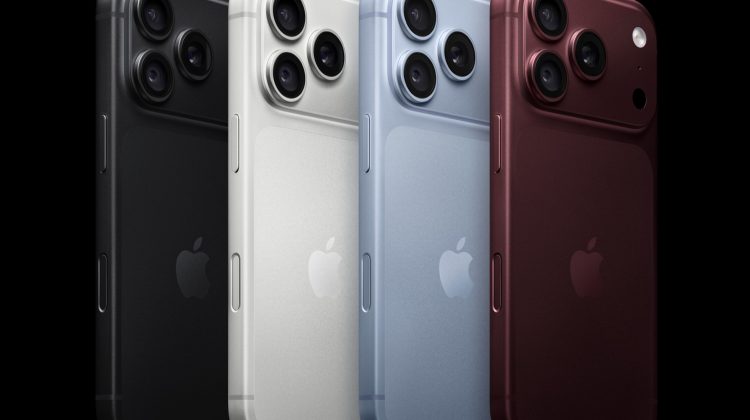
Photo: Apple
Source: MacRumors (iOS 27 Settings path), Apple Support (Clock alarms), Apple iOS 27