iCloud Mail will not push. New messages stay on iCloud.com but never land in Mail on the iPhone. Or send fails and the note sits in Outbox. Apple Support 102562 keeps the order short. Turn on iCloud Mail first. Check Push. Toggle the account off and on only after earlier steps fail.
This path follows current iOS 27 Settings wording. Apple now puts Mail under Apps, and Fetch New Data under Mail Accounts. The same Support page covers iPad and Mac. Steps below stay on iPhone unless noted.
Network faults are a different queue. If Wi-Fi will not join at all, start with our Wi-Fi greyed out or no connection fix. Bluetooth pairing is separate too (Bluetooth will not connect).
Turn on iCloud Mail
Open Settings. Tap your name at the top. Tap iCloud. Under Saved to iCloud or Apps Using iCloud, tap Mail. Turn on Use on this iPhone.
Update to the latest iOS when an update is offered. Confirm the phone has internet. Check Apple’s system status page for iCloud Mail. If the service shows an outage, wait and try again later.
Full iCloud storage blocks send and receive on an @icloud.com address. Apple says free space in iCloud before you dig further. Local Storage Almost Full is a different warning. That one blocks software updates on the phone itself (free space when Storage Almost Full).
Large attachments can hit mailbox limits. Apple points to Mail Drop, compressing the file, or AirDrop when the recipient is nearby. If a VPN is on, turn it off and test Mail again.
Open Safari and go to icloud.com/mail. If mail appears there but not in the Mail app, the account works and the phone settings need work. Restart the iPhone after that check.
Push and Fetch New Data
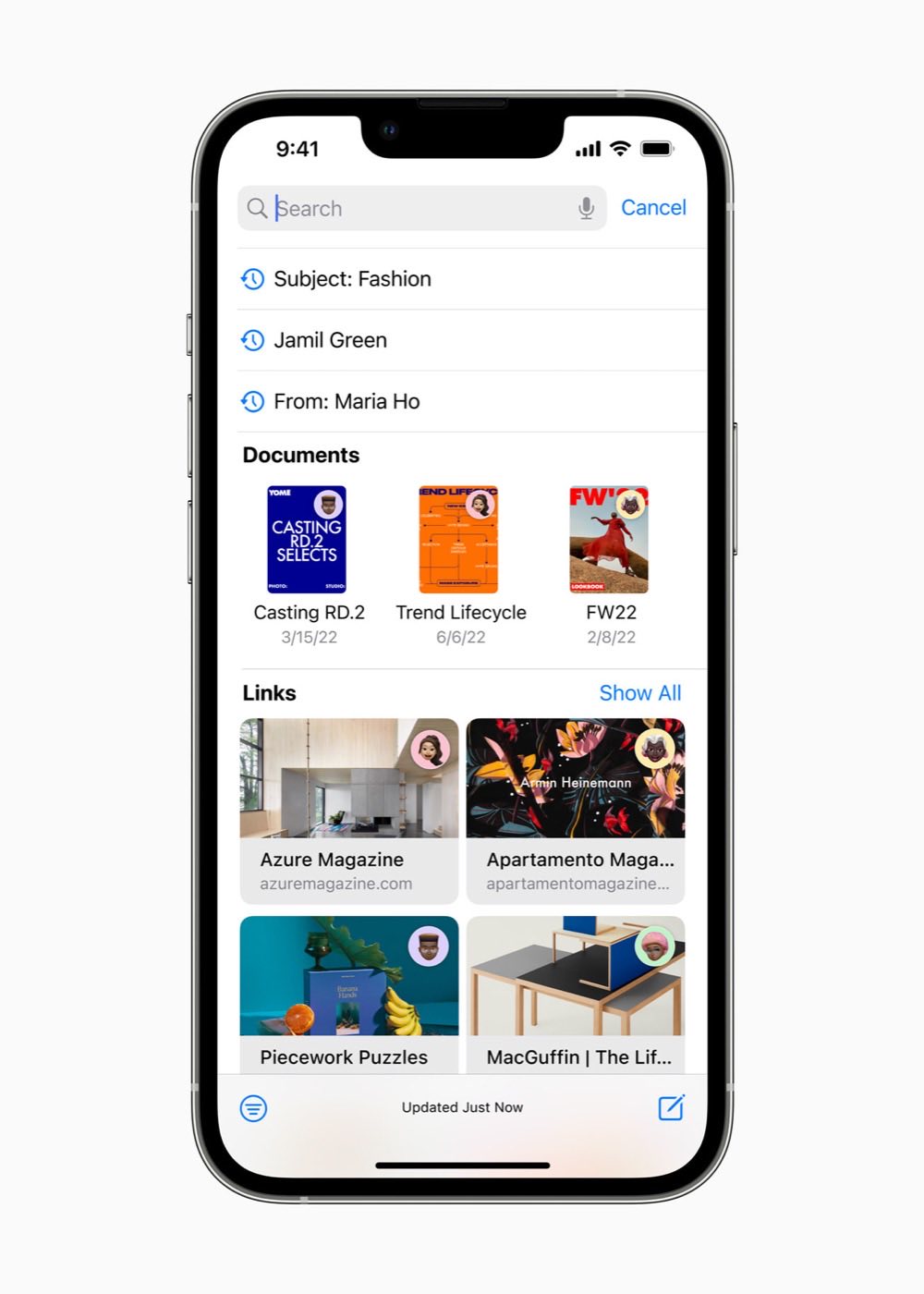
Open Settings. Tap Apps. Tap Mail. Tap Mail Accounts (or Accounts). Tap Fetch New Data. Turn on Push.
Under Fetch, select Automatically. If you have more than one email account, tap the iCloud account and turn on Push for it. Apple notes you can use Push with only one account at a time.
Send a test message to your @icloud.com address from another account. Watch whether it arrives without opening Mail by hand. Restart the phone once after you change Push.
If send and receive still fail, turn off iCloud Mail on the device. Turn off Push under Fetch New Data. Restart. Turn both settings back on. Apple lists this toggle cycle after the Push checks, not before.
Mac Outbox and SMTP notes
On Mac, open Mail. Choose Settings from the Mail menu. Click Accounts. Select the iCloud account. Under Account Information, confirm the account is enabled and the status shows online.
If Mail says a message could not be sent and leaves it in Outbox, open Server Settings for that account. Set the Outgoing Mail Account to iCloud. Apple says if you open Edit SMTP Server List, iCloud will not appear as a separate row there. Pick iCloud on the Outgoing Mail Account menu instead.
When you can receive but cannot send, the ISP may be blocking SMTP. Apple says ask the provider about SMTP traffic to an external service such as iCloud, and whether they can exempt the account.
Scheduling a text in Messages is unrelated to Mail Push. That tip is here: Send Later in Messages. Safari pages that stall need site data cleared, not Mail settings (clear Safari history and website data).
If the steps above still leave Mail dead, contact Apple Support with the device model and iOS build.
Photo: Apple
Source: Apple Support 102562 (If iCloud Mail isn’t working), published June 8, 2026