Promotional push notifications keep landing even when the app has an opt-out. MacRumors reported on November 25, 2026 that several apps send marketing pushes with no way to mute only the promotions, and some continue after the in-app option is turned off. Apple's rules require consent for pushes like this. Below are the Settings paths Apple documents, and what they cannot fix.
Apple's rules require an opt-in and an in-app opt-out for marketing pushes
The App Store Review Guidelines say in 4.5.4 that push notifications "should not be used for promotions or direct marketing purposes unless customers have explicitly opted in," and the app must "provide a method in your app for a user to opt out." Guideline 4.5.3 bans unsolicited messages through Apple services, "including Game Center, Push Notifications, Live Activities, etc." Both quotes are from the guidelines as updated October 16, 2026. Apple's Human Interface Guidelines add one line: "Don't use a Live Activity to display ads or promotions."
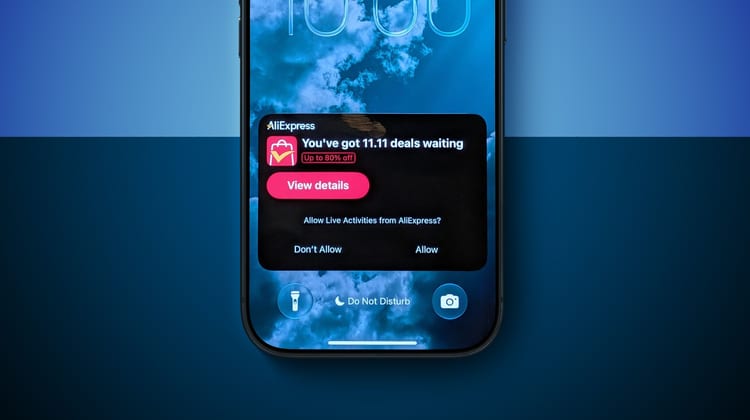
These are rules for developers. No switch on the iPhone enforces them. MacRumors named Cineplex, McDonald's and Wendy's as apps without a promotion-specific opt-out in Canada. Skip kept sending offers after its in-app toggle was turned off. A DoorDash prompt can re-enable offers while sounding like an order warning. Readers found ads inside AliExpress Live Activities. Apple has not said it penalized any of these apps.
Swipe left on the notification to mute the app for an hour or a day
Apple's "View and respond to notifications on iPhone" guide lists the fastest controls. Swipe left on the notification or group, tap Options, then mute the app for an hour or a day. The alerts go to Notification Center only, off the Lock Screen and silent. In the same menu, Turn Off turns off notifications for the app or group. To undo a mute, swipe left on the notification in Notification Center, tap Options, then tap Unmute.
Keep the limit in mind. This mutes everything from that app. Apple gives no switch here that keeps order updates while dropping offers.
Allow Notifications in Settings is on or off, with per-type options if the app supports them
 Open the Settings app, tap Notifications, then tap the app below Notification Style. Apple also documents Settings > Apps > the app > Notifications. If Notifications does not appear there, the app might not be able to send notifications at all. Turning off Allow Notifications stops the offers and every other alert from that app. The control is off or on. It does not let "important" alerts through on their own.
If the app supports it, Customize Notifications lets you choose which types of notifications to receive. Apple publishes no list of these types. Not every shopping or carrier app shows a Promotions toggle, so read what your own app offers. If alerts are missing instead of excessive, see 10 iPhone notification settings to check when alerts go missing.
Scheduled Summary collects noisy apps and delivers them at set times
For apps you want to keep but not hear from all day, Settings > Notifications > Scheduled Summary batches their alerts. Turn it on, schedule times, then tap A to Z to choose the apps to include. Each app can be set back to Immediate Delivery in its own notification settings. Scheduled Summary changes when alerts arrive. It does not strip promotional content out of them. Full setup: turn on Scheduled Summary so quiet notifications arrive as a digest.
Live Activities have no ad filter, and the App Store sends its own offers
 For advertising inside a Live Activity, the only official control is all of them. Open Settings on iPhone, tap Apps, tap the app showing Live Activities, tap Live Activities, then turn off Live Activities for that app. Apple's Live Activities support page, updated November 16, 2026, says this turns them off on both iPhone and Mac. No setting hides just the ads.
The App Store itself pushed an offer recently. MacRumors reported a Paramount+ subscription deal notification from Apple, and a path to opt out: open the App Store, tap your profile picture, tap Notifications, then turn off Recommendations & Offers. Apple's own App Store settings pages do not list that toggle, so treat this as reported. The App Store is preinstalled and technically not bound by the rules for third-party apps.
Multiple sources told MacRumors that iOS 28 will bring significant changes to Notification Center, but the site calls it a rumor and names no features. The public tip is still iOS 27.2.1 (24B156). Our report on the iOS 28 notification revamp rumor is the record so far. Until something lands on your iPhone, turning off Allow Notifications is the only lever you fully control.
Photo: MacRumors, Apple.
Source: Apple Human Interface Guidelines, Apple Support (Live Activities).