Some owners of the new MacBook Pro with PROLED XDR display say the screen gives them eye strain, headaches, or dizziness. Treat this as a cluster of user reports, not a confirmed hardware defect. Apple has not commented on the complaints and has announced no repair or replacement program. Here is what the reports describe, what one third-party test measured, and which display settings Apple actually documents for the Mac.
What PROLED MacBook Pro owners report
MacRumors rounded up the complaints on November 16, in a story by Hartley Charlton. Owners on Reddit, X, and the MacRumors forums describe the same symptoms, appearing since the laptop went on sale on November 6. One user said around 30 minutes with the PROLED MacBook Pro in an Apple Store left them with a severe headache. A Reddit user described dizziness and nausea when reading text on a black background, and said their OLED iPad Pro did not do the same. In the main MacRumors thread, a 16-inch owner said headache and mild nausea began to ease after switching back to a mini-LED MacBook Pro. Another member said they were returning the PROLED laptop for similar reasons, after having no trouble with OLED devices before.
This is the second round of early-adopter friction for this machine. Earlier reports were about the touchscreen, and accidental taps that macOS can limit with Ignore Touch Gestures. Eye comfort is a different problem.
The suspected cause is PWM, not the refresh rate
PWM, pulse width modulation, is how an OLED screen dims. Pixels cycle between brighter and darker states. Spending less time at the bright level makes the screen look dimmer. The cycle can be too fast to look like obvious flashing, and some people still report discomfort. PWM frequency counts how often the brightness cycle repeats. It is not the refresh rate, so a 120Hz ProMotion specification tells you nothing about the screen's PWM frequency. MacRumors makes that distinction in the roundup.
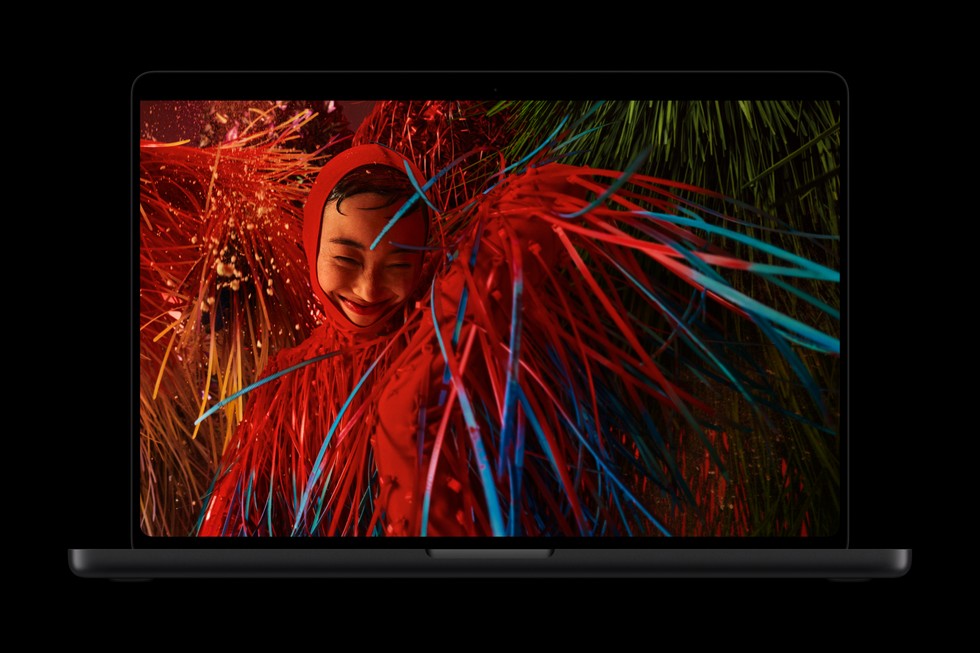
The numbers in circulation come from Notebookcheck, not from Apple. As MacRumors reports, Notebookcheck measured the 14-inch PROLED MacBook Pro flickering at 240Hz whenever brightness was set to 99% or lower, with a measured amplitude of 56%. The same report measured 14,880Hz on the 14-inch M4 Pro mini-LED model. Notebookcheck warned that sensitive users could experience eye strain or headaches at the lower figure. These are third-party measurements. Apple publishes brightness and contrast specs for PROLED XDR, but no flicker figure.
Four display settings to check in System Settings
Apple documents several comfort-related display controls for the Mac. None of them is a documented PWM fix. Each still takes two minutes to try before deciding the laptop has to go back.
- Brightness. Apple menu → System Settings → Displays, then the brightness slider or the keyboard brightness keys. If your Mac has an ambient light sensor, also check Automatically adjust brightness (some displays list it as Ambient light compensation). Apple's support page warns that turning off automatic brightness may affect battery life, energy use, and long-term display performance. The idea of pinning brightness at 100% comes from third-party testing, not from Apple Support.
- True Tone. In the same Displays pane, select the built-in display and toggle True Tone, on models that support it. It matches color and intensity to the room. It is not documented as a flicker control.
- Night Shift. System Settings → Displays → Night Shift. Apple documents scheduling it from sunset to sunrise or on a custom schedule, and moving color temperature warmer or cooler. The guidance is that warmer colors are easier on your eyes at night or in low light. Night Shift does not disable PWM.
- Refresh rate. The same Displays pane lists refresh rate on 14-inch and 16-inch MacBook Pro models with Apple silicon, ProMotion or fixed rates like 60Hz. Apple's Displays settings overview says a screen may appear to flicker if the refresh rate is too low. That sentence is about refresh rate. Nothing Apple publishes says switching rates turns PWM dimming off.
What macOS does not have: Display Pulse Smoothing
On iPhone, Apple documents the mechanism by name. The iPhone user guide says the phone controls brightness with pulse width modulation, which for some people can make a dimmed display appear to flicker. On supported models there is a Display Pulse Smoothing (PWM) switch under Settings → Accessibility → Display & Text Size. Apple cautions that turning PWM off can affect low-brightness display performance in some conditions.
macOS has no equivalent control so far. The Mac Accessibility Display page lists Invert Colors, Increase Contrast, Color Filters, and text size controls. The Motion page lists Reduce Motion, Dim Flashing Lights, and vehicle motion cues. Dim Flashing Lights only tames flashing or strobing lights in compatible media on Apple silicon, and Apple says it should not be relied on for the treatment of any medical condition. MacRumors notes Apple could add a Mac option in the future. That is not an announced plan.
If none of the four settings changes how you feel after a working session, that is the honest state of things today. The documented controls are all macOS offers, and the complaint cluster is still user reports, not a confirmed defect. Keep an eye on what Apple says next.
Photo: Apple / Source: MacRumors, Apple Support