Apple has rules meant to keep promotional push notifications and Live Activity ads off your iPhone. On November 25, MacRumors' Joe Rossignol documented apps breaking them, including Cineplex, McDonald's, and Wendy's in Canada, and said Apple does not enforce the rules consistently. A same-day report says iOS 28 will revamp Notification Center next year, but it has no feature details (see our News brief on the iOS 28 notification rumor). The public release is still iOS 27.2.1, build 24B156. So the controls below are what you have today. Each one is checked against Apple's Support guides.
1. Turn off Allow Notifications for one app
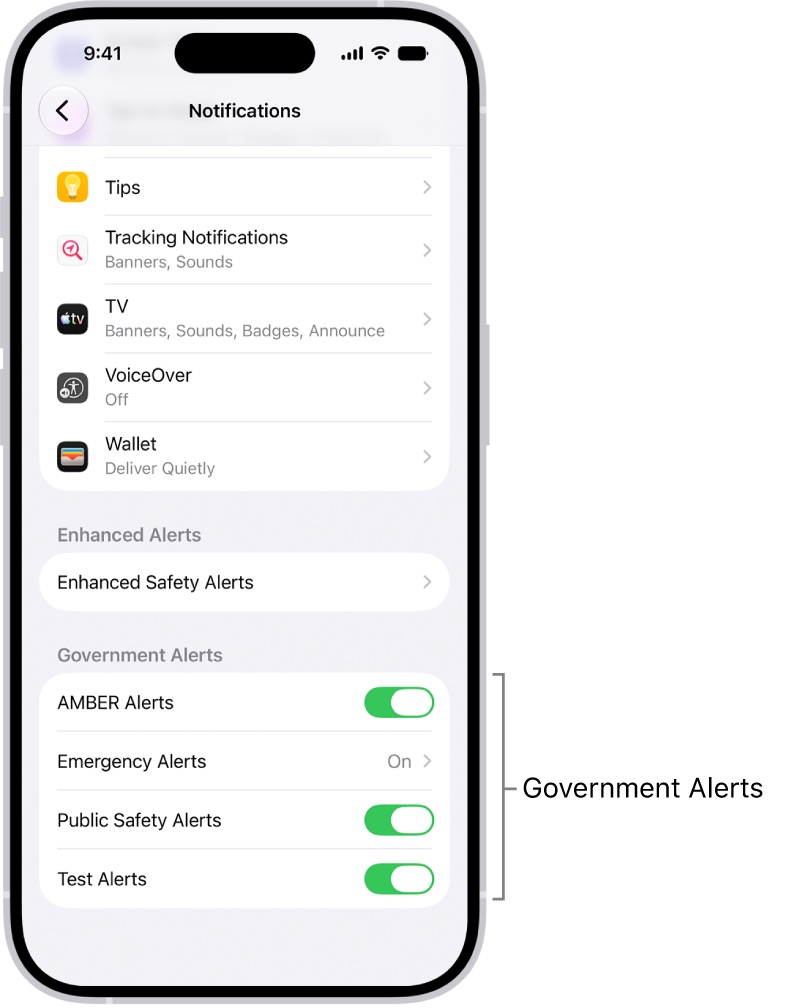
Open Settings, tap Notifications, tap the app under Notification Style, then turn off Allow Notifications. Apple's support article 120681 lists a second path: Settings > Apps > [app] > Notifications. The switch is on or off, nothing in between. Apple does not promise that order or account alerts keep arriving after you turn it off, so use it on apps that only ever send noise. This is also the level of control behind our earlier fix on turning off promotional notifications.
2. Mute an app from the Lock Screen or Notification Center
In Apple's view-and-respond guide: swipe left on a notification or a group, tap Options, then mute the app for an hour or a day. Muted notifications still arrive in Notification Center. They stop appearing on the Lock Screen, playing sound, lighting the screen, and showing banners. Tap Options again and Unmute to bring them back. Apple also notes the system may suggest turning off notifications for apps you have not used in a while.
3. Use Customize Notifications only when the app supports it
Apple's notification settings guide says "if the app supports it": tap Customize Notifications to choose which types you receive. Some apps also show an [App Name] Notification Settings button at the bottom of that screen, which opens the app's own settings. Do not expect a Promotions switch there. Rossignol's carrier-app example is the reminder. Some apps are still all-on or all-off, and no user setting forces an app to obey the opt-in rule in App Store review guideline 4.5.4.
4. Send less-urgent apps to a Scheduled Summary
Settings > Notifications > Scheduled Summary. Turn it on, schedule times, tap A to Z, and pick the apps that go in. Show Previews decides when previews appear. For one app, Notification Delivery can switch between Immediate Delivery and Scheduled Summary. The summary does not filter marketing out. It only batches what the chosen apps send (more in our Scheduled Summary tip).
5. Turn off Live Activities for apps that put ads on your screen
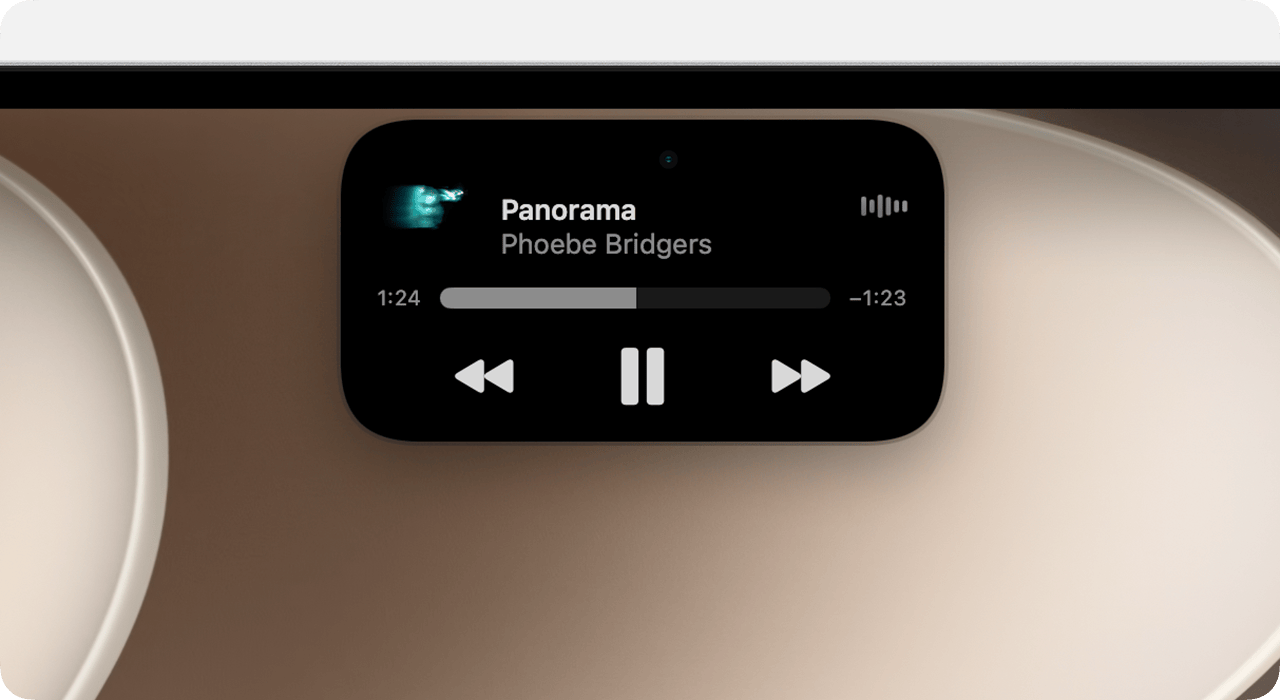
MacRumors readers pointed to AliExpress advertising inside Live Activities. Apple's Human Interface Guidelines say "Don't use a Live Activity to display ads or promotions," and review guideline 4.5.3 bars unsolicited messages via Live Activities. Those are developer rules, and there is no user switch that blocks "ads only." What you do have is Apple's path in support article 120684: Settings > Apps > [app] > Live Activities, then turn it off. Apple says this turns the app's Live Activities off on both iPhone and Mac.
6. Review App Store notification settings
The App Store sent its own Paramount+ deal notification, per MacRumors. The outlet lists this path: open App Store, tap your profile picture, tap Notifications, then turn off Recommendations & Offers. That label is not in Apple's Support pages, so treat it as a path to check on your own iPhone, not as documented behavior. The documented control is the per-app one: Settings > Apps > App Store > Notifications. And turning off personalized ads under Privacy & Security is not this. Apple's support article 105131 says that step "may not reduce" the number of ads you see.
7. Allow or silence people and apps during a Focus
Settings > Focus > pick a Focus, then People or Apps, then Allow Notifications From or Silence Notifications From. Emergency contacts can still call through, and Emergency Bypass in a contact card forces sounds past silencing. Time Sensitive Notifications lets every app deliver time-sensitive alerts immediately. With Intelligent Breakthrough & Silencing on, Apple Intelligence decides which notifications are important enough to interrupt you. That is judgment, not a promo filter. Our Focus and Do Not Disturb settings list covers the cases where alerts still break through.
8. Schedule a Focus so notifications wait
Control Center > Focus > the mode you want, or Settings > Focus > the mode, then turn it on. Tap the timer to end it in an hour or when you leave the location. Add Schedule turns a Focus on at set times, at a location, or when an app opens. Sleep Focus follows the sleep schedule in the Health app. People in Messages see that notifications are silenced, and can still notify you if something is urgent.
9. Choose Lock Screen, Notification Center, or banners
In an app's notification settings, Alerts picks where its notifications appear: Lock Screen, Notification Center, or banners. Lock Screen Appearance sets how previews show and how notifications group. At the top level, Settings > Notifications picks the Lock Screen layout: Count, Stack, or List. Pinch the notifications on the Lock Screen to change the layout on the fly. There is no Promotions category in the current iOS. Nothing here sorts marketing from orders.
10. Summarize notifications and Reduce Interruptions with Apple Intelligence
Settings > Notifications > Summarize Notifications, then Choose Notifications to Summarize, in Apple's summarize guide. Priority Notifications floats judged-important alerts to the top of the stack. The Reduce Interruptions Focus shows only what might need immediate attention, like Apple's example of a text about an early pickup from daycare. Apple Intelligence on iOS 27 needs an iPhone 15 Pro, 15 Pro Max, or iPhone 16 or later, and it is not available in all languages or regions. Usage limits may apply. None of it separates promo from order. The rumored iOS 28 revamp might change that later. Until then, the per-app switches above are the real controls.
Start with item 1 or 5. Those two stop the newest noise at the source.
Photo: Apple. Sources: Apple Support (Change notification settings; View and respond to notifications; articles 120681, 120684, 105131; Allow or silence notifications for a Focus; Turn on or schedule a Focus; Summarize notifications and reduce interruptions), MacRumors, November 25, 2026.