If screenshots inside Signal stopped working this week, the iPhone is probably fine. Signal's latest iPhone update turns on a setting called Block Siri AI by default, and the setting blocks screenshots and screen recordings inside Signal. Signal's official help page says the feature needs Signal 8.37 or later on iOS 27 or later.
Signal told Reuters it acted because Apple does not give iOS developers better tools to shield app content from Siri AI and third-party agents. 9to5Mac's Ryan Christoffel reported the update on November 20. Our earlier post covers the default block itself.
The iPhone screenshot buttons are not broken
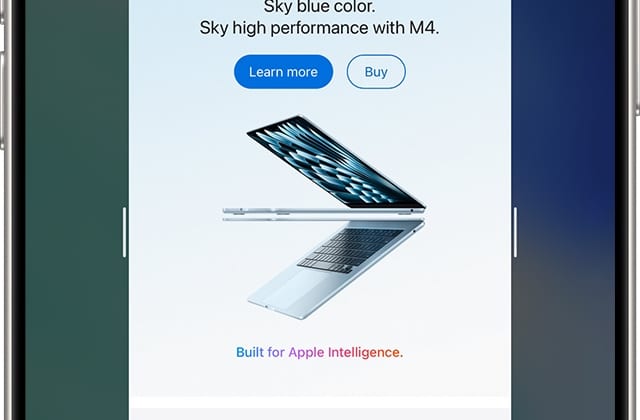
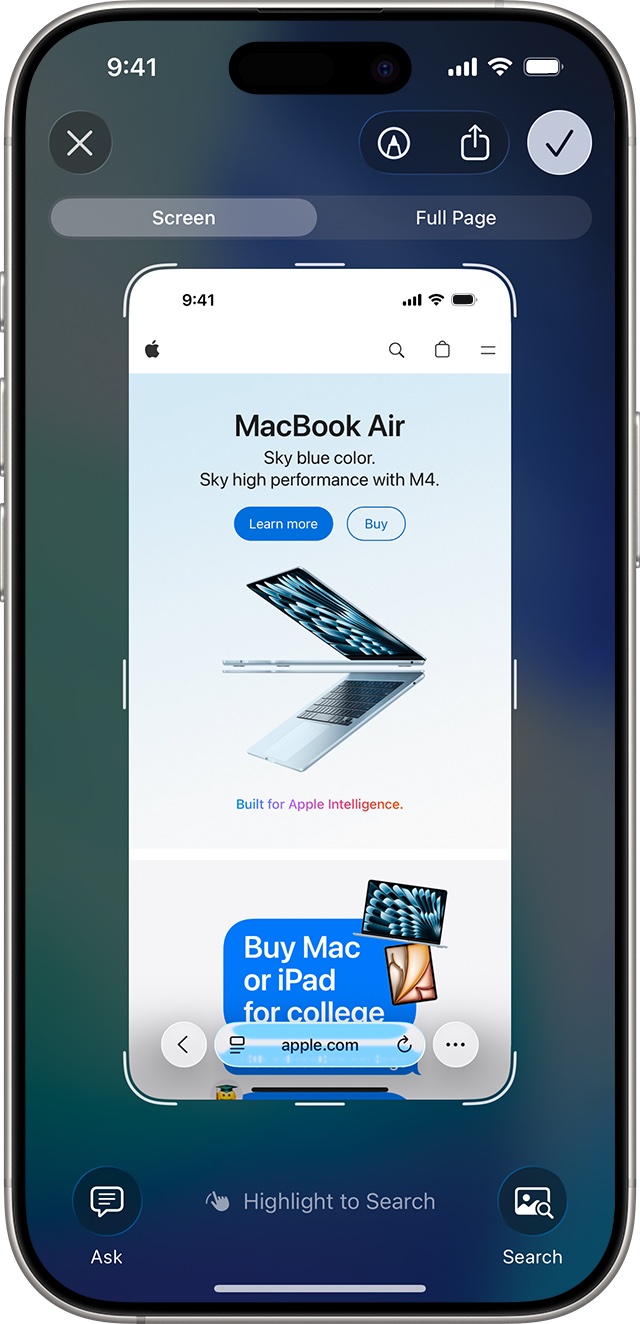
Apple's documented capture path is unchanged: on Face ID models, press the side button and the volume up button at the same time, then quickly release both. That is the procedure on Apple's Take a screenshot support page, which does not know about Signal.
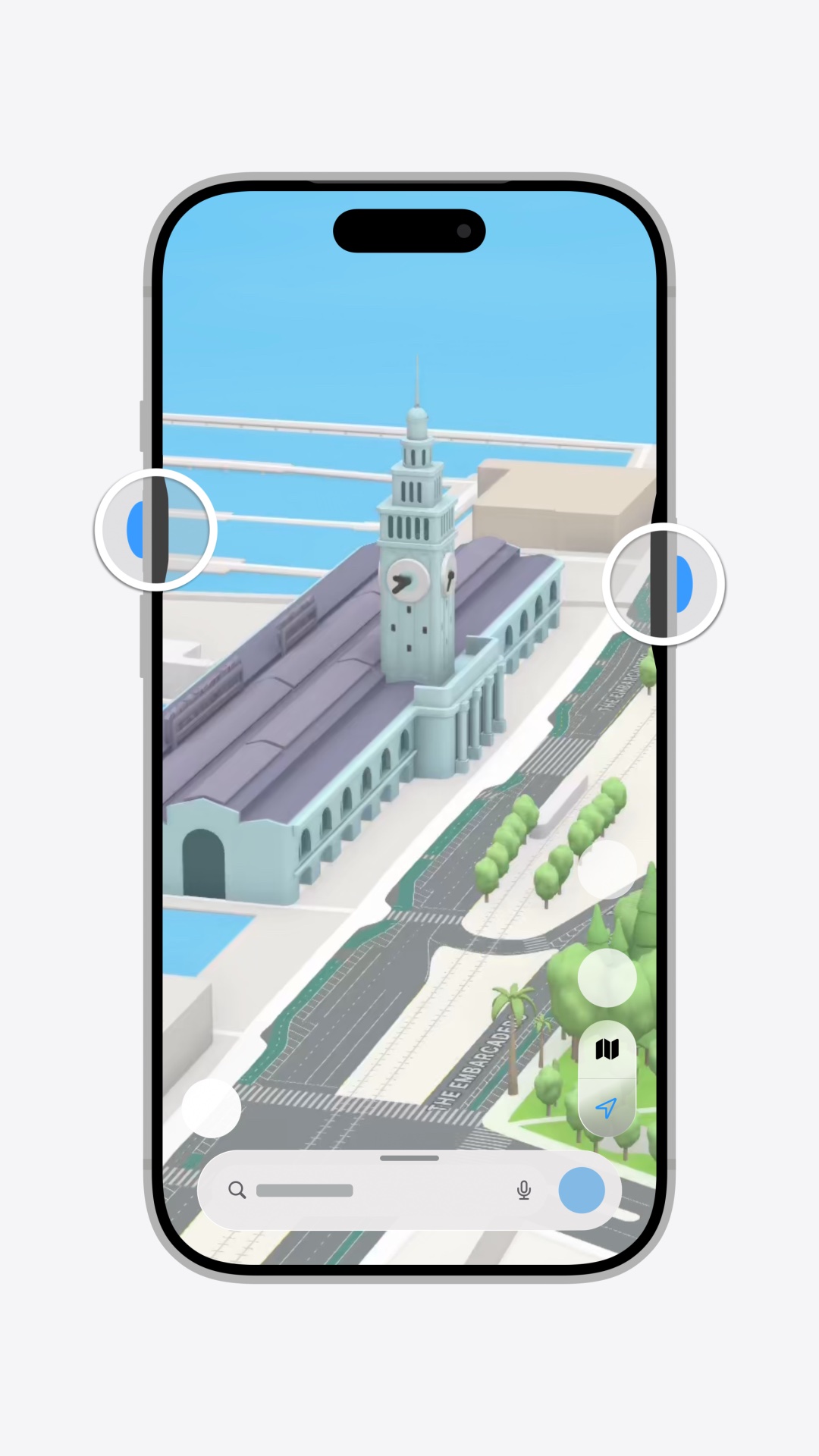
Inside Signal, when the block is on and you try to capture, Signal shows a message that the screenshot was prevented. 9to5Mac reports the on-screen text reads "Screenshot prevented by 'Block Siri AI' setting." One common mistake is reading this as a hardware fault and resetting the phone. Take one screenshot on the Home Screen first. If that works, the buttons are fine. Triggering screenshots with Back Tap is a separate setup and does not cross Signal's block.
Signal 8.37 on iOS 27 switches Block Siri AI on by default
On iPhone, Signal's help page is explicit: Block Siri AI is on by default. While it is on it does three things. It blocks screenshots and screen recordings inside Signal. It keeps Signal content out of the App Switcher. It stops on-device AI assistants from reading what is on screen in Signal.
The toggle only exists with the right versions. Check iOS in Settings → General → Software Update; the page shows the installed version and whether an update is available. To update Signal, open the App Store, tap the My Account button or your photo at the top, tap App Updates, then tap Update next to Signal.
Off for 10 Minutes saves one screenshot without dropping protection
Open Signal, go to Settings → Privacy → Block Siri AI. Off turns screen security off completely. Off for 10 Minutes turns screen security back on automatically after 10 minutes, and Signal's help page calls it useful if you need to take a quick screenshot.
Going all the way to Off has a cost, and Signal says so in the app. Before the setting turns off, Signal asks you to confirm, because AI assistants may then be able to scan your Signal content and use it for features that may not be private. After that, Signal will not remind you it is off. If your only worry is chats appearing in the app switcher, the separate Hide Screen in App Switcher setting handles that instead. On scope, Signal's wording is flat: the setting only affects screen capture and on-device scanning. It does not change how your messages are encrypted, who can see them, or any other Signal setting.
Excluded Apps on iPhone and Mac is a different control
Apple has its own switch for keeping AI out of an app. On iPhone the documented path is Settings → Siri → Excluded Apps, then tap Add Apps, select apps, and confirm. Excluded apps are not available to Siri, Search, or suggestions, and all apps are included by default. 9to5Mac notes this system exclusion became easier in iOS 27.2, and that Signal shipped its own default instead of pointing users at it.
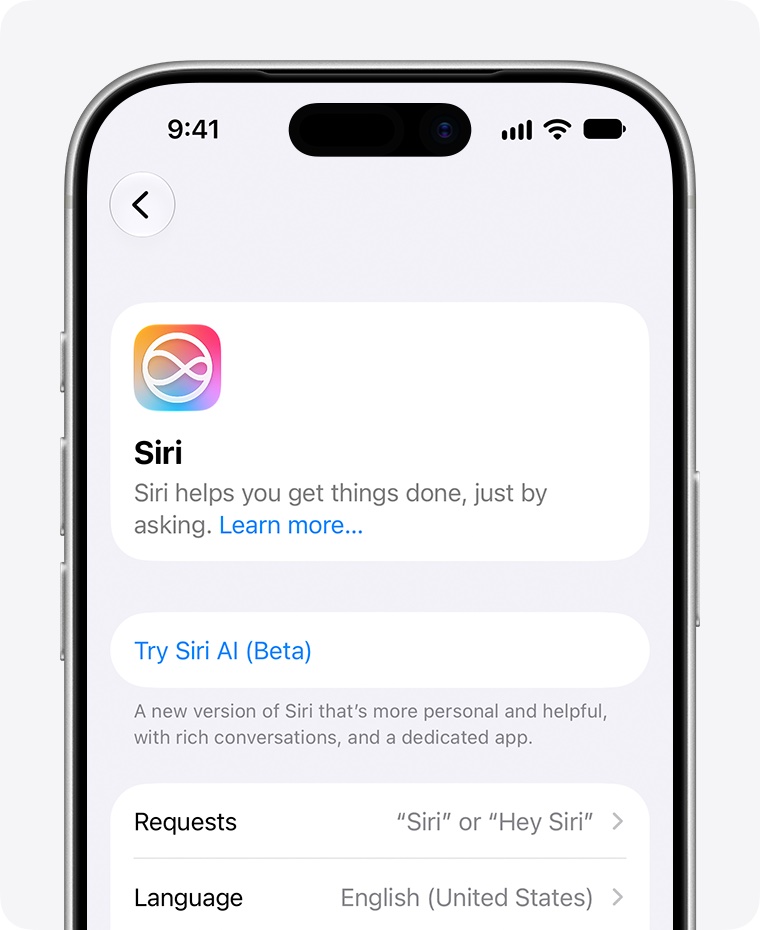
Keep the two controls apart. Signal's help page does not say that excluding Signal in Apple's list restores screenshots, and turning Block Siri AI off does not remove Signal from Excluded Apps. On the Mac there is no Signal equivalent at all. 9to5Mac quotes Signal's Arin Waichulis on the Mac app: "No equivalent for its Mac app." If you want Siri kept away from Signal on the Mac, Apple's documented list is System Settings → Siri → Excluded Apps, then click Add Apps and select apps. Reuters separately reports Signal was unable to reliably offer the phone-style protections on macOS.
For most people, leave Block Siri AI on and use Off for 10 Minutes when a screenshot matters. The screen-scan risk Signal describes is real.
Photo: Apple (support images, take-a-screenshot and Siri settings pages)
Source: Signal help, 9to5Mac, Apple Support