iOS 27 Calendar finally takes events the way people write them. 9to5Mac on November 20 put the spotlight on two upgrades, natural-language events and Siri AI edits, and both are in Apple's own support documents. The documents also describe eight more functions worth checking. The 10 Calendar features below were checked against Apple's iPhone guides on 2026-11-21, so you can verify each one on your phone today. The iOS 27.3 Calendar design updates are not on this list. 9to5Mac says they are coming. They have not shipped.
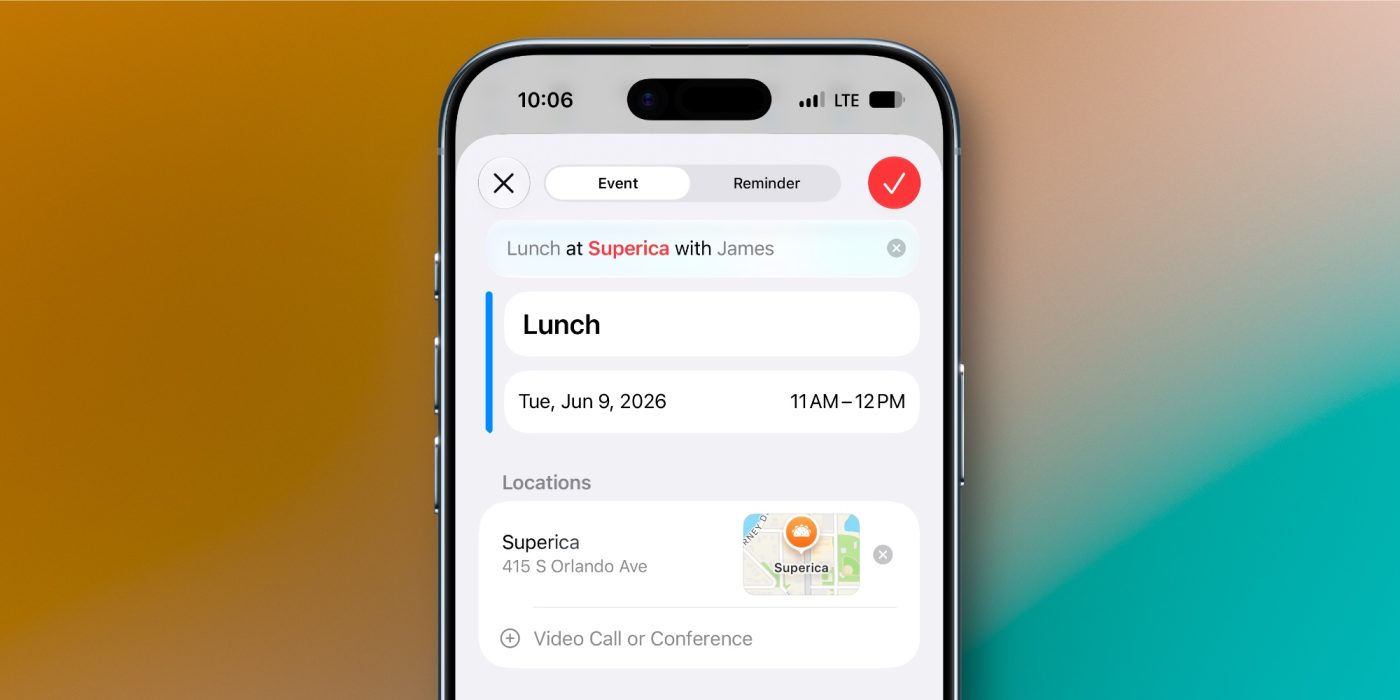
1. Create an iOS 27 Calendar event with natural language
In the day view, tap the add button. Alongside the hand-filled fields you can type one description, such as "Soccer game on Saturday from 11 a.m. - 1 p.m." or "Vacation in Bahamas Mon-Fri." Apple's Create and edit events guide says suggestions for filling in the event details appear in the event card. About iOS 27 Updates names this "Describe an event in Calendar": time, location, invitees, and title are filled in using Apple Intelligence. The same idea has its own steps on the Mac.
2. Edit an event with Siri AI in iOS 27 without opening the app
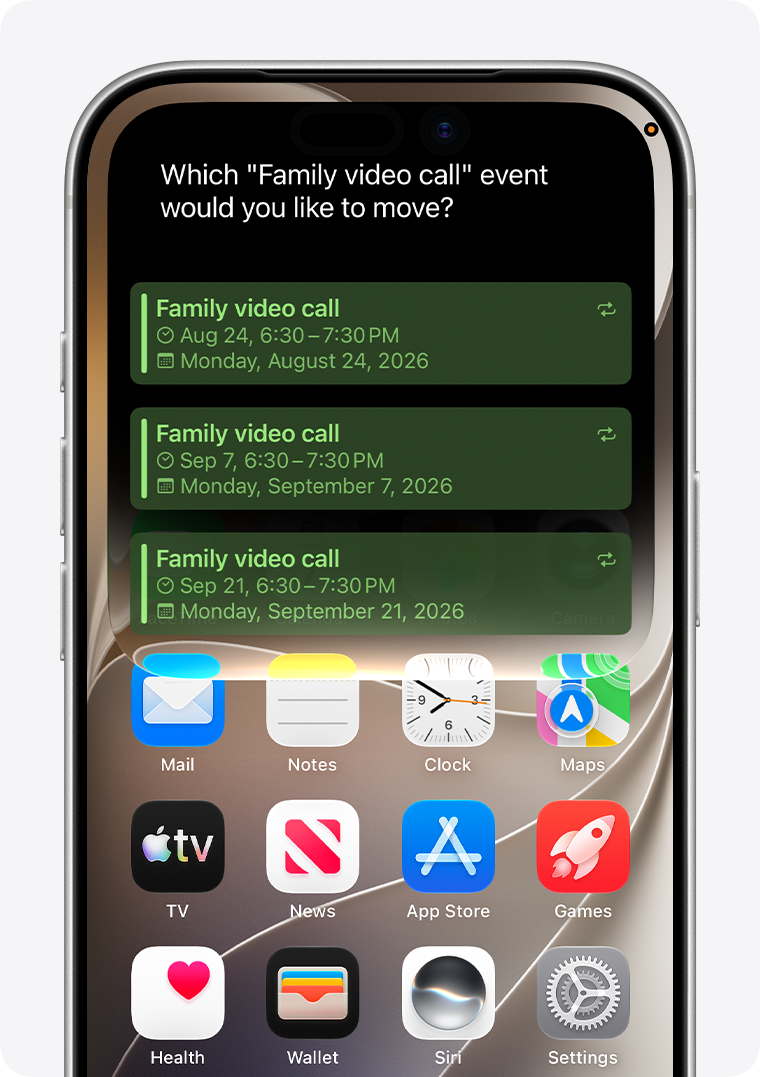
Siri AI can change an existing event with the Calendar app closed. Apple's documented example is "Move my family video call to tomorrow." If more than one event matches, Siri asks which one you mean, and you tap Change. Further edits go through the Calendar app. Apple lists the feature for iOS 27, iPadOS 27, and macOS 27 Golden Gate in Edit a calendar event with Siri AI, and it stays a beta with matching device and Siri languages. One boundary: 9to5Mac had Siri add a whole NFL schedule in one ask. That is the writer's own test, not an Apple-documented step.
3. Ask Siri to set up a meeting or read back the day
The classic Siri path handles simple asks, with no Siri AI beta required. Apple's examples are "Set up a meeting with Gordon at 9." and "What's on my calendar for Friday?" Inside the app, search finds events by title, invitees, location, and notes. Tap the search button and type what you remember.
4. Add a location or FaceTime link so you get Time to Leave
New events take a location or a video call. Tap Location or Video Call, enter a physical location, or tap FaceTime to add a video link for a remote event. When the event has an address, Calendar uses Apple Maps to check locations, traffic conditions, and transit options, then tells you when it is time to leave. Time to Leave sits in Settings > Apps > Calendar > Default Alert Times, and Location Suggestions controls whether Calendar proposes a place for new events.
5. Set alerts per event and default alert times
Open an event, tap Edit, tap Alert, and pick a time such as "At time of event" or "5 minutes before." Defaults live in Settings > Apps > Calendar > Default Alert Times, with separate choices for Birthdays, Events, and All-Day Events. A default does not overwrite an alert you already changed by hand. For a calendar you created or subscribed to, the info button also has an Event Alerts switch.
6. Let Siri suggest events found in Mail, Messages, and Safari
Siri can spot events in other apps, such as flight reservations and hotel bookings, and offer them for Calendar. The switch is Settings > Apps > Calendar > Siri, then Show in App. Learn from this App lets Siri study how you use Calendar and make suggestions elsewhere. Nothing lands silently, since the suggestion waits for your tap. The Suggestions in Messages feature from iOS 27.2 is a different thing living in the Messages app.
7. Send invitations to invitees
iCloud, Microsoft Exchange, and some CalDAV servers can send invitations. Apple warns that not every calendar server supports every feature. In the event, tap Edit, then Invitees, and pick contacts that have an email address. Phone-number invitations work only in China and India. Swipe left on a name to Make Optional, and turn off Show Invitee Declines in Settings > Apps > Calendar if decline notices annoy you. On Exchange you can invite people even to events you did not schedule.
8. Share an iCloud calendar with family or colleagues
Sharing works for iCloud calendars only. Tap the info button next to the calendar, tap Add Person, and pick people with an email address. Allow Editing decides whether they can add or change events. For a view-only feed, turn on Public Calendar and tap Share Link, and anyone can subscribe but not change. Mute change pings in Settings > Notifications > Calendar > Customize Notifications, then turn off Shared Calendar Changes.
9. Run several calendars, holidays and birthdays included
Tap the add button in Calendar to create an iCloud calendar with its own color, or tap Add Subscription Calendar and enter an .ics URL for a read-only feed. Add Holiday Calendar subscribes to holidays, and the calendar list has US Holidays and Birthdays switches for dates from Contacts. Colors on Google accounts are set by the server. Unsubscribe and Report Junk sends a bad subscription to Apple as suspected junk. Settings > Apps > Calendar > Calendar Accounts adds iCloud, Google, Microsoft Exchange, Yahoo, or CalDAV, and Default Calendar decides where new events land.
10. Schedule or display events in a different time zone
Events show in your current time zone until you say otherwise. For one event, tap the start and end times, then Time Zone, and pick a place like Boston. Time Zone Override in Settings > Apps > Calendar makes the whole app follow one zone, which helps if you live in San Francisco but keep Boston office hours. Older events move to the new zone and still show the original one. The override changes the Calendar app only, not the system clock of the iPhone.
Two of these ten are new in iOS 27. The rest have been sitting in the Calendar app for a while. If you change one habit this week, type your next event as one sentence and watch the card fill itself. Apple's guides above carry every step, and iOS 27.3 will put a new design on top.
Photo: 9to5Mac, Apple Support
Source: Apple Support user guides for Calendar on iPhone; 9to5Mac, November 20, 2026