Apple released the 27.2 software updates on October 26. For Mac owners the interesting part is Siri AI opening in five more languages, plus a short list of Siri settings changes in the update notes. If you have been waiting for the new Siri on a Mac, 27.2 is the build to be on.
Siri AI languages in macOS 27.2
Apple's Newsroom post of October 26 lists French, Japanese, Korean, Portuguese and Spanish joining English for Siri AI. Chinese (Traditional), Norwegian, Turkish and Vietnamese are promised by the end of the year. Siri AI is in beta on macOS 27.2 and needs an Apple Intelligence-enabled Mac. Apple's Mac User Guide names MacBook Neo with A18 Pro and Mac models with M1 or later.
The same update brings context to Siri. Apple's what's new page for macOS 27.2 says Siri AI can recall past conversations, and can pull from photos attached in Messages, Calendar event attendees, voicemails, plus better Safari history and Reading List results. We covered the 27.2 release candidate, build 24B115, when Siri AI languages were still listed as due in October with no date.
Match the device language and the Siri language
Apple's Apple Intelligence availability page states the requirement plainly: device language and Siri language set to the same supported language. On a Mac that means two places. System Settings, then General, then Language & Region sets the device language. System Settings, then Siri, then Language sets the Siri language.
One catch. Apple warns that if you change the Siri language, Apple Intelligence might become unavailable until the new Siri language fully downloads and matches the device language. Wait for the download before judging whether anything is broken. With the languages matched, open System Settings, click Siri, and turn Siri on if it is off. The Requests pane chooses how you activate it, voice phrase or keyboard and menu.
Write with Siri from the Mail formatting bar
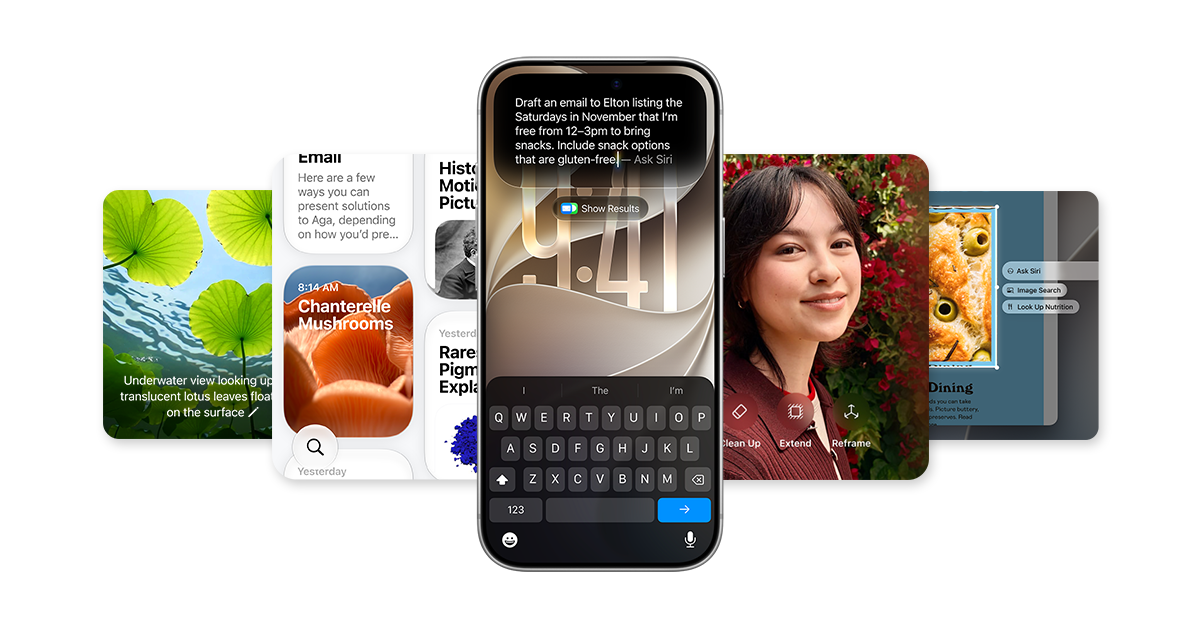
The macOS 27.2 notes say Write with Siri is available right from the new formatting bar when you compose a message in Mail. The Mac User Guide page for Write with Siri gives the mechanics: select the text you want to refine, move the pointer over it or click Write with Siri when it appears, then choose an option or describe the edit. The other route is to activate Siri and just describe the job. Apple's own example requests include writing a three-day New York itinerary, proofreading a recipe, asking how a paragraph sounds, and condensing meeting notes. Follow-up questions stay inside the same Siri conversation.
If you want drafts rather than the settings tour, our earlier October 11 Mac tip walked through writing drafts with Siri AI on macOS 27.
Excluded Apps decides what Siri can read
macOS 27.2 also introduced Excluded Apps, one switchboard for what Siri, Search and suggestions can reach. Go to System Settings, click Siri, click Excluded Apps, then Add Apps and pick from the list. Apple's Customize Siri page notes that every app is included by default, and excluded apps are unavailable to Siri, Search, or suggestions. Useful for banking apps, work chat, or anything you would rather keep out of a voice answer.
EU, mainland China, age 13 and daily limits
Three footnotes matter. Apple says Siri AI is currently unavailable in the EU on iOS, iPadOS and watchOS, and that it is working constructively with the EU on a path forward. The Mac User Guide adds that Apple Intelligence and Siri AI are not available in China mainland, which lines up with Bloomberg's report that Apple Intelligence reaches China in December with iOS 27.3, without Siri AI. Siri AI is not available for users under 13.
Then there is the meter. Apple says certain Apple Intelligence features that rely on server-side models are subject to daily usage limits, Siri AI among them, and that expanded access will be available for a fee in the future. Details sit at support.apple.com/148587. Before calling the feature broken on day one, check whether the Mac language and Siri language actually match.
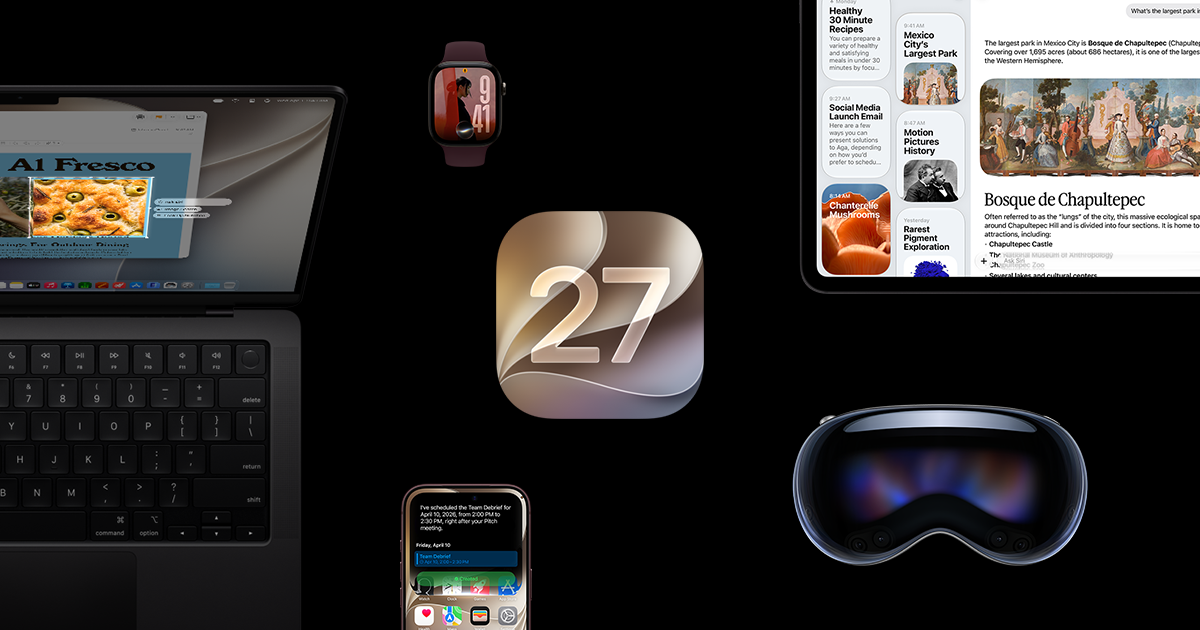
Photo: Apple (Apple-Siri logo, Apple Intelligence and macOS art from apple.com meta images)
Source: Apple Newsroom, Apple Support