Agentic Siri is still over the horizon. Ternus pushed Federighi on AI this week and the answer was as early as next year. What you have in iOS 27 today is already more than most people use. Ten features worth turning on first, with the limits Apple actually lists.
1. Confirm your iPhone meets the device and language bar
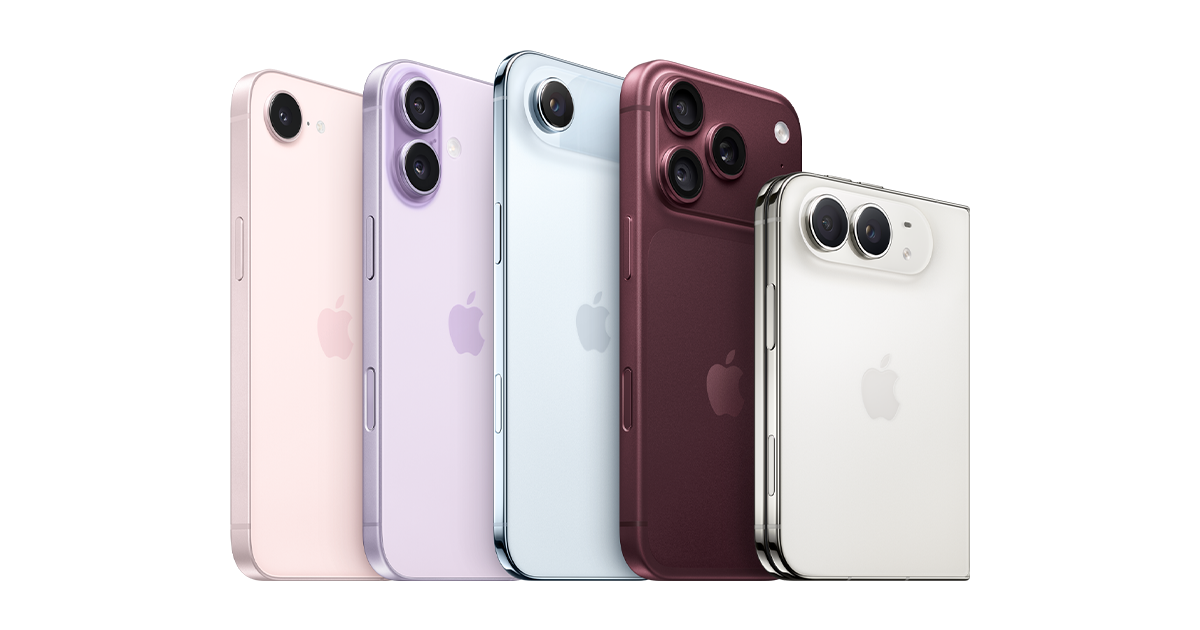
Apple names iPhone Duo, iPhone 16 models and later, iPhone 15 Pro, iPhone 15 Pro Max, and iPhone Air as Apple Intelligence devices on its getting-started support page. The device language and the Siri language must sit on the same supported language, a list that now covers English, Chinese simplified and traditional, Japanese, Korean and more. Change the Siri language and Apple Intelligence can drop out until the new one fully downloads. Devices purchased in China mainland are excluded for now, and Apple lists the same limit when your Apple Account region is China mainland.
2. Draft and proofread with Write with Siri (Beta)
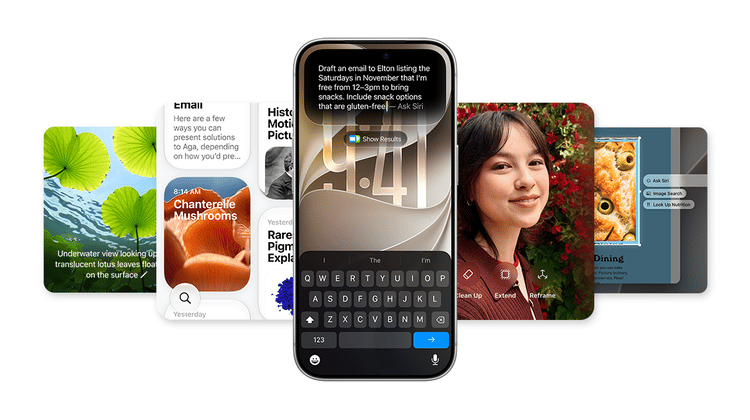
Siri AI (Beta) will draft, rewrite, proofread and give feedback on your text in plain language. Start languages are English, French, Japanese, Korean, Portuguese and Spanish, and Apple lists the beta as not available in China mainland or for users under 13. Daily usage limits may apply. On the Mac the setup steps are in our macOS 27.2 Write with Siri guide, and the wider developer rollout runs through iOS 27.3 beta 1.
3. Point the camera with Visual Intelligence
Hold Camera Control, or press the Action button, the Lock Screen control or the Control Center toggle. Look at a storefront for business info, identify a plant, put a poster straight into Calendar, translate or summarize the text in front of you, or search visually similar images. If Siri AI is on, the camera also shows a Siri button you can tap mid-scene.
4. Screenshot anything, then ask the screen
Press the side button and volume up together. A Visual Intelligence bar opens under the screenshot: search similar items, circle one thing and ask about it, Add to Calendar, open the related website, Summarize the text, or Read Aloud. A flyer or invite becomes a calendar event in one move. Delete the screenshot after, or keep it.
5. Clean Up, Extend, and Reframe in Photos
Open a photo, tap edit, then Tools. Clean Up removes distracting objects and offers Auto, Fast or High Quality processing. Extend grows the background past the original frame, Reframe adjusts perspective. Since iOS 27.2 most images created or edited with these tools carry a SynthID hidden watermark, and Apple points to its SynthID Detector for checking one. Language and region limits apply.
6. Summarize and prioritize your notifications
Settings > Notifications has two switches. Summarize Notifications lets you pick which apps get summarized, useful when a group chat floods the Lock Screen. Prioritize Notifications floats the important ones to the top. On the Lock Screen you can also swipe a prioritized notification, tap Options, and silence one app or the whole feature.
7. Set up a Reduce Interruptions Focus
Settings > Focus, add Reduce Interruptions, then choose which contacts and apps may break through. This Focus reads what a notification says and only lets the ones that look urgent through. Turn on Intelligent Breakthrough & Silencing for any Focus and your explicit allow or silence choices always win.
8. Live Translation in Messages, Phone, and FaceTime
In Messages open the conversation info, turn on Automatically Translate and pick the languages. Your translation appears as you type, and the other person receives the translation plus your original message. In Phone, tap More then Live Translation and Start Translation, which alerts both sides. FaceTime shows live captions instead. Apple's Live Translation page says the feature runs entirely on device; download the language packs in the Translate app first.
9. Writing Tools wherever you type
Select text and open Writing Tools: Describe a change, Rewrite in Friendly, Professional or Concise tone, Proofread, Summarize, Key Points. It works in most third-party apps and websites too. With the ChatGPT extension on, Compose sends your prompt out to ChatGPT, so check anything important before you send it. The full menu is in Apple's Writing Tools guide. More settings for these tools are in our Apple Intelligence writing and privacy controls roundup.
10. Genmoji, Image Playground, and memory movies
Open Genmoji on the keyboard and describe an emoji or make one from a photo. Image Playground builds Animation or Sketch style images from a description, and Messages can use it for conversation backgrounds. Photos makes a memory movie from a short description, and Image Wand in Notes turns a rough sketch into an image. The creative tools are the ones most likely to hit usage limits.
Photo: Apple. Source: Apple Support pages 121115, 123720 and the iPhone User Guide.