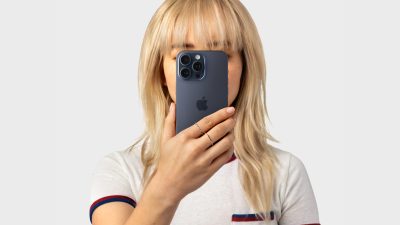
You need a screenshot. Or Control Center. Or Mute. Your thumb is already on the back of the phone. Both hands are busy holding bags. The side buttons feel like a reach.
Back Tap is under Accessibility. Double-tap or triple-tap the rear glass, and iPhone runs the action you picked. Apple’s guide for the control is listed as Back Tap (iphaa57e7885) in the iPhone User Guide for current iOS.
It is not a new button. The phone listens for a firm double or triple tap on the back. Soft case taps still work on most models. A thick folio can mute the hit, so test once after you set it.
Path for Back Tap on iOS 27
Open Settings. Tap Accessibility. Tap Touch. Scroll to Back Tap. You get two rows: Double Tap and Triple Tap.
Tap Double Tap. Pick an action. Screenshot is the common first pick. Control Center, Lock Screen, App Switcher, Mute, Spotlight, and a long list of accessibility toggles sit in the same menu. Scroll further and you also see Shortcuts you already saved.
Tap Triple Tap if you want a second action. Keep Double Tap for the daily move. Park the rarer one on Triple Tap so you do not fire both by accident.
What Back Tap actually does
Back Tap does not open Accessibility every time. It fires the one action you assigned. Screenshot captures the screen and drops the usual thumbnail. Control Center opens the same sheet you get with a swipe. A Shortcut runs end to end, the same as tapping it in the Shortcuts app.
The tap has to land on the back of the iPhone body. Tapping the screen does nothing here. Tapping a MagSafe wallet stuck on the back can feel duller. If nothing happens, remove the wallet for a second and try again.
Models with Face ID support Back Tap. Apple documents the feature under Accessibility mobility controls, next to AssistiveTouch and Reachability. You do not need AssistiveTouch on for Back Tap to work.
Useful Double Tap and Triple Tap pairs
A simple pair: Double Tap for Screenshot, Triple Tap for Control Center. That covers capture and quick toggles without reaching for buttons.
Another pair: Double Tap for Mute, Triple Tap for a Shortcut that opens Notes or the camera. Handy when you drop the phone face-up on a desk and still want silence.
If you already lock or hide an app with Require Face ID, Back Tap will not bypass that lock. Opening a hidden app still asks for Face ID. Stolen Device Protection rules still apply the same way as in the Stolen Device Protection tip.
One common mistake
People set Double Tap and Triple Tap to nearly the same action, then wonder why taps feel random. Space them out. One system control. One Shortcut. Or leave Triple Tap on None until you need it.
Another miss: assigning Screenshot, then tapping lightly through a heavy case. The hit needs a short, firm double. If the phone is in a bag pocket, a bump can also fire it. Move Screenshot to Triple Tap if bag taps keep saving junk images.
When the screen is frozen and buttons ignore you, Back Tap will not save the day either. Use the force restart path for a hard lockup. Back Tap needs a responsive system.
Quick check after you set it
Leave Settings. Double-tap the back. Confirm the action runs. Triple-tap if you set that row. Open Settings > Accessibility > Touch > Back Tap again if you want to swap actions or set a row to None.
For text timing tips in Messages, the site’s Send Later walkthrough sits next to this one in How-To. Same weekday voice, different control.
Photo: Apple Newsroom Accessibility features / iOS Home Screen customization
Source: Apple Support — Tap the back of iPhone to perform actions or shortcuts (iphaa57e7885)