In iOS 27 you can pin Camera tools above the camera frame, and the tools you use most stay one tap away in photos and videos. Apple documents the path for every iPhone running iOS 27, not only the Pro models. The Pro controls are the iPhone 18 Pro part of the story. The tools menu itself is part of the customizable Camera UI that arrived in iOS 27. Below is the exact path, what each Pro control does, and the one place Settings remembers your aperture.
Pin camera tools above the frame in four taps
The path is in Apple's Use iPhone camera tools guide, and the screenshots there name the control the Camera Controls button.
- Open Camera on your iPhone.
- Tap the Camera Controls button. Apple also describes opening the menu by tapping or swiping up from the camera modes at the bottom of the screen.
- Tap Edit to reveal the tools.
- Tap a tool in the menu to add it above the camera frame. To remove one, tap the Minus button next to a tool above the frame.
Then tap Done, and swipe down on the tool menu to close it. On iPhone Duo the pinned tools sit on the side of the frame instead of above it. Flash and Live Photo already appear above the frame for quick access, so the row is never empty. Ben Lovejoy at 9to5Mac keeps aperture, shutter speed, white balance, exposure compensation and the histogram up there on his iPhone 18 Pro, plus frame-rate and focus controls in video. That is one reviewer's layout, not an Apple default.
Reset to Essentials puts the default tools back
One tap on Reset to Essentials in the Edit menu returns the tools above the frame to the default set. Your custom layout is gone after that. Treat it as the undo of last resort, not a cleanup button.
iPhone 18 Pro Pro controls: aperture, shutter speed, white balance, histogram
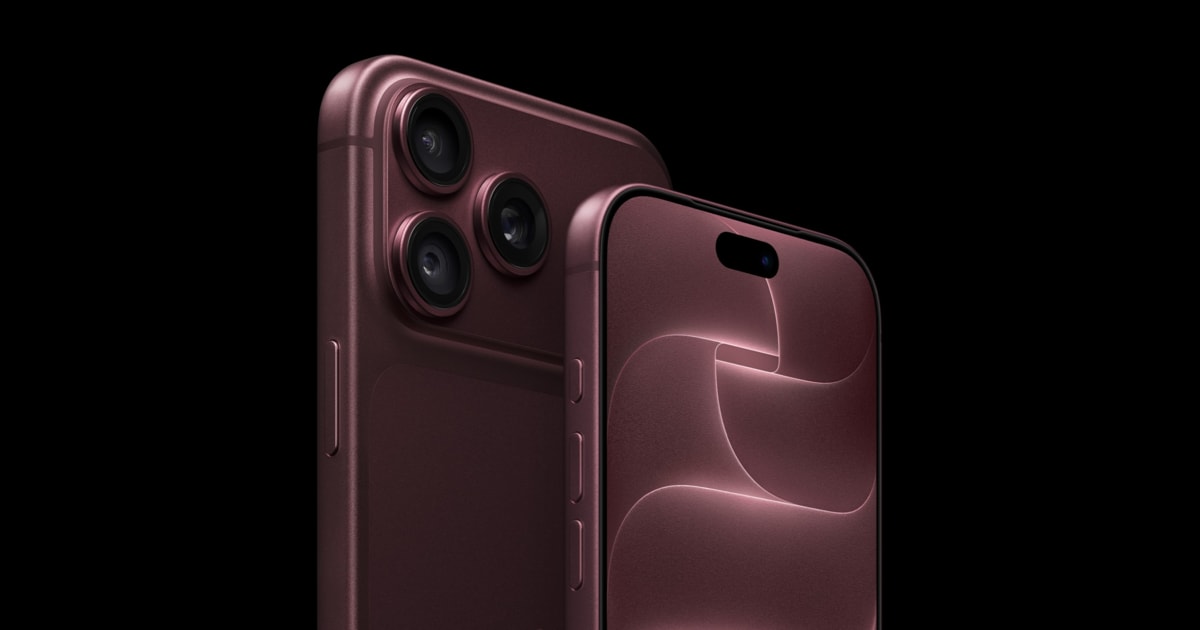
These four are the Pro controls Apple added for iPhone 18 Pro and iPhone 18 Pro Max. On those models the Main camera sets aperture, shutter speed and white balance automatically, and you can set them manually in Photo, Video, Cinematic, Slo-mo and Time-Lapse modes. Apple's advanced camera tools guide has the path: open Camera, tap the Camera Controls button, then tap Lens Aperture, Shutter Speed or White Balance. Or pin the control above the frame first, then tap it there.

For Lens Aperture or White Balance, tap the value you want. For Shutter Speed, drag the slider. Histogram is its own control. Open it to check exposure across the frame while you compose, or pin Histogram above the frame and tap it. Keep the availability straight. Pinning tools is documented for every iOS 27 iPhone. The four Pro controls are not.
Only Lens Aperture has a Preserve Settings switch
Want the aperture to survive closing Camera? Go to Settings > Camera > Preserve Settings and turn on Lens Aperture. Apple describes it as saving the last aperture setting you used, on iPhone 18 Pro models. Exposure Adjustment, which saves the exposure control on iPhone 11 and later, sits beside it in the same list. Apple's Save camera settings page lists no Shutter Speed, White Balance or Histogram switch as of November 15, 2026. Nothing in that list keeps those three.
This is not the Camera Control side button
Tool pinning lives inside the Camera app only. The Camera Control side button on supported models has its own path, Settings > Camera > Camera Control, and our tip on customizing the Camera Control button covers opening Magnifier or Code Scanner with it. The camera tools guide also mentions a light double-press of Camera Control for adjusting exposure on supported models. That one is a press of the hardware button. It is not a pinned tool.
Pinning takes a minute to set up and you stop noticing it by the next day. Put the Pro controls up there if you have an iPhone 18 Pro, keep Flash and Live Photo where they are, and leave the rest in the menu. For the wider Camera setup, see 10 iPhone Camera settings to check before your next shoot.
Photo: Apple (iPhone 18 Pro press images) / Source: Apple Support, 9to5Mac