HomeView Siri is the top complaint two days after the November 13 launch. Owners report timers that will not start, music that will not play, volume that will not move, and in one hands-on video a reported "I can't set alarms on this device" reply. Before you treat any of that as broken hardware, walk Apple's documented paths in order: Siri and Siri AI (Beta) setup, multi-device listening, recognition, connectivity, Software Update, then Restart. None of these steps will make a beta assistant stop fumbling basics. They do rule out the settings problems that look identical from the couch.
What HomeView owners and reviewers actually reported
The loudest post is @talkaboutdesign's launch-weekend video. "This thing is a joke. Siri is a joke." It reached 1,368,962 impressions, 6,180 likes, and 150 quote posts at last count. Joe Rossignol's quote-tweet, "Apple should be embarrassed.", stands at 766,236 impressions. Joanna Stern's review clip drew 198,565, and Michael Weinbach's one-day report 130,224. Paul Solt wrote "HomeView is NOT polished" (29,869 impressions), naming a bad photo picker and overlapping timers. A separate "Hey Siri, play Hamilton" miss drew 21,203. One follow-up post said a reset on Software 27.2 left "Siri has not been working at all" for two hours. That is a user report, not an Apple statement. Apple's System Status page listed every service available on November 15, so this is not a server outage. We collected the review round in our news brief on the early HomeView Siri complaints.
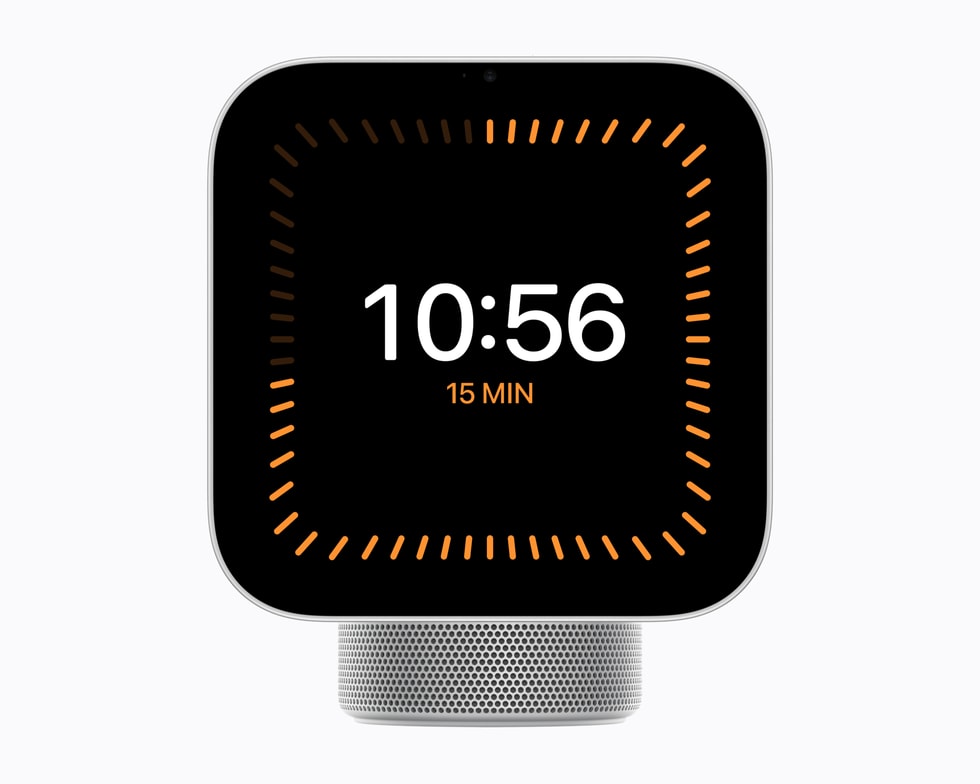
HomeView Siri setup: Listen On, Listen For, and the beta toggle
On the device, open the Settings app and tap Siri. Three controls matter. Listen On turns on Siri for HomeView and HomePod devices in your home. Listen For picks the activation phrase or phrases. Voice changes the voice. You can also activate with "Siri" or "Hey Siri," or swipe down from the top edge of the screen. An orange light at the top right means the microphone is in use. Apple's own example requests include "Set an alarm for 7 a.m." and "Set the timer for 3 minutes.", so an alarm refusal is not a documented limitation. Apple's turn on and activate Siri guide has the full list.
Siri AI is beta in HomeView Software 27.2. The home owner turns it on in Settings > Siri on their primary device, under "Try Siri AI (Beta)." Personal content requests need more setup. Each person turns on Siri AI and flips on Personal Content in the Home app, plus a paired iPhone or iPad with Apple Intelligence, running the latest software. HomeView and Siri AI on HomeView are not available in the EU, and Apple warns server-side Apple Intelligence features may have daily usage limits.
Wrong device answering, and the "Device Not Found" message
Apple says nearby devices use Bluetooth to decide which one responds. The winner is the device that heard you best or was recently raised or used, and HomeView and HomePod respond first to most requests even with other devices nearby. If the wrong one keeps jumping in, How Siri works with multiple devices lists the fixes: turn Bluetooth on and keep devices in range, update every device to current software, lay the iPhone or iPad face down, close a Mac lid or turn off "Allow Siri when locked," and on HomeView swipe down from the top, say "Turn off Hey Siri," then turn it back on in Settings: tap Siri and then tap Requests.
Two other messages have their own page. "Device Not Found" or "Unable to Connect" means the paired, powered-on iPhone or iPad was not detected or not recently authenticated. Apple's connectivity checklist says: update the companion device to iOS 27.2 or iPadOS 27.2 or later, sign in to your Apple Account, turn Bluetooth on, and join the same Wi-Fi network as HomeView. Languages must match too. HomeView Siri is English only for now. Apple says Spanish support is to come.
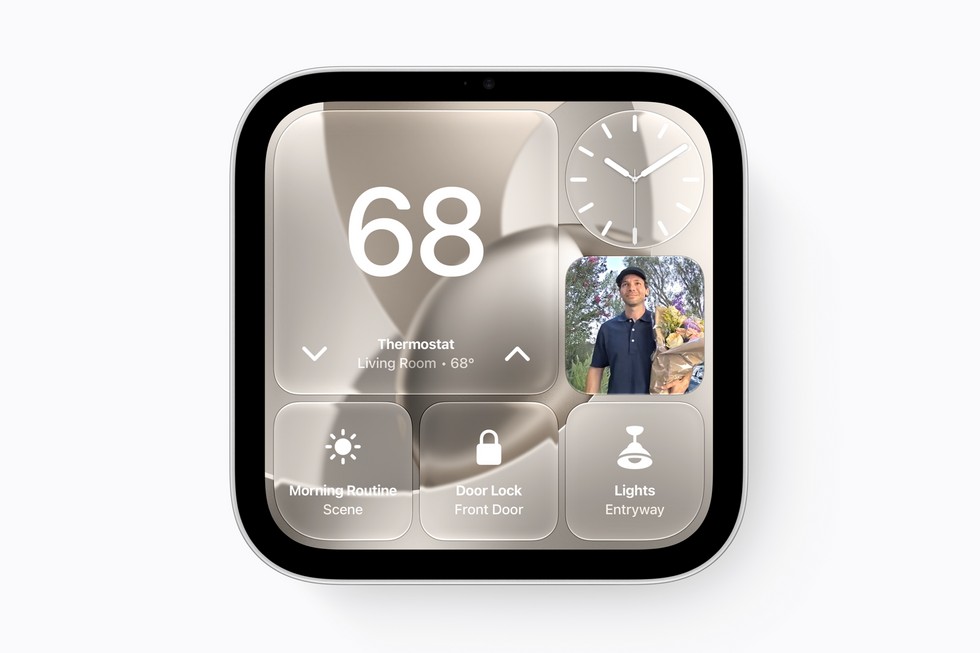
Update to HomeView Software 27.2, then restart
HomeView installs updates automatically by default, but it is worth checking. On the paired iPhone or iPad, update that device to iOS 27.2 or iPadOS 27.2 or later first. Open the Home app, tap More, then Home Settings, then Software Update, and tap Update Now if anything is offered. On HomeView itself: Settings > System > Software Update > Update Software, then Download and Install when ready. Keep HomeView connected and plugged into power until it finishes. Apple's software update page for HomeView covers both paths. HomeView Software Version 27.2 (24V526) is the current official train as of November 15, 2026. It shipped with nine security fixes. There is no newer official seed, whatever a forum thread claims.
Still stuck? Restart. Settings > General > Restart. If HomeView does not respond at all, disconnect it from power, wait 15 seconds, and plug it back in. If setup itself hung earlier on the 26.5 to 27.2 jump, our earlier setup-stuck fix covers that case.
These steps fix setup, recognition, connectivity, and update problems. They do not fix the quality complaints in the reviews, and Apple has published no fix for those. If HomeView Siri still misses timers and songs on 27.2 after a clean restart, the remaining problem sits on Apple's side.
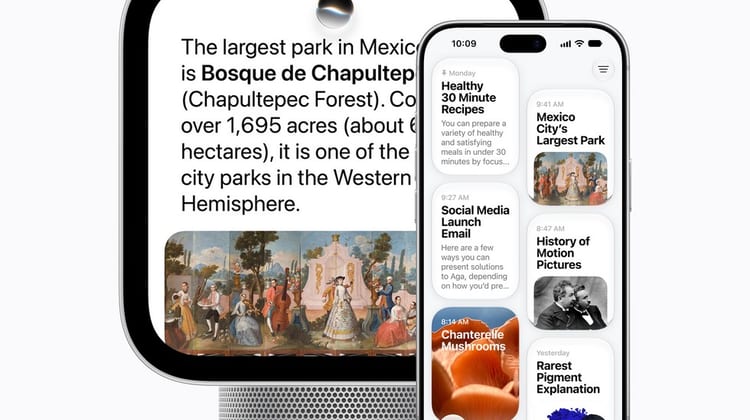
Photo: Apple Newsroom. Sources: Apple Support (105077, 127246, 149085) and the HomeView User Guide.