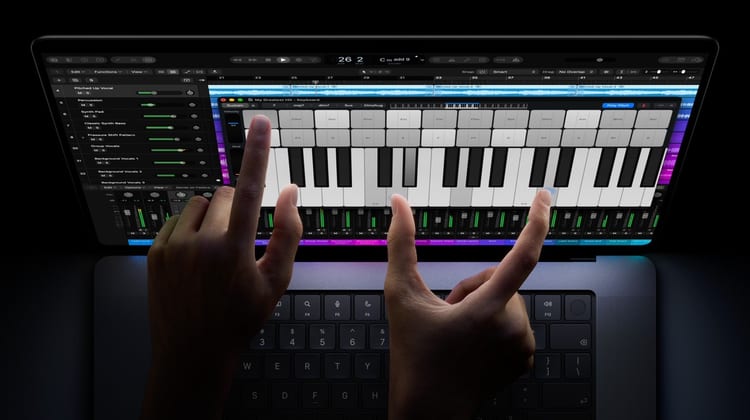
Fingers keep landing on the screen and macOS registers taps you did not mean. You want to disable the MacBook Pro touchscreen, at least for a while. Apple's documented off switch is one toggle: Ignore Touch Gestures, inside Accessibility. This guide gives that path first, then the Touch Display pane for turning off one gesture at a time, then the Touch Accommodations controls for mis-taps. Every menu path below was checked against Apple's support pages on November 10, 2026. The machine itself is new. It is Apple's first touchscreen MacBook Pro, announced October 28 with touch as a headline feature of the PROLED XDR Display, and it only shipped on November 6 with launch coverage tracking the early reviews.
Apple's off switch for touch input is Ignore Touch Gestures
Open the Apple menu and choose System Settings. Click Accessibility in the sidebar. You may need to scroll down. Select Touch, then turn Ignore Touch Gestures on. Apple's Mac User Guide describes this as turning touch input on or off. The PROLED XDR touch gestures guide lists it under "Turn off touch input". Turn the toggle off again when you want touch back.
Two limits to know. 9to5Mac's November 9 how-to says the Mac then ignores all touches except the setting toggle itself, so you can still switch touch back on. Apple's own pages do not state that exception. The same how-to says the toggle also affects touch with Sidecar. Apple's pages are silent on that too.
Touch Display settings turn off one gesture at a time
If only one gesture keeps firing, do not kill all touch. Choose Apple menu > System Settings, then click Touch Display in the sidebar. Each option can be turned off or changed with its pop-up menu.
| Option | Default gesture | Change |
|---|---|---|
| Swipe between pages | Swipe left or right with one finger | Turn off |
| Swipe between spaces | Swipe left or right with three fingers | Four fingers, or Off |
| Mission Control | Swipe up with three fingers | Four fingers, or Off |
| App Exposé | Swipe down with three fingers | Four fingers, or Off |
| Notification Center | Swipe left from the right edge | Turn off |
| Show Apps in Spotlight | Pinch with thumb and three fingers | Turn off |
| Show Desktop | Spread with thumb and three fingers | Turn off |
The PROLED gestures guide lists more defaults than this table, including edge swipes and a swipe over the Dynamic Island. The Touch Display pane is where they change. If you are still deciding between display models, our PROLED vs Mini-LED buyer's guide covers the differences.
Touch Accommodations fixes mis-taps without killing touch
Accidental input is often repeat taps or a hand resting near the glass. In System Settings > Accessibility > Touch, click Set up next to Touch Accommodations and follow the instructions. Click Advanced for the controls that matter here. Hold duration ignores clicks and swipes that land inside a set time. Ignore repeat drops repeated touches inside a duration. Tap assistance registers the first or the last place you touch, with a timeout you set. Swipe gestures sets how far a swipe must move before it begins. Below Touch Accommodations sits Recalibrate, if the display misreads your taps. Apple lists this path for the PROLED XDR display or a connected iPad using Sidecar, in the Touch Accommodations guide.
Apple has not confirmed Sidecar and wake behavior
Three gaps in the documentation as of November 10, 2026. One: whether Ignore Touch Gestures also silences touch on a Sidecar iPad. Apple documents Touch Accommodations and AssistiveTouch for the PROLED display or a Sidecar iPad, and Sidecar itself in HT102597, but the off-switch pages say nothing. Test it with your iPad before you rely on it. Two: the wake-on-touch control. The Touch Accommodations page says you can stop the display from waking when you touch it or the connected iPad, but it does not name the toggle. Three: the "toggle keeps working" exception above, which comes from 9to5Mac and not from Apple.
Start with Touch Display when one gesture annoys you. Reach for Ignore Touch Gestures when the whole screen keeps answering your fingers.
Photo: Apple · Source: Apple Support, 9to5Mac