We previously reported on the new features of the camera in iOS27, but the latest iOS27 RC (release candidate version) has implemented a customization feature that allows you to freely arrange the controls displayed in the camera app.
We will explain how this update changes the traditional shooting experience, including usage scenarios specific to iPhone users.
*The content of this article was confirmed using the iOS27 RC version and may be changed or deleted upon official release.
Why did you open up the camera UI at this timing?
Have you ever held up your iPhone’s camera and found yourself wanting to set the timer, but it was deep in the menu, or wanting to quickly lower the exposure, but having to tap too many times and missing the photo opportunity?
In recent years, iPhone cameras have become extremely versatile, including night mode, photography style, and portrait blur adjustment, but the problem has been that the on-screen control hierarchy has become deeper, making it difficult to operate intuitively.
Up until now, Apple has pursued “simplicity” in the UI of the camera app that anyone can use without getting confused. However, with the dramatic improvement in camera performance centered on the Pro series, a gap began to appear between the simplicity of the standard app and the degree of freedom in settings desired by users.
There are two main technical and strategic reasons for this UI opening.
“Professionalization” of standard apps
Until now, users seeking advanced manual control had to use third-party camera apps. It seems that the aim is to prevent heavy users from leaving by allowing them to freely configure the UI in the standard app.
Enhanced cooperation with physical buttons
This is likely to clarify the role of physical buttons such as action buttons and camera controls that have been added to the iPhone in recent years, and the on-screen touch UI. It is designed to allow users to instantly start up and quickly change settings, optimizing the flow of the system to suit their preferences.
Initially, there was a view that this feature would be exclusive to the latest iPhones, but the fact that it was eventually opened to all models compatible with iOS 27 shows Apple’s strong intention to unify the user experience.
Customization procedures and basic functions that enable quick shooting
The setting method is very simple and can be operated intuitively, just like rearranging widgets on the home screen.
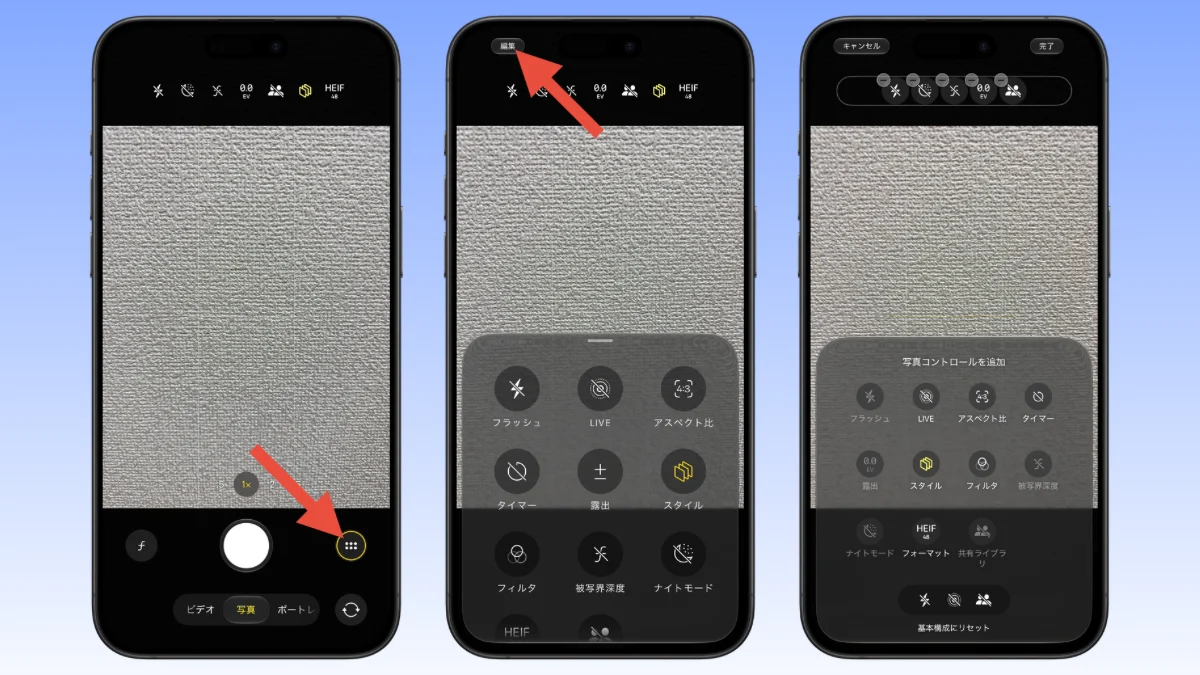
- Open the camera app and tap the “6 circle icon” at the bottom right of the screen.
- Select Edit in the top left.
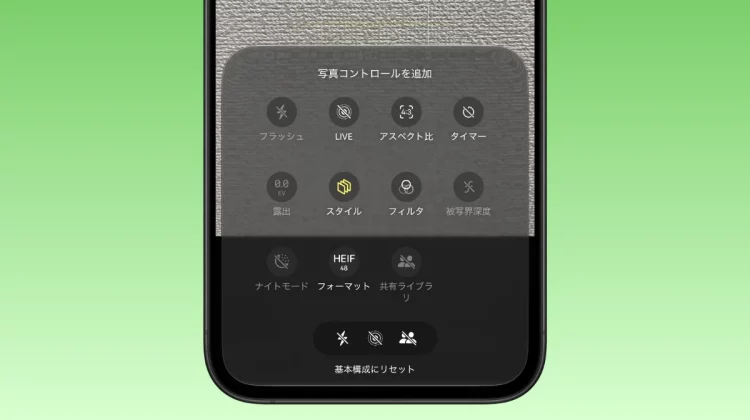
- You can add frequently used functions by tapping them from the “Add Photo Control” tray, rearrange them by dragging them on the top toolbar, or remove them by tapping the “-” icon.
The controls that can be placed range from basic items such as “flash”, “aspect ratio”, “timer”, and “exposure” to advanced settings such as “Live Photos”, “Photograph Style”, “Depth of Field”, “Night Mode”, “Format (RAW switching)”, and “Filters”.
In addition, “Photograph Style” and “Format” are designed to be displayed on the right end even if they are deleted from the toolbar.
Even if you get confused about the settings, you can rest assured that you can immediately return to the initial state (flash, Live Photos, shared library) by clicking the “Reset to basic configuration” button at the bottom.
Recommended layout patterns tailored to Japanese usage scenarios
We offer three recommended screen layouts that match the usage environment and shooting trends of iPhone users in Japan.
| style | Control to place | merit |
|---|---|---|
| Daily life/SNS | Live Photos / Aspect Ratio / Exposure | With just one tap, you can take silent photos at cafes (using Live Photos) and change the aspect ratio for posting on SNS. |
| Food/table photo | Depth of field/exposure/filter | You can take stress-free photos of your food by adjusting the exposure compensation to remove shadows from your food and instantly adjusting the blur in the background. |
| Night view/event | Night mode / timer / format | You can easily set a timer to prevent camera shake and manually switch to night mode when shooting with illumination. |
With Live Photos, the shutter sound changes, allowing you to take pictures more quietly than the normal shutter sound. Furthermore, by using the timer function, you can prevent camera shake when tapping the shutter button.
Especially in Japan, there is a tendency to place emphasis on “quietness” and “immediate posting on SNS.” Customization that always displays “Live Photos” and “Aspect Ratio” at the top of the screen should make your daily shooting experience very comfortable.
Should I buy a new iPhone?
In conclusion, there is no need to upgrade to iPhone 18 Pro or iPhone Duo just for this UI customization feature. If you have an iPhone that can be updated to iOS27, you can use the UI customization feature, which can greatly improve camera operability.
- Standard model users: Even if the model has few physical buttons, by optimizing the on-screen UI, you can achieve operation speed comparable to the latest models.
- Pro series users: By always displaying ProRAW switching and depth of field control on the toolbar, you can further enhance the feeling of operating the camera as a professional device.
Never miss a photo opportunity with your own “fastest camera”
The iPhone camera has become too multi-functional, but this customization feature is an update that can be said to be a return to the basics of simplicity, “putting only the settings you really need right in front of you.”
It has been confirmed that iOS27 will be officially released on September 15th. When the official version of iOS27 is released, first open the camera app and try creating your own “fastest shooting layout”.
Source: iPhone Mania