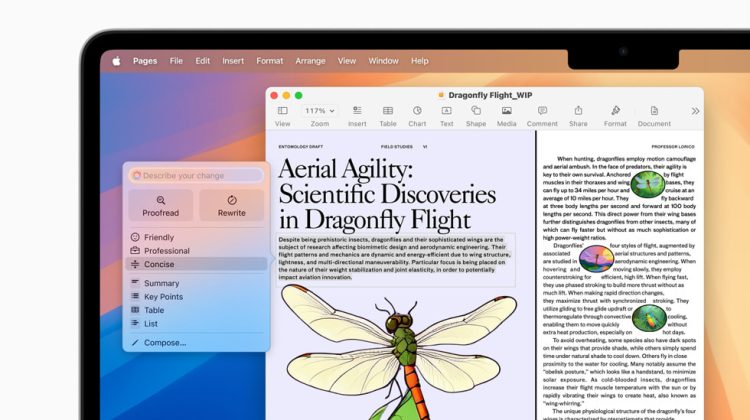
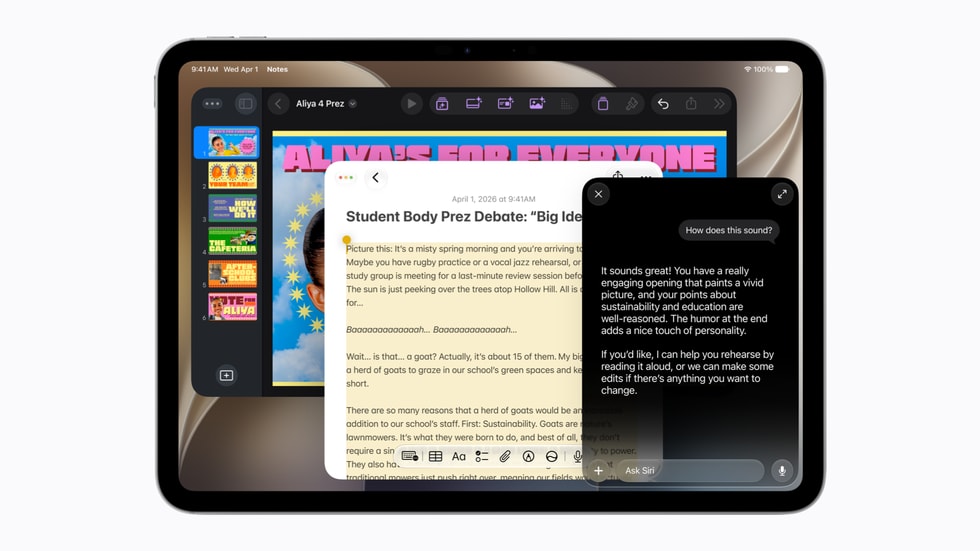
Apple Intelligence Writing Tools sit inside the apps you already type in. Mail, Notes, Pages, Safari forms, and many third-party text fields. You select words, open Writing Tools, then Proofread, Rewrite, or Summarize. No separate chat window. That is the difference from Claude Desktop and the earlier note on ChatGPT with Apple Intelligence.
Apple says Writing Tools work in most places you write, including websites. Apple Intelligence on macOS 27 is not available in every language or region. Usage limits may apply.
Turn on Apple Intelligence first
Open System Settings. Click Apple Intelligence & Siri in the sidebar. Turn on Apple Intelligence if the switch is off. Compatible Apple silicon Macs and a supported language setting are required. If the menu is missing, the Mac model or the region language pair is not supported yet.
Keep device language and Siri language on a supported option. Apple lists Chinese (Simplified and Traditional), Danish, Dutch, English, French, German, Italian, Japanese, Korean, Norwegian, Portuguese, Spanish, Swedish, Turkish, and Vietnamese among the Apple Intelligence language set.
Open Writing Tools in any text field
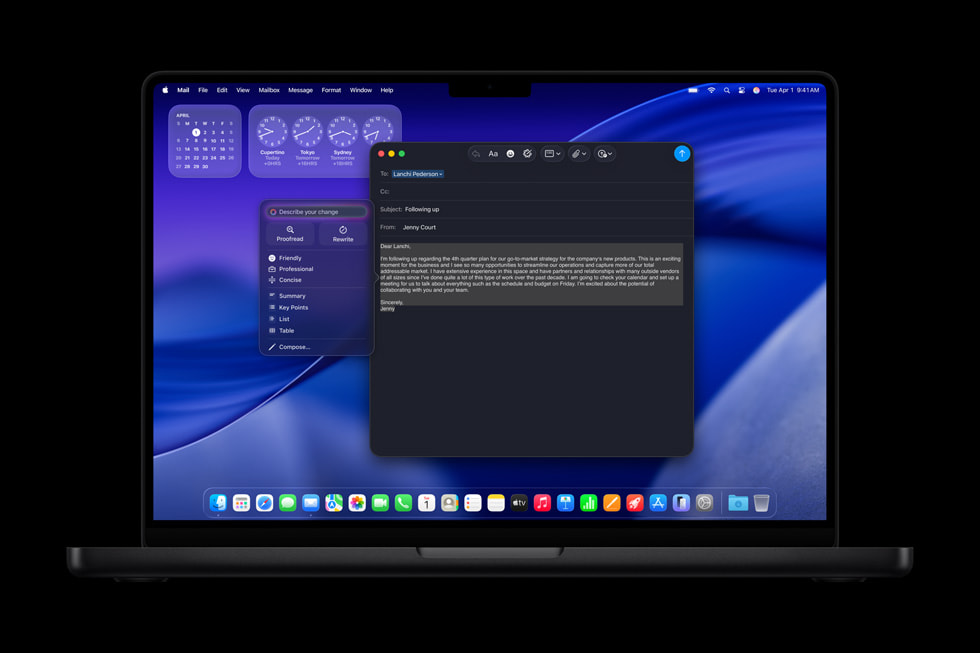
Select the paragraph you want to change. Control-click the selection. Choose Writing Tools, then Show Writing Tools. In some apps such as Notes and Mail, you can also hover the selection and open Writing Tools from the floating controls.
The panel lists the main actions. Proofread. Rewrite. Friendly, Professional, or Concise tone buttons. Describe a change. Summary and Key Points. You stay inside the document. The rewritten text appears inline when you accept it.
Proofread, Rewrite, and Summarize
Proofread checks grammar and spelling. Apple underlines suggested fixes with a glowing line. Scan each change before you keep it.
Rewrite produces a fresh wording of the same selection. Use Friendly, Professional, or Concise when the audience changes. Or click Describe a change and type a short instruction, for example make this more direct.
Summary and Key Points shrink long notes or emails. Apple also documents List and Table when you need the text reorganized rather than shortened.
Click Done when the result looks right. If the rewrite drifts, run Rewrite again or paste the original back from Undo.
Compose needs the ChatGPT extension
Compose writes new text from a blank prompt. Apple routes that path through the ChatGPT extension, not the on-device Writing Tools models alone. Set it up under System Settings, open Siri in the sidebar, click ChatGPT, then Set Up. You can enable ChatGPT without an account, or sign in to keep history on OpenAI side.
For day-to-day edits that should stay in Apple stack, stick to Proofread and Rewrite. Use Compose only when you want a full draft from a description. Keep local runners when text must never leave the Mac: Ollama on Apple silicon or LM Studio.
Photo: Apple
Source: Apple Support – Use Writing Tools with Apple Intelligence on Mac; Use Apple Intelligence on your Mac; Turn on ChatGPT on Mac; Apple Newsroom (MacBook Air Writing Tools, MacBook Pro Rewrite, macOS 27 Write with Siri)