On X this week people still search Downtime and App Limits. Those names do not match iOS 27. One post maps Downtime to Screen Time Schedule, App Limits to Time Allowances, and the passcode path to Manage Screen Time, then Lock Screen Time Settings. Apple’s menus match that. Here are 10 Screen Time settings to check when old guides fail, or when social apps still eat the evening.
1. Turn on App & Website Activity
Open Settings, then Screen Time. Tap Screen Time Schedule, Time Allowances, or Manage Screen Time, and choose Turn On App & Website Activity. Without that switch, schedules and allowances do not run.
Apple’s setup path is in Set up Screen Time for yourself. A Screen Time widget on the Home Screen shows use without digging into Settings.
2. Screen Time Schedule, not Downtime
Still under Screen Time, open Screen Time Schedule and turn on Schedule. Add a schedule for weekdays or weekends. Each time window gets a name, start and stop times, and which Time Allowance categories stay available.
That is the iOS 27 replacement for Downtime. Work, dinner, and evening windows sit side by side. Always Allowed stays reachable from the same time window screen.
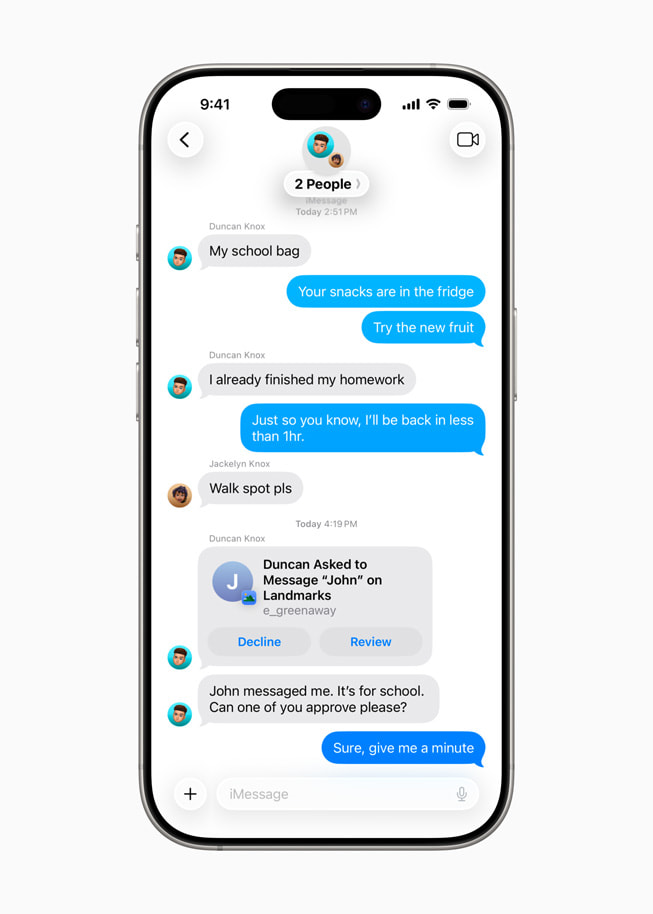
Photo: Apple
3. Time Allowances for Entertainment, Games, Social Media
Tap Time Allowances. Drag the daily total, or open a category and set its own limit. Entertainment, Games, and Social Media are the starting buckets. Manage Categories lets you add more or see average daily use per app.
Apple explains the model in Set Screen Time Schedules and Time Allowances. If an app declares a matching website, the allowance covers both.
4. Match Screen Time Schedule
Inside Time Allowances, turn on Match Screen Time Schedule when you want category limits to follow the windows you built. Without it, allowances run as a flat daily pool.
Tap a time window name under Time Allowances to see what you already attached. Small mismatch here is why people say “I set a limit but TikTok still opens after dinner.”
5. Always Allowed apps and contacts
Open Always Allowed. Add People or Add Apps for anything that must work in every window, even when other categories are blocked. Phone, Messages contacts, or Health are common picks for emergencies.
Edit removes an entry. Always Allowed is separate from Focus allow lists. For alert breakthroughs after quiet hours, see our 10 Focus and Do Not Disturb settings list.
Photo: Apple
6. Lock Screen Time Settings passcode
Tap Manage Screen Time, then Lock Screen Time Settings. Enter a four-digit code twice. After that, changing schedules or allowances asks for the code first.
Steps are in Create, change, or remove a Screen Time passcode. You can enable Screen Time Passcode Recovery with your Apple Account if you forget it. Change or turn off the code later under Change Screen Time Passcode.
7. Share Across Devices
Manage Screen Time also holds Share Across Devices. Turn it on when every Mac, iPad, and iPhone on the same Apple Account should share the same schedules, allowances, and combined report.
Apple says those devices need version 27 or later for the redesigned Screen Time features. Turn the switch off if one laptop should stay free of phone limits.
8. Daily Average, Pickups, Notifications
From Screen Time, tap Daily Average. Switch Week or Day. Scroll for Pickups and Notifications. Swipe the charts for history.
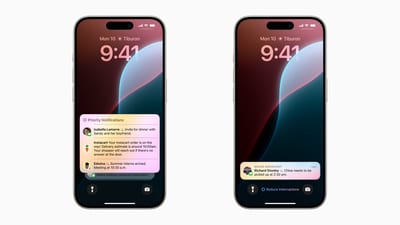
The weekly report notification lands in Notification Center if you missed the banner. Use the numbers before you tighten a Social Media allowance. For alerts that vanish instead of stack, check 10 iPhone notification settings.
9. Content restrictions and Communication Limits
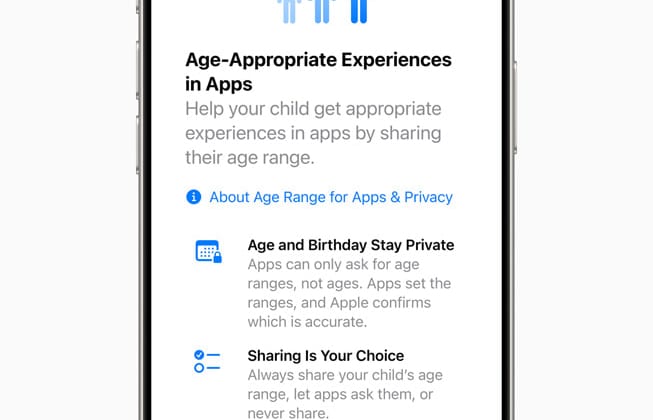
Screen Time still holds content and privacy controls, plus Communication Limits for who can call or message during allowed times. Family Child Accounts lean on the same area for approvals and age ratings.
Apple’s child-safety note on Time Allowances is About Time Allowances. For adult Focus silence that is not a hard app block, schedule Do Not Disturb in schedule a Focus so Do Not Disturb turns on by itself.
10. Pair Screen Time with Focus, not instead of it
Screen Time caps minutes and windows. Focus filters which alerts break through while you work or sleep. Use both when social apps burn time and keep pinging.
Action Button can jump into a Focus without opening Settings. We covered that path in set the Action Button for Flashlight, Focus or a Shortcut. Old Downtime guides will keep failing until the menus say Schedule and Time Allowances.
Photo: Apple
Source: Apple Support (Screen Time for yourself, Schedules and Time Allowances, Screen Time passcode), Apple Support child safety (Time Allowances), Apple Newsroom, X