Apple released HomeView Software 27.2 on October 30, about two weeks before the HomeView hub launch on November 13. Inside the update sit the device's 20 default wallpapers. 9to5Mac posted the full set the same evening, a light file and a dark file for every design. On the iPhone these are plain image files. Save them and they land in Photos like any screenshot.
HomeView 27.2 put the wallpapers out before the hardware
Apple did not post a wallpaper download page of its own. The set arrived inside the HomeView 27.2 build, numbered 24V514, which Apple pushed early for its smart home hub. MacRumors counted 20 default designs in a range of colors. The device itself is still preorder, $299, shipping November 13. None of that matters for the wallpapers. A download link and the Photos app are enough. The same trick worked for the official iPhone Duo wallpaper sets earlier this month.
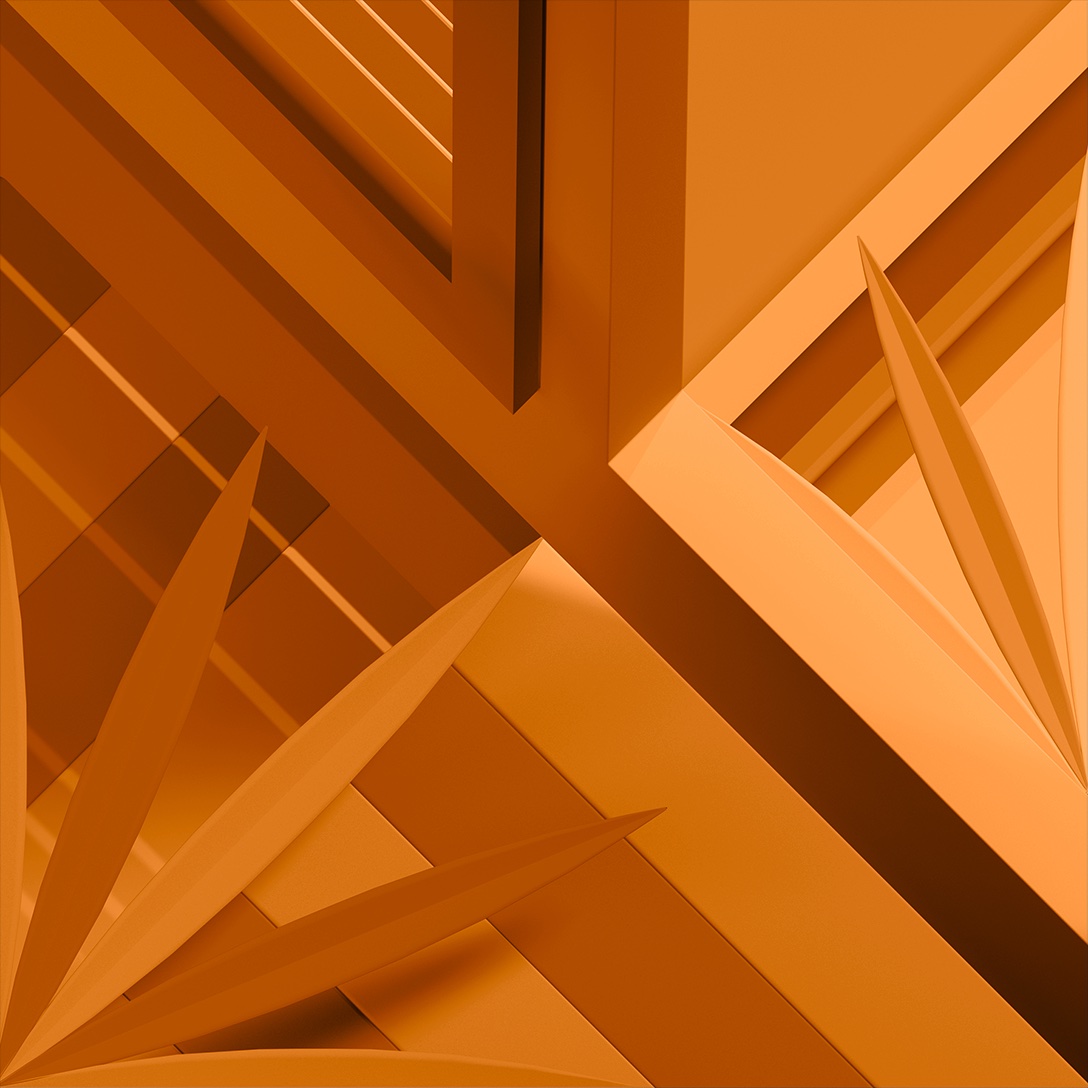
Save the full-size wallpaper, not the small preview
9to5Mac and iClarified host the files as full-size images in one gallery page. In Safari, touch and hold the wallpaper you want, then tap Add to Photos or Save Image. The trap is the preview. Gallery thumbnails look sharp enough on screen and save at the wrong size. Touch and hold on the opened image itself. Check in Photos afterward that the picture fills the frame.
Settings > Wallpaper > Add New Wallpaper > Photos is the path
Apple's support document for changing an iPhone wallpaper lists the steps. Open Settings, tap Wallpaper, tap Add New Wallpaper, tap Photos, then pick the saved HomeView image. Tap Add. Set as Wallpaper Pair puts the same picture on the Lock Screen and the Home Screen. Customize Home Screen builds a separate Home Screen version instead.
There is a second route from the Lock Screen itself. Touch and hold the screen to open the wallpaper gallery, then tap the + button. The gallery also carries Customize for widgets, clock style, filters and controls, and a Focus button to link a wallpaper to a Focus mode. More on the gallery options is in our Lock Screen and Home Screen customization walkthrough. One note: the HomeView pack does not appear as a category inside Settings. These are downloaded photos, and Photos is where the picker finds them.
The 1088 by 1088 square needs a crop on a tall screen
The files are 1:1, exactly 1088×1088 pixels. An iPhone screen is not. Pinch and drag during setup to choose what survives. Gradient and environment designs lose their corners easily when the crop sits wrong. What looked complete in the download can arrive on the Lock Screen with its edges cut off. Look at the result before tapping Add.
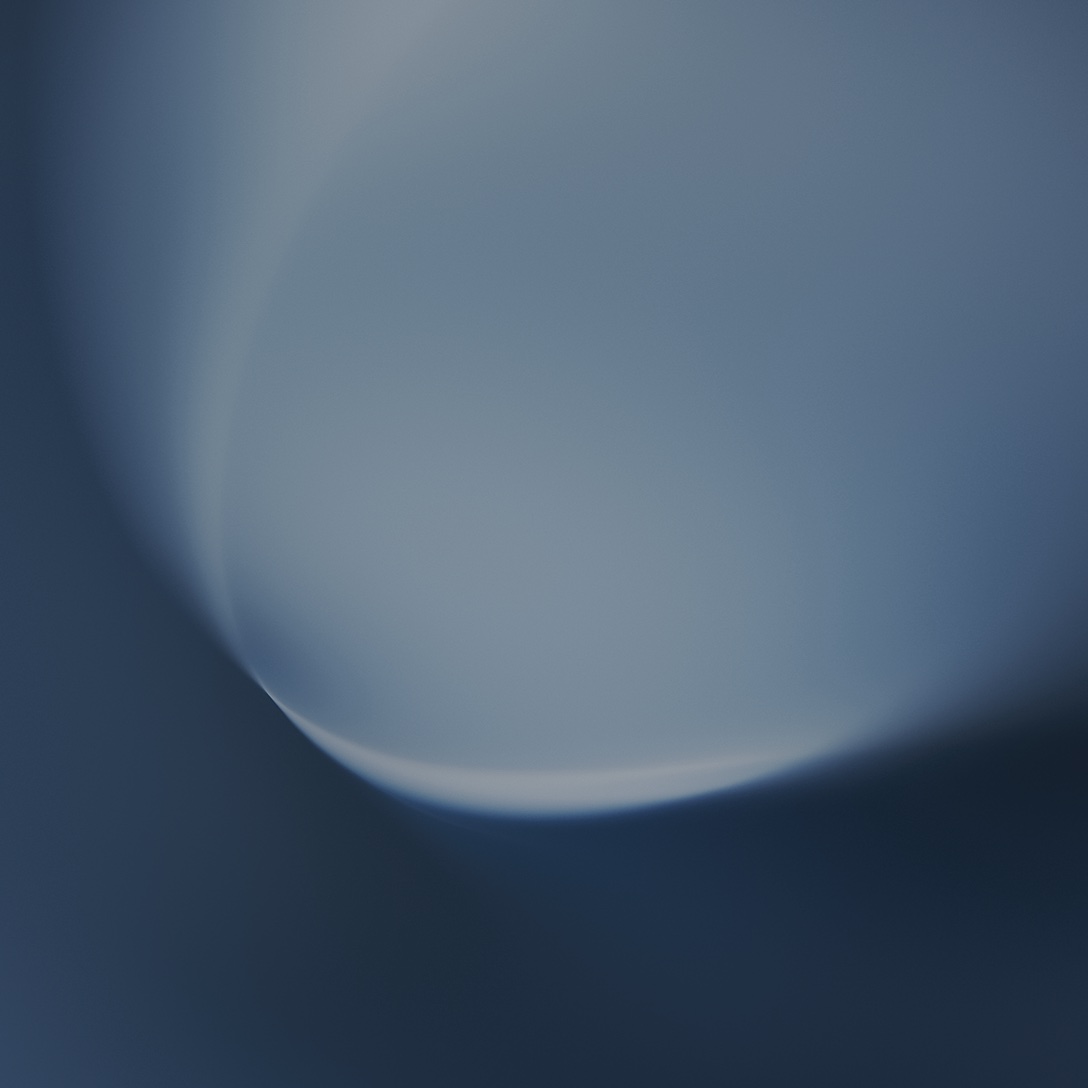
Light and dark are two stills, not an Appearance switch
Each design ships as two files. Setting one does nothing to the other, and neither follows iPhone Appearance the way the system's own dynamic wallpapers do. If you want both looks, save both files and swap between them yourself. Earlier iOS 27.2 notes, including our own firmware post from November 1, cover what else the HomeView 27.2 build carried.
No Snoopy, either. The face animations found in the update belong to HomeView faces on the device, and a wallpaper image on the iPhone will not carry them. The same goes for Spatial Scene. Apple's 3D wallpaper path is a separate tab inside Add New Wallpaper > Photos, on iPhone 12 or later with iOS 26, and only certain photos qualify. Apple names good lighting, clear separation between subject and background, and landscape orientation as the typical traits. Square abstract art rarely matches. Treat the HomeView set as flat wallpapers and nothing more.
Photo: Apple wallpapers via 9to5Mac. Source: 9to5Mac, MacRumors, Apple Support.