On X this week the Attention Aware story kept coming back. A trending summary from mid-October said iPhone alarms go quiet because Face ID models watch whether you are looking at the screen, then drop alert volume. Users pointed at Settings > Face ID & Passcode. Apple has not framed it as a bug. The behavior is documented. Here are 10 Face ID and related settings to check when an alarm feels too soft on iOS 27.
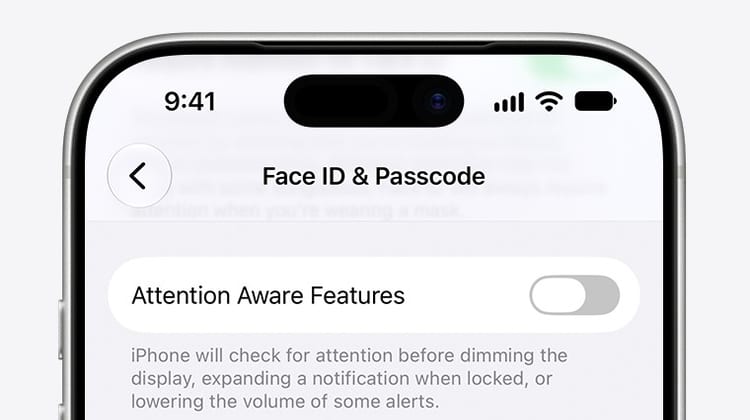
1. Attention Aware Features under Face ID & Passcode
Open Settings > Face ID & Passcode. Turn off Attention Aware Features. Apple says that when attention is detected, iPhone lowers the volume of alerts. The TrueDepth camera can do this even if you never enrolled Face ID.
This is the switch most people flip after a quiet morning. Apple’s short guide is Turn Attention Aware features on or off.
2. The same toggle under Accessibility
There is a second door. Settings > Accessibility > Face ID & Attention. Attention Aware Features is listed again. Apple’s wording here: iPhone checks for attention before dimming the display, expanding a locked notification, or lowering the volume of some alerts.
If you use VoiceOver from first setup, these attention switches start off. Most other phones leave them on.
3. Require Attention for Face ID
On the same Accessibility screen sits Require Attention for Face ID. With it on, Face ID unlocks only when your eyes are open and looking at the screen. That is a security choice, not a volume slider.
Keep it on if you want the extra check. Turn it off only if unlock itself is the problem, for example with low vision. Apple covers both rows on its Change Face ID and attention settings page.
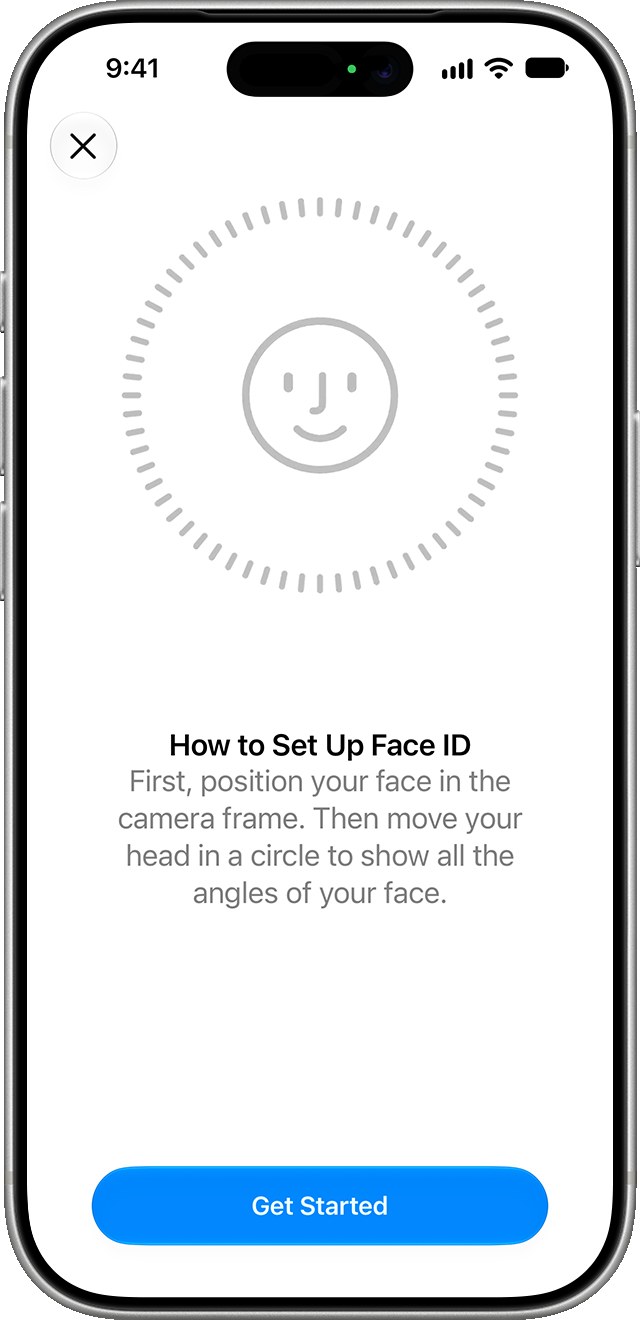
Photo: Apple
4. Ringtone and Alerts volume
Settings > Sounds & Haptics. Drag Ringtone and Alerts. As you move it, a sample alert plays. Apple’s alarm help page says a quiet alarm often starts here.
If the slider sits near the left, Attention Aware has less room to work with. Push it up before you blame Face ID alone.
5. Alarms and Timers, and Match Ringtone Volume
Still in Sounds & Haptics, look under Alarms and Timers. On iOS 27 you can turn off Match Ringtone Volume, then set a separate alarm slider. Or leave Match Ringtone Volume on so alarms follow the ringtone level.
If Match Ringtone Volume is off and the alarm slider is low, Clock stays quiet even when ringtones feel fine. Apple lists the steps in Set an alarm in Clock.
6. Change with Buttons
Also under Sounds & Haptics. Change with Buttons lets the side volume keys move Ringtone and Alerts, which can include alarm level when Match Ringtone Volume is on.
A pocket press or a late-night video can leave the alert slider near silent. Turn Change with Buttons off if you want the alarm level to stay put.
7. Alarm Sound is not None
Open Clock > Alarms. Tap Edit, then the alarm, then Sound. If Sound is None, iPhone only vibrates. On a soft surface that is easy to miss.
Pick a ringtone or a song. Apple’s How to set and change alarms page calls this out when the phone “only vibrates.”
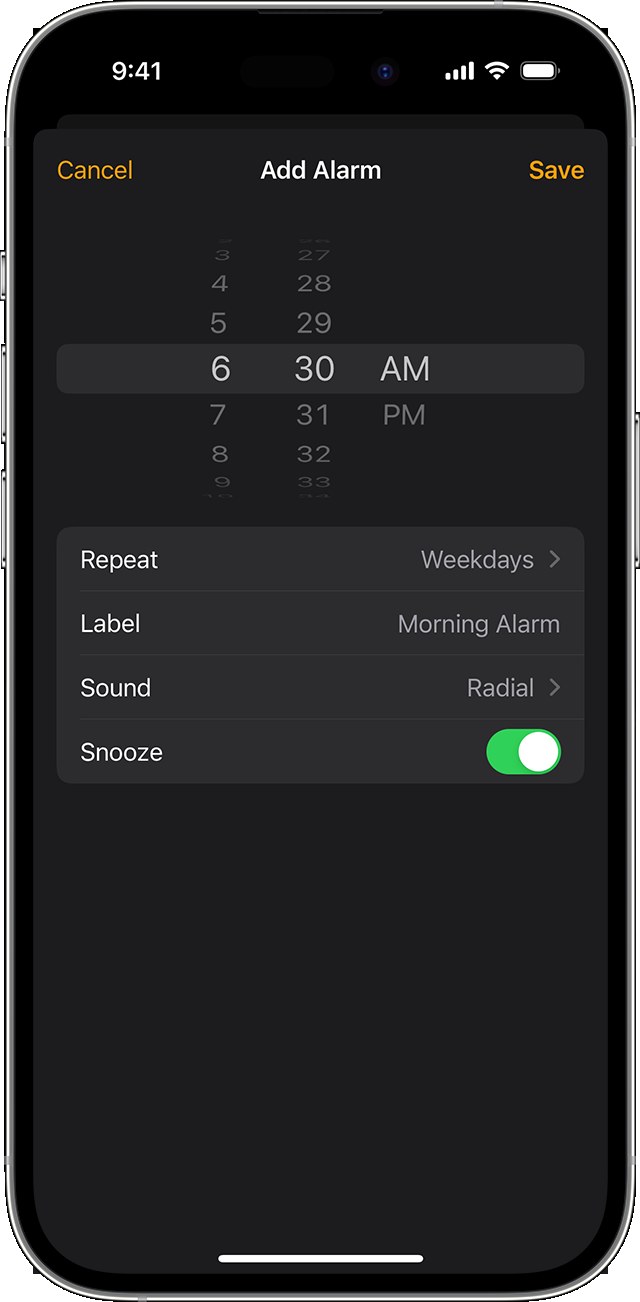
Photo: Apple
8. Raise to Wake and a lit Lock Screen
Settings > Display & Brightness > Raise to Wake. Raising the phone wakes the Lock Screen. On Face ID models, a lit screen is when Attention Aware can decide you are looking and soften alerts.
If the phone sits face-up on the nightstand and you roll toward it, Raise to Wake plus Attention Aware can stack. Try leaving Raise to Wake off for a few nights as a test.
9. Always On Display and Auto-Lock
On supported models, Always On Display keeps a dim Lock Screen visible. Settings > Display & Brightness. Glancing at that dim screen still counts as looking at iPhone for attention features.
Auto-Lock is on the same page. Apple also notes that with Attention Aware Features on, iPhone will not dim or lock while it still detects attention. That is useful while reading. It is less useful next to a morning alarm.
10. StandBy, Silent mode, and Focus
In StandBy, Apple disables haptics for alarms. So if Sound is None and the phone is charging on its side, you get almost nothing. Set a real sound first.
Silent mode and Focus do not mute Clock alarms. Apple says the alarm still plays. If it still feels soft after that, circle back to Attention Aware and the Sounds & Haptics sliders. For other alert paths we covered 10 notification settings on iOS 27, and for a backup cue see Sound Recognition for a doorbell or an alarm. Face ID unlock trouble is a separate list in our Face ID not working fix, and broader Lock Screen hardening is in the DarkSword security settings Top 10.
Photo: Apple
Source: Apple Support, Apple iPhone User Guide (iOS 27), X