AirDrop stuck on Waiting, with the other device never appearing under People, is one of the longest-running iPhone complaints. Posts about it are still all over X, usually about trying to send to a Mac that won't show up. Apple's support article on AirDrop, published October 5, 2026, contains no magic switch. Most of the time it's the checklist.
Apple's checklist: Wi-Fi and Bluetooth on, Personal Hotspot off
Start with the "Before you begin" part of that article. Both devices must have Wi-Fi and Bluetooth turned on. If either device has Personal Hotspot on, disconnect it. The two devices also have to be close. The iPhone User Guide's AirDrop chapter puts the range at about 30 feet, or 10 meters.
Turn the toggles on in Settings, not Control Center. If Bluetooth misbehaves more broadly, our Bluetooth pairing fix goes into accessory resets. And if Personal Hotspot on the other side is stuck enabled, the Personal Hotspot fix applies there.
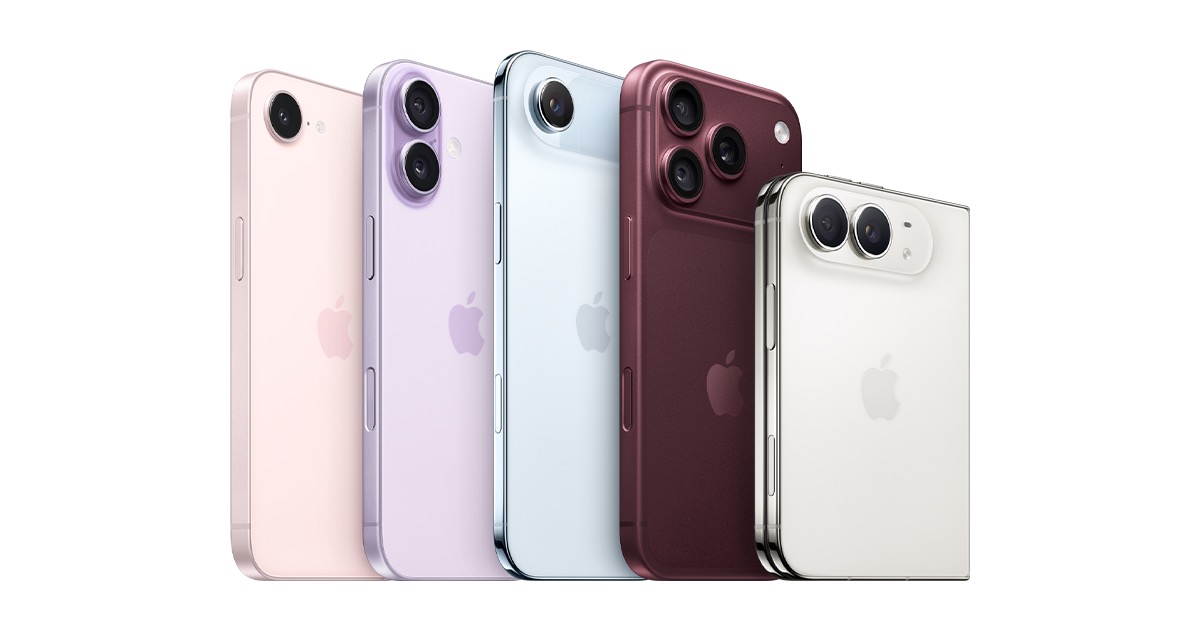
Control Center does not turn Wi-Fi or Bluetooth off
This is the trap. Apple's Control Center explainer says the Wi-Fi and Bluetooth buttons in Control Center only disconnect the device from networks and accessories. The radios stay available for AirDrop, AirPlay, Apple Pencil, Apple Watch and Continuity features like Handoff. To fully disable them you have to open Settings, tap Wi-Fi or Bluetooth, and switch them off there.
For the receiving side, open Control Center, touch and hold the connectivity group, tap AirDrop, then choose Contacts Only or Everyone for 10 Minutes. Apple says the 10-minute option reverts after 10 minutes. Signed in to an Apple Account, it goes back to Contacts Only. Signed out, it goes back to Receiving Off. If the sender only accepts from contacts, you have to be in their contacts list, with your Apple Account email address or phone number in their contact card.
iOS 26.2: a sender not in your contacts must use an AirDrop code
This is the new part. On iOS 26.2, iPadOS 26.2 and macOS 26.2 or later, someone who isn't in your contacts can't just send. You get a prompt to Continue, the AirDrop code appears on your device, you read it out, and the sender types it in. The User Guide says the AirDrop code is required for non-contacts in that window.
After that the person lands in your Other Known list in Contacts and sharing works without another code for 30 days. To end it early, open the Contacts app, find the person under Other Known, then select Forget This Person. Our earlier receiving-mode walkthrough and the iOS 27 AirDrop fix cover the surrounding settings.
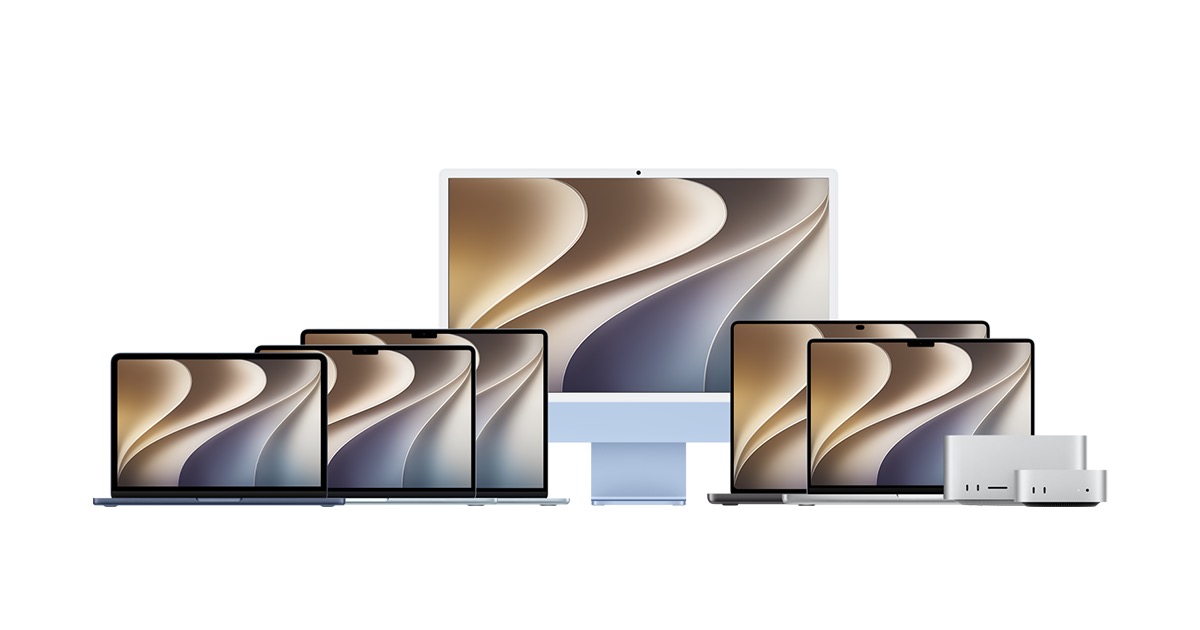
Same Apple Account, VPN, and the restart fallback
Send between your own iPhone and Mac while signed in to the same Apple Account and the item is accepted and saved automatically, with no tap on either side. If it still hangs on Waiting between your own devices, check the VPN. The User Guide says a VPN configuration that blocks local networking can interfere with some Continuity features.
Also look at Settings, then General, then AirDrop, for the Use Cellular Data toggle. Turn it off if you want to avoid charges when you move out of Bluetooth or Wi-Fi range. AirDrop transfers are encrypted, and once a transfer starts, leaving range makes it continue over the internet instead of stopping.
Still stuck after all that? Restart both devices. The User Guide's own answer to AirDrop that won't work is a restart, not a reset.
Photo: Apple
Source: Apple Support, iPhone User Guide