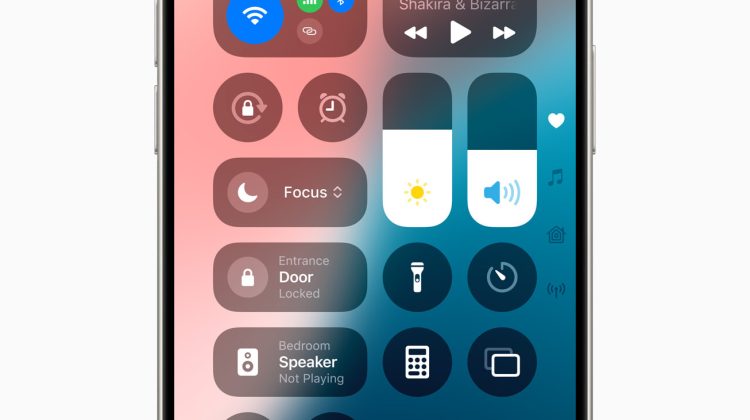
AirDrop will not show the other phone. Or the receive prompt never appears. Apple Support keeps the order short. Wi-Fi and Bluetooth first. Distance next. Then who can AirDrop to you. Personal Hotspot off if either phone has it on.
This path follows Apple’s current iPhone wording on Support 119857 and the AirDrop guide (102538). The steps stay on iPhone. Same checks apply when one side is a Mac.
If Wi-Fi itself will not join, that is a different queue. Start with our Wi-Fi greyed out or no connection fix. Pairing an accessory is separate too (Bluetooth will not connect).
Check Wi-Fi, Bluetooth, and distance
On both devices, turn Wi-Fi on. Turn Bluetooth on. Apple says stay within 30 feet, or about 10 meters. Move closer if the name never shows under People.
If either phone has Personal Hotspot on, turn it off. Support lists that before deeper settings. Leave the hotspot off while you test AirDrop again.
On iOS 17 or later, Apple also notes you can hold two iPhones close to start a share with someone in Contacts. Try that after Wi-Fi and Bluetooth are on.
Set who can AirDrop to you
Open Control Center. Touch and hold the top-left connectivity group. Tap AirDrop. Choose Contacts Only, or Everyone for 10 Minutes.
Receiving Off blocks inbound AirDrops. If the sender never appears, confirm the recipient is not set to Receiving Off.
In iOS 16.2 and later, Everyone for 10 Minutes changes after 10 minutes. If you are signed in to your Apple Account, it reverts to Contacts Only. If you are not signed in, it reverts to Receiving Off. Set it again when you need a short open window.
Control Center is also where Back Tap can jump you in one double or triple tap. See today’s tip on Back Tap for Control Center or a Shortcut if you use that gesture.
Contacts Only vs Everyone for 10 Minutes
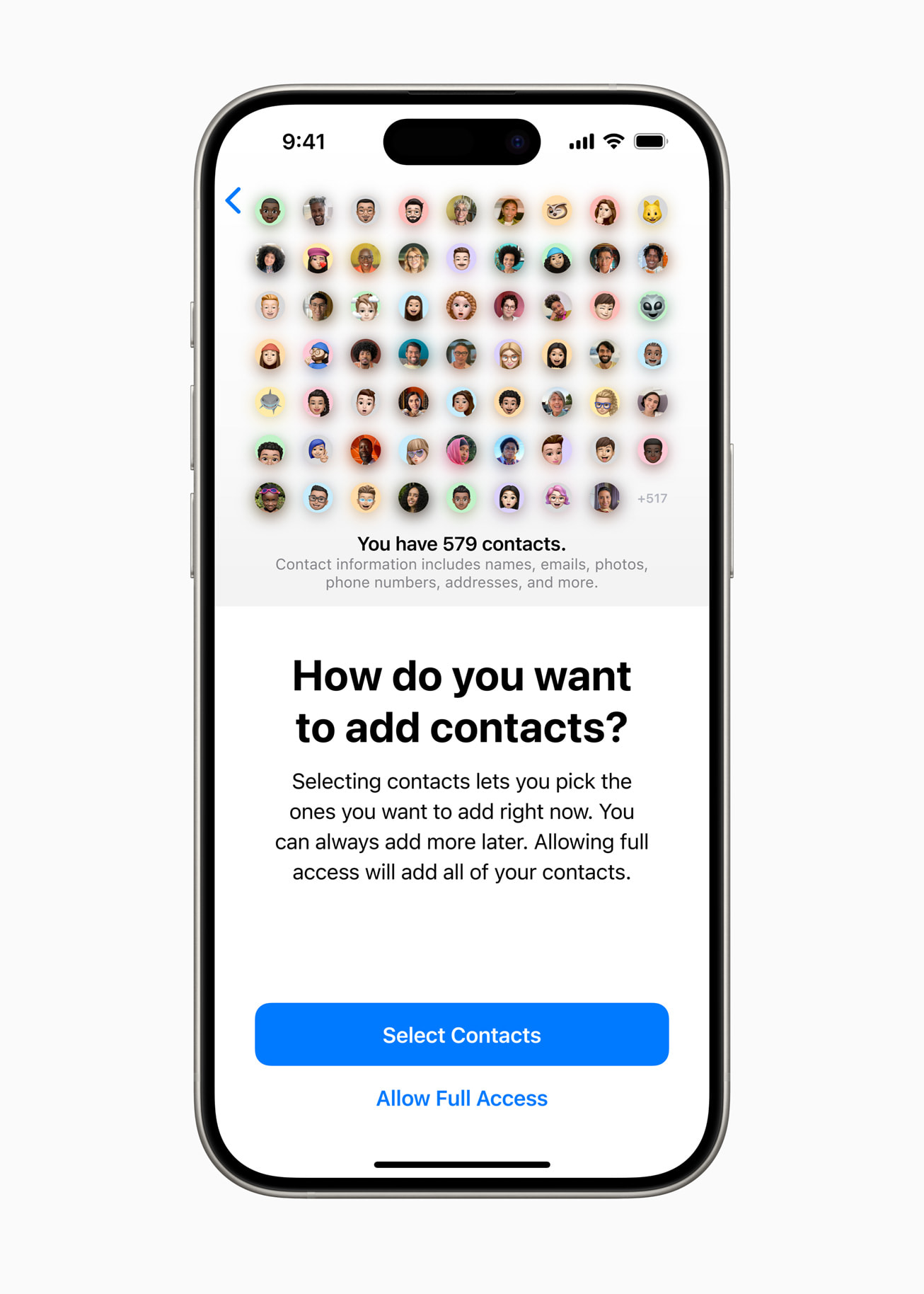
Contacts Only needs the sender in the recipient’s Contacts. The contact card must include the sender’s Apple Account email or phone number. Missing that number or address is a common fail even when both phones sit side by side.
For someone not in Contacts, ask them to set Everyone for 10 Minutes in Control Center. Then tap their name under People and have them tap Accept.
On iOS 26.2 or later, a share with a non-contact can ask for an AirDrop code. The recipient taps Get AirDrop Code, reads the code to the sender, and the sender enters it. Apple says that person stays on the Other Known list for 30 days so you do not need a new code every time. You can mark them unknown sooner in Contacts if you want.
Restart, VPN, then Reset Network Settings
Still stuck. Restart both devices. Try AirDrop once more with Wi-Fi and Bluetooth on and Hotspot off.
VPN apps, firewalls, antivirus tools, parental-control apps, and content blockers can block local networking. Apple Support 102281 lists AirPlay and Continuity-style features in that group. Turn the VPN off. Search Settings for VPN, profile, firewall, or filter. Disable what you do not need, then restart.
Last resort is Reset Network Settings. Open Settings. Tap General. Tap Transfer or Reset iPhone. Tap Reset. Tap Reset Network Settings. Enter your passcode if asked. This clears saved Wi-Fi networks and passwords, plus cellular, VPN, and APN settings. Photos and apps stay. You will rejoin Wi-Fi by hand after the restart.
Mail send and receive faults use a different Support path. If the problem is Outbox or missing Push mail, see yesterday’s iCloud Mail will not send or receive fix.
Photo: Apple Newsroom (Control Center; Contacts permission; iCloud Shared Album)
Source: Apple Support 119857, 102538, 102281; iPhone User Guide AirDrop