Bluetooth will not connect. The accessory never shows under My Devices. Or it pairs once and drops. Apple Support 111804 keeps the order short. Check Settings Bluetooth first. Forget the device and pair again. Reset Network Settings only when earlier steps fail.
Control Center is not the same as Settings. Tapping Bluetooth in Control Center disconnects accessories for a while. It does not fully turn Bluetooth off. Apple’s note 102412 says use Settings → Bluetooth when you need the radio off for all devices.
If the screen is frozen and you cannot open Settings, that is a different path. See our note on force restart when the screen freezes or goes black first.
Turn Bluetooth on in Settings
Open the Settings app. Tap Bluetooth. Make sure Bluetooth is turned on. Keep the iPhone within about 33 feet (10 meters) of the accessory. Put the accessory in discovery mode. Check the maker’s instructions if you are not sure how.
When the name appears in the list, tap it. You may need a PIN or passcode from the accessory booklet. Apple’s iPhone User Guide lists the same path for first-time pairing on current iOS.
Charge the accessory and check the app switch
Turn the accessory off and back on. Make sure it is charged or on power. Replace batteries when the accessory uses them.
If an app talks to that accessory, open Settings → Privacy & Security → Bluetooth. Turn Bluetooth on for that app. Apple lists this under the first checks when a keyboard or other accessory still will not join.
Forget This Device then pair again
If the accessory was paired before, remove it and start clean. Go to Settings → Bluetooth. Tap the info button next to the accessory. Tap Forget This Device. Confirm Forget Device.
Put the accessory in discovery mode again. Tap its name when it appears. Pair once more. If the accessory pairs with other phones but not this iPhone, unpair it from those other devices first, then try this phone again.
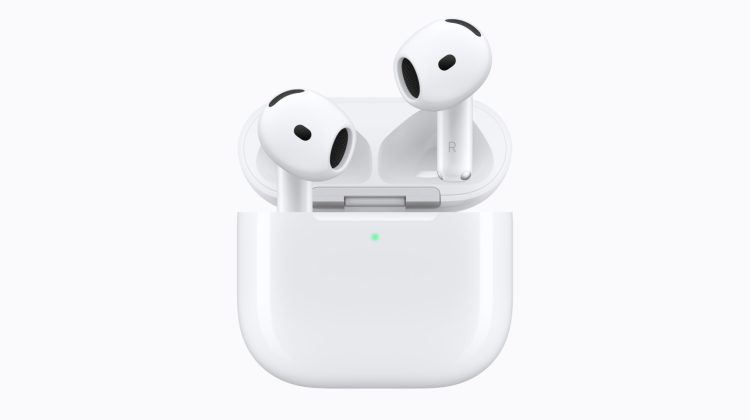
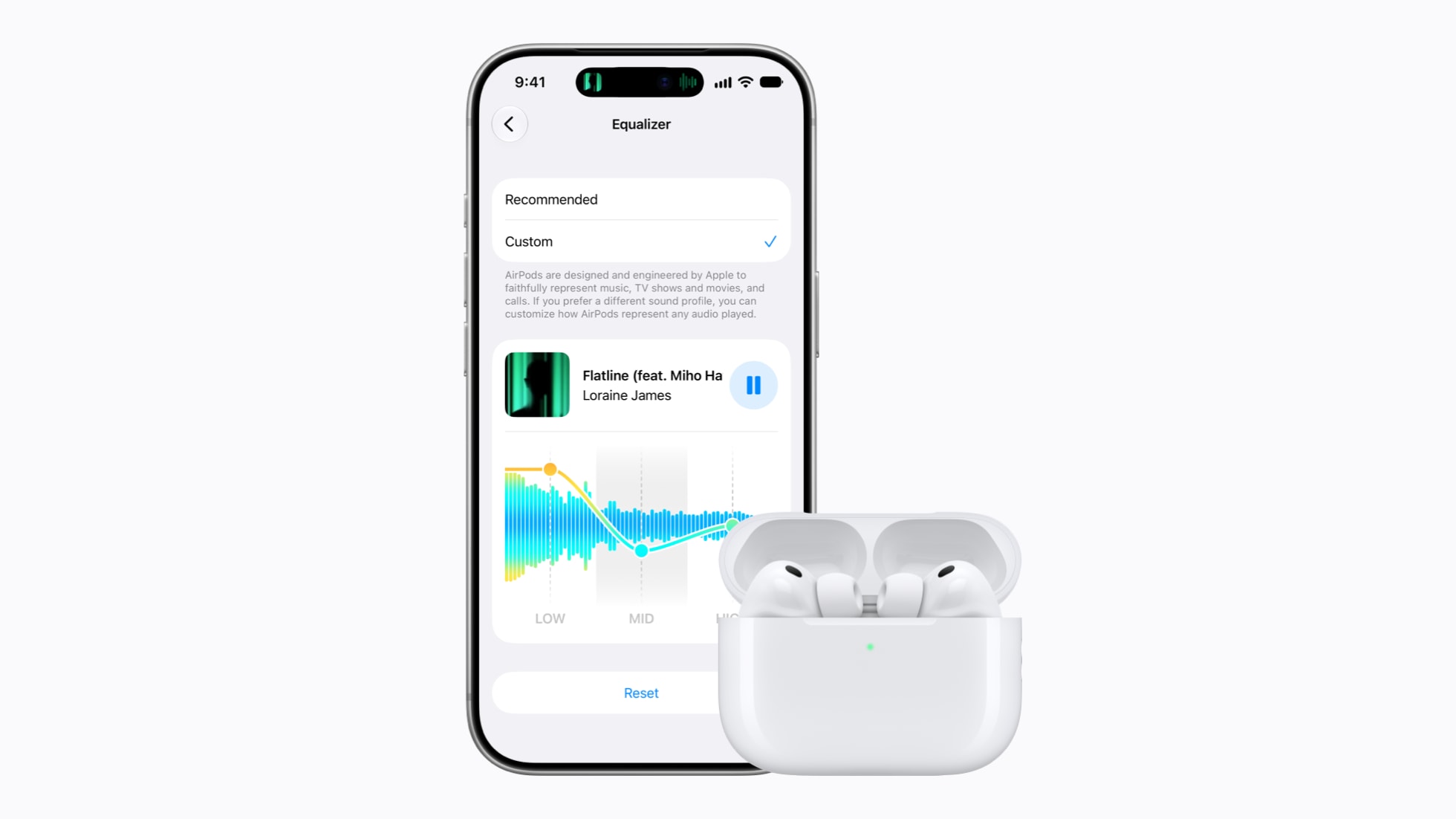
Apple notes that forgetting AirPods also removes them from other devices signed in to the same Apple Account.
Restart the gear, then Reset Network Settings
Restart the accessory after a failed pair. Restart the iPhone as well when Settings still will not keep a link. Then check Settings → General → Software Update if an update is waiting. Apple’s Bluetooth page does not invent special error codes here. Compatibility still belongs with the accessory maker.
Use Reset Network Settings only after the steps above fail. Open Settings → General → Transfer or Reset iPhone → Reset → Reset Network Settings. Enter the passcode when asked. The phone restarts.
This clears saved Wi-Fi networks and passwords, cellular settings, and VPN or APN entries that were not pushed by a profile. Photos and apps stay. You will need to rejoin Wi-Fi with the password. Our separate note on Wi-Fi won’t connect or stays greyed out covers that join path.
If Bluetooth itself stays greyed out, or no accessory will connect after these steps, and the maker says the hardware is fine, Apple says contact Apple Support. Today’s tip on Screen Unknown Senders does not change Bluetooth menus. Face ID issues after update are also separate (Face ID news brief).
Photo: Apple
Source: Apple Support 111804 (If a Bluetooth accessory won’t connect to your iPhone or iPad); Apple Support 102412 (Control Center Bluetooth); iPhone User Guide (Connect Bluetooth accessories; Reset Network Settings)