Someone opens the Share sheet. Your name never shows up. Or you send a photo and the other phone stays silent. Apple's How to use AirDrop on iPhone and iPad page, updated October 5, 2026, starts with radios and receiving mode before any deeper reset. The same order appears in the iPhone User Guide AirDrop chapter. Most misses are Off, Hotspot, or a contact card gap. Not a broken radio.
Turn off Personal Hotspot, keep Wi-Fi and Bluetooth on
Open Control Center. Confirm Wi-Fi and Bluetooth icons are on. Both phones need that pair. Stay within about 30 feet. Apple also says disconnect Personal Hotspot on either side before you try again. Hotspot keeps the phone busy as a modem. Nearby AirDrop discovery then fails even when Wi-Fi still looks connected.
If Wi-Fi itself will not join a network, fix that path first with our Wi-Fi won't connect fix. Sharing a password from another Apple device is covered in the share Wi-Fi password tip. AirDrop still needs Bluetooth on at the same time. A Hotspot that will not start is a different checklist, see the Personal Hotspot not working fix.
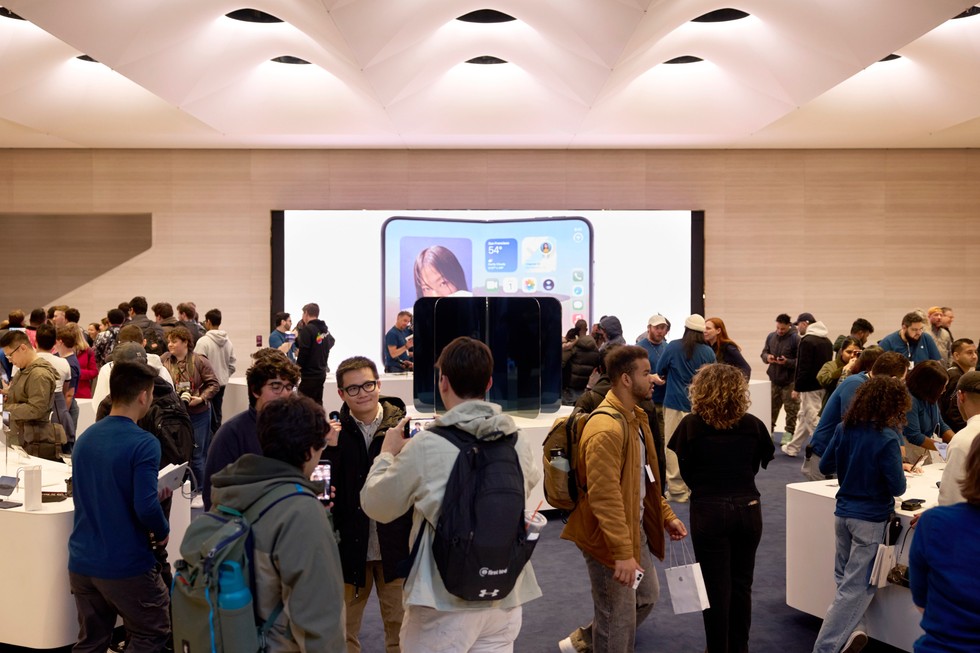
Photo: Apple. Apple Fifth Avenue, New York
Set receiving to Contacts Only or Everyone for 10 Minutes
Open Control Center. Touch and hold the top-left connectivity group. Tap AirDrop. If it says Receiving Off, nobody nearby can find you. Tap Contacts Only when you only want people in Contacts. Tap Everyone for 10 Minutes when you need a stranger or a new number to appear.
You can also open Settings, General, AirDrop and pick the same options there. Apple notes that on iOS 16.2 and later, Everyone for 10 Minutes does not stay forever. After ten minutes it returns to Contacts Only if you are signed in to an Apple Account. If you are not signed in, it returns to Receiving Off. Set it again when you still need a short open window.
Fix Contacts Only when names do not appear
Contacts Only is strict. The sender must sit in the recipient's Contacts list. That contact card needs the sender's Apple Account email address or phone number. Missing either one and the name never shows under People in the Share sheet, even with Wi-Fi and Bluetooth on.
Add the email or number the other person uses for their Apple Account. Save the card. Ask them to try AirDrop again. For a quick one-off with someone not in Contacts, they can set Everyone for 10 Minutes. On iOS 26.2, iPadOS 26.2, and macOS 26.2 or later, Apple also adds an AirDrop code path for people outside Contacts. The recipient taps Get AirDrop Code. The sender types that code. The pair stays on the Other Known list for 30 days unless you forget the person in Contacts.
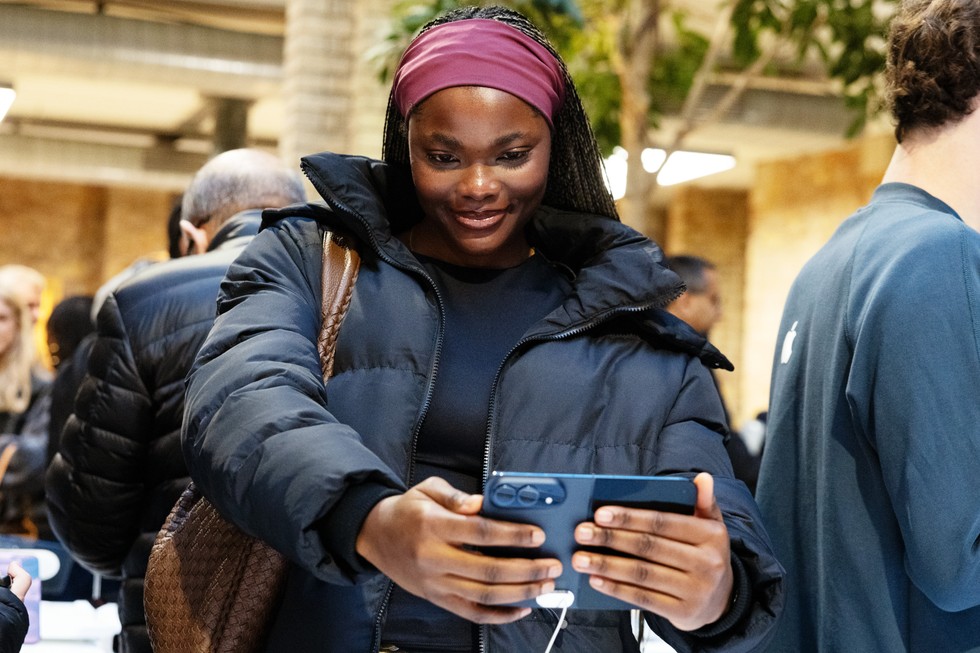
Photo: Apple. Apple Covent Garden, London
Restart both devices if discovery still fails
Apple's last software step is simple. Restart both phones. Then confirm receiving is not Off. Confirm Hotspot is off. Try the Share sheet again. If Bluetooth audio accessories misbehave at the same time, pair or reset those separately with our AirPods won't connect fix. That does not replace the AirDrop receiving switch. It only clears a busy Bluetooth stack that can sit beside the same radios.
Same Apple Account on your iPhone and Mac auto-accepts AirDrop between those devices. A declined prompt or a missed banner still needs a second send. Keep the phones close. Leave Wi-Fi and Bluetooth on for the whole transfer.
Source: Apple Support 119857 (How to use AirDrop), iPhone User Guide AirDrop
Photo: Apple