Photos taken on iPhone do not show up on the Mac. Or the count on iPad stays behind. Apple Support page 101559, published July 16, 2026, starts from one point. Syncing pauses for a variety of reasons, and Photos shows which one. Read the status line first. Do not turn iCloud Photos off, Apple says that restarts syncing.
Find the library status line in Photos
On iPhone or iPad, open Photos, go to Collections, then tap the profile button in the upper corner. The status is below your name and photo count. On Mac, select Library in the Photos sidebar, click All Photos, then scroll to the bottom.
The basic checklist on Apple's page If your iCloud Photos aren't syncing or syncing with iCloud is paused is short. Connect to power and Wi-Fi. Let the device sync overnight, uninterrupted. Check every device uses the same Apple Account. With iCloud Shared Photo Library, check the Library view too. Items moved there leave the Personal Library view.

Status messages and what each pause means
Low Data Mode or Low Power Mode. Sync paused to save data or battery.
Optimizing Battery Power, Optimizing System Performance, or Poor Network Connection. Tap Sync Now, or wait a few minutes.
Low Battery shows under 20 percent charge. Charge the device. [Device] Needs to Cool Down is overheating protection. If there is no Sync Now option, wait a few minutes.
iCloud storage is full means the plan limit is passed. Free space or upgrade. Full storage also stops backups, see our iCloud Backup not enough storage fix. Move Photos to Personal Library to Continue Syncing is another case. The Shared Library owner hit their own limit. Move those items back to the Personal Library.
Sync Immediately in iOS 27
iOS 27, iPadOS 27 and visionOS 27 add a priority switch. Go to Settings, tap your name, then iCloud. Under Saved to iCloud, tap Photos. Tap Sync Immediately and choose For Today. Apple's Set up and use iCloud Photos page, dated September 14, 2026, says items added after the setting is on get priority. With cellular data allowed for Photos, data use could go higher.
The opposite control, Pause, is on the same profile screen in Photos. It stops uploads for one day.
Still not syncing: software, other iCloud apps, file types
Update to the latest iOS, iPadOS or macOS. Check if Mail, Contacts or Messages in iCloud work. If those fail too, look at Wi-Fi and Apple's System Status page for an outage.
Supported types are HEIF, JPEG, RAW, PNG, GIF, TIFF, HEVC and MP4, plus slo-mo, time-lapse, 4K video and Live Photos. A photo that only seems gone may be one you hid. Our Hidden album guide shows where it sits.
Fix the Unable to Upload album on iPhone or Mac
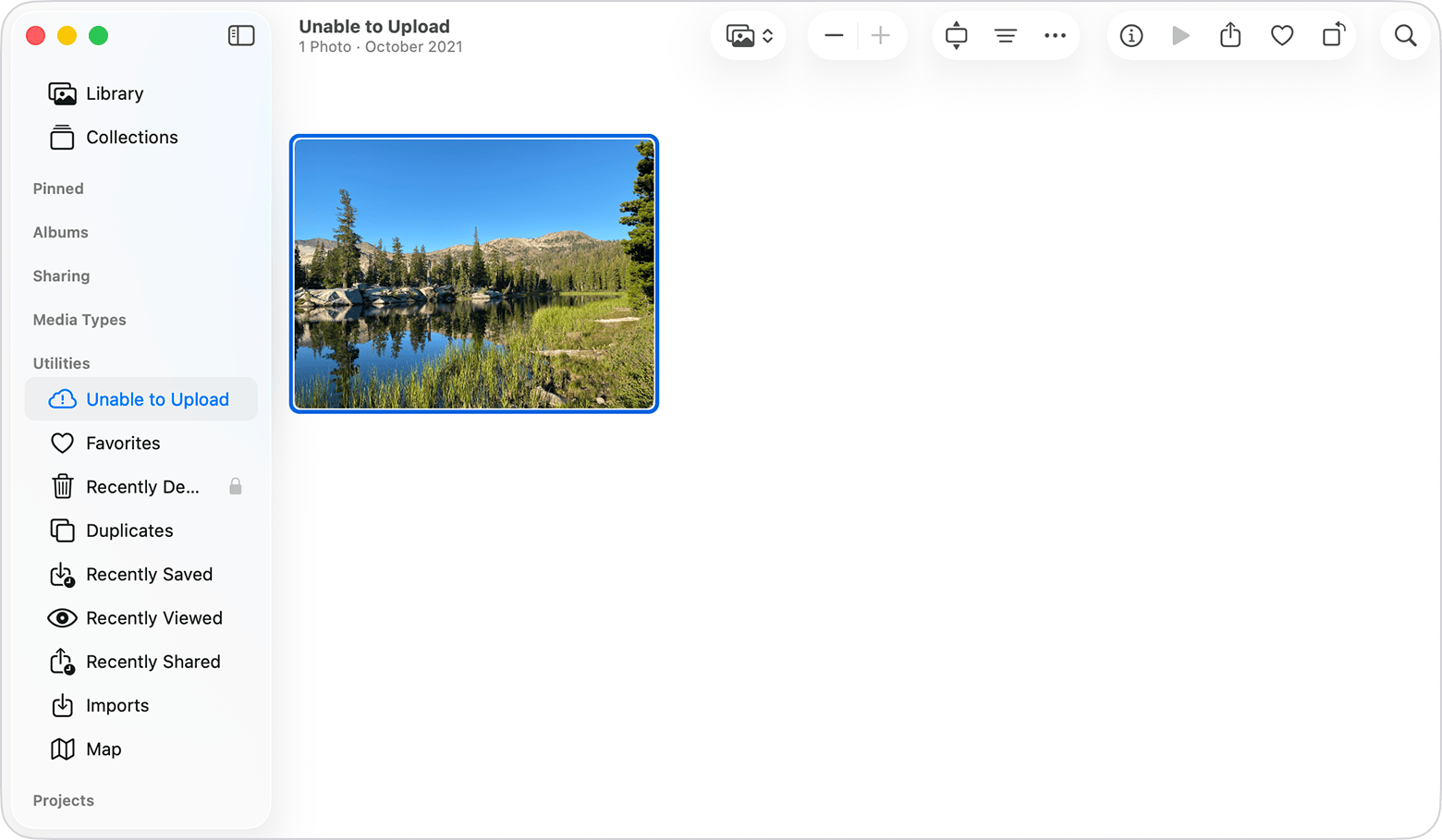
Some items fail on their own. The status says "Couldn't Sync [number of items] to iCloud" and an Unable to Upload album appears. Apple page 101984 says export them, delete them, then import again. Edits or keywords on those items will be lost.
On iPhone, open the album, tap Select, then Select All. Tap Share, Save to Files, pick a place under On My iPhone, tap Save. Delete the items from the album and from Recently Deleted. In Files, open that folder, tap Share and Save to import them back.
On Mac, click Unable to Upload in the sidebar and press Command-A. Choose File, Export, Export Unmodified Original, then Export Originals. Delete the selected items, clear them from Recently Deleted, then use File, Import.
Not enough room on iPhone for a big batch in Files? Our Storage Almost Full fix covers what to clear first.
Source: Apple Support 101559 (iCloud Photos not syncing), 108782 (Set up and use iCloud Photos), 101984 (Unable to Upload)
Photo: Apple