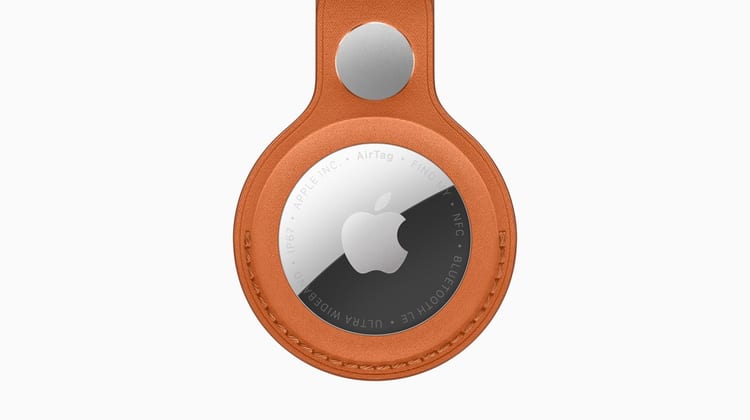
AirTag was in a lot of posts on X this week. One traveler said their AirTag showed a missing carry-on sitting near the Delta baggage office in Atlanta. Another changed two AirTag batteries and Find My still said low battery. And AppleInsider reported that Elevation Lab pulled its AirTag Silencer accessory over stalking concerns and apologized.
So here are 10 Find My and AirTag settings worth a check on iPhone. Each step was checked against Apple's iPhone User Guide for iOS 27 and Apple Support articles in October 2026. Most of them only help if they are on before something goes missing.
1. Turn on Find My iPhone and the Find My network
Go to Settings, tap your name, then Find My. Tap Find My iPhone and turn it on. Turn on Find My network on the same screen.
With the network on, Find My can locate the iPhone when it has no Wi-Fi or cellular. On a supported iPhone, Apple says this works for up to 24 hours after the phone is turned off, or up to 5 hours in power reserve mode.
2. Leave Send Last Location on
This switch sits right under Find My network. When the battery gets critically low, the iPhone sends its location to Apple automatically. A dead phone in a taxi is the case it is made for.
3. Give the Find My app Precise Location
Apple says you need Precise Location turned on for Find My if you want to see how far away your devices are from you. Go to Settings, Privacy & Security, Location Services, tap Find My and check the Precise Location switch.
4. Set Notify When Left Behind, with Trusted Locations
In Find My, tap Devices or Items, tap the device or AirTag, then turn on Notify When Left Behind. You get an alert each time the iPhone sharing your location separates from it. Add home or office as a Trusted Location so it stays quiet there.
Find My notifications must be allowed or no alert comes. We walked through this one step by step in our Notify When Left Behind guide. AirPods with the Find My network on can use it too, see our AirPods settings list.
5. Turn on Notify When Found
If a device shows "No location found," or an item cannot be located, look below Notifications on its card. Turn on Notify When Found. Find My pings you once it is located again, so you do not have to keep checking the map.
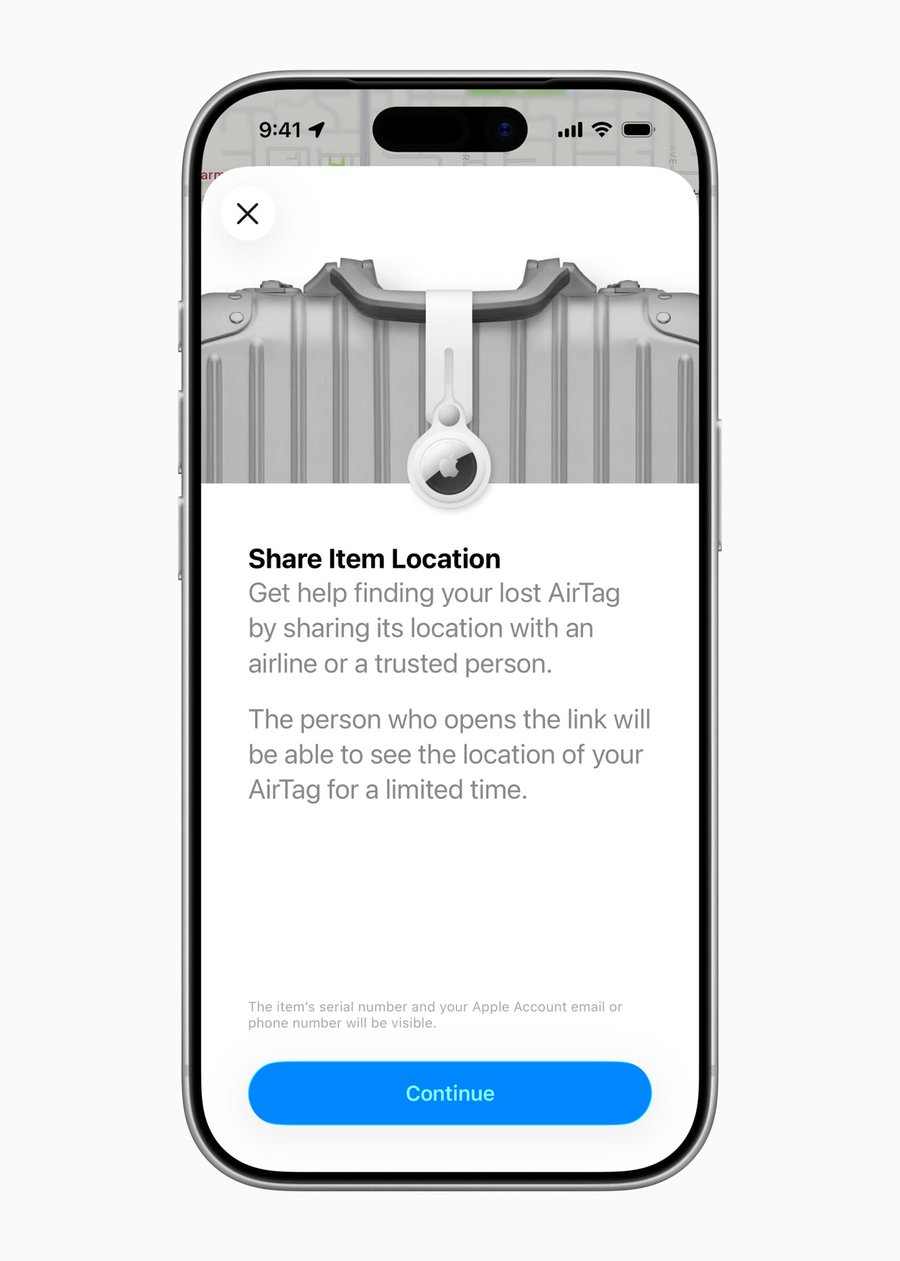
Photo: Apple
6. Check AirTag battery and firmware in item details
Tap the AirTag in Items, then tap its address. You see the model, the serial number and the firmware version. When the battery is low, a message shows below the location, and a low battery mark appears next to the name in the Items list.
The new AirTag (2nd generation) still uses a user-replaceable CR2032 coin cell. Not sure which model you have? See our AirTag 2 vs AirTag 1 comparison.
7. Mark a lost AirTag and turn on Show Contact Info
Tap the item, then below Lost AirTag tap Show Contact Info. Enter a phone number, or tap "Use an email address." Someone who finds it can hold a phone near the white side of the AirTag and open a webpage with your message.
For a lost iPhone, Lost Mode is under Devices. It puts your message on the Lock Screen and suspends payment cards. Pair it with the lock settings in our iPhone security settings list.
8. Share Item Location with an airline
This is the one for a lost bag. Tap the item, then Share Item Location, and follow the steps to make a temporary webpage. Send that link to the airline. In January Apple said more than 50 airlines accept these links.
Sharing stops when you get the item back, after 7 days, or when you end it. It does not work if the item is still near your iPhone. One of your Apple devices has to be online for the page to update.
9. Share an AirTag in Find My before you lend it
Below Share AirTag, tap Add Person. One AirTag can be shared with up to five borrowers, six users total. Borrowers see it on the map and do not get tracking alerts while it moves with them.
Your Apple Account needs two-factor authentication. Owner and borrowers all need iCloud Keychain on and iOS 17 or later. Child accounts cannot be added.
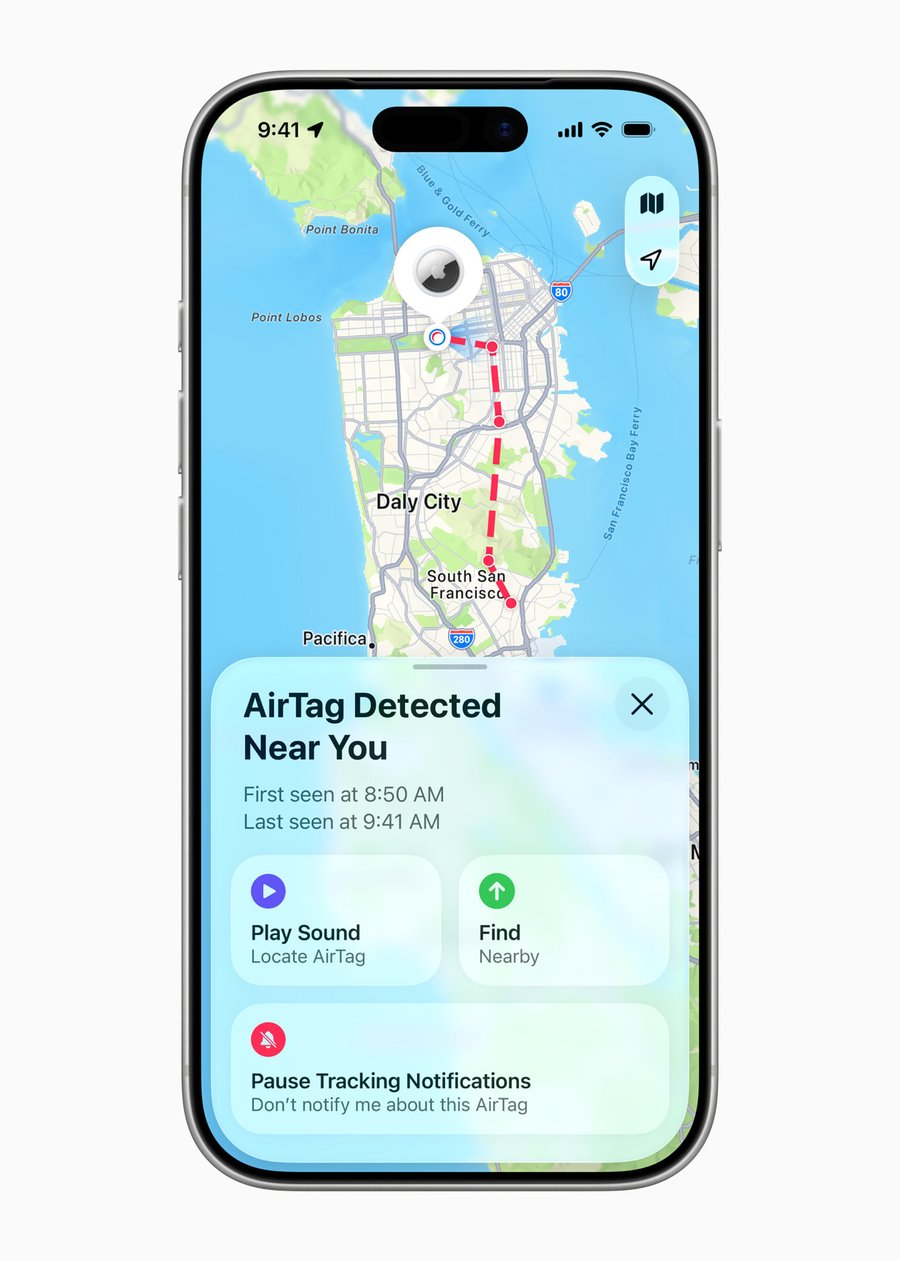
Photo: Apple
10. Keep Tracking Notifications on
This is the other side of AirTag. Go to Settings, Notifications, Tracking Notifications and turn on Allow Notifications. Apple also lists Location Services on, Significant Locations on under System Services, Bluetooth on, and Airplane Mode off.
If an unknown AirTag travels with you, you get an "AirTag Found Moving With You" alert with a map. Past alerts are at the bottom of the Items tab, under Unknown Items Detected with You. Apple notes that turning off Bluetooth or Location Services does not stop the owner from seeing that AirTag. You have to follow Instructions to Disable.
Photo: Apple Newsroom / AirTag in FineWoven Key Ring; Share Item Location and AirTag Detected Near You screens in Find My (January 2026)
Source: Apple iPhone User Guide for iOS 27 (Add your iPhone to Find My; Locate a device; Set separation alerts; Mark an AirTag as lost; Share location of a lost item; Share an AirTag; Control the location information you share); Apple Support 119874; Apple Newsroom; AppleInsider; posts on X