Messages questions kept coming up on X this week. One post said iOS 27 now shows contact photos in the conversation list by default. Another thread was about which sound plays when a new text comes in.
So here are 10 Messages settings worth a look on iPhone. Each path below was checked against Apple's iPhone User Guide for iOS 27 in October 2026. Most sit in Settings, Apps, Messages. A few live inside the Messages app itself, in the filter menu of the conversation list. Some depend on carrier, region or model.
1. Turn on Screen Unknown Senders
Open Messages. In the conversation list, open the filter menu, tap Manage Filtering, then turn on Screen Unknown Senders. Texts from numbers you don't know go to a separate folder, and you are not notified about them.
Waiting for a verification code? Tap Allow Notifications and turn on the categories you still want to hear about. The options vary by country and region.
2. Sort promotions and transactions with Text Message Filter
On the same screen, tap Text Message Filter and turn it on. SMS, MMS and RCS messages from unknown senders are then sorted into Transactions and Promotions folders. Any third-party filter extensions you installed show up here too.
One catch from Apple. Filtering does not apply to a sender you have replied to three times or more. For those, block or report.
3. Check the Spam folder once in a while
Spam filtering is on by default. Detected spam moves to the Spam folder and never appears in the main list. Open the filter menu and tap Spam to look.
Found a real message there? Tap it, tap Not Spam, then Move to Messages. To turn the feature off, the "Filter spam" switch is under Manage Filtering. For lock and account protection, see our iPhone security settings list.
4. Switch off business alerts you never asked for
Settings, Apps, Messages. Tap RCS Messaging and turn off RCS Business Messages, if your carrier offers it. Then tap Messages for Business and turn off Business Updates.
These are alerts from companies about orders and other transactions. Spam reports still work on top of this.
5. Decide on read receipts, for everyone or one person
The global switch is Send Read Receipts in Settings, Apps, Messages. With it on, the sender sees "Read" under their message. With it off, they see "Delivered."
You can also set it per chat. Open a conversation, tap the contact icon at the top, and toggle Send Read Receipts there. Apple notes the global switch does not override a choice you made for one person.
6. Stop sharing Focus Status with one contact
When a Focus or sleep schedule pauses notifications, Messages can show people that you are not getting alerts. You can hide this in one-to-one chats. Open the conversation, tap the contact icon, then turn off Share Focus Status.
If you schedule a Focus so Do Not Disturb turns on by itself, the status appears each time that Focus pauses notifications.
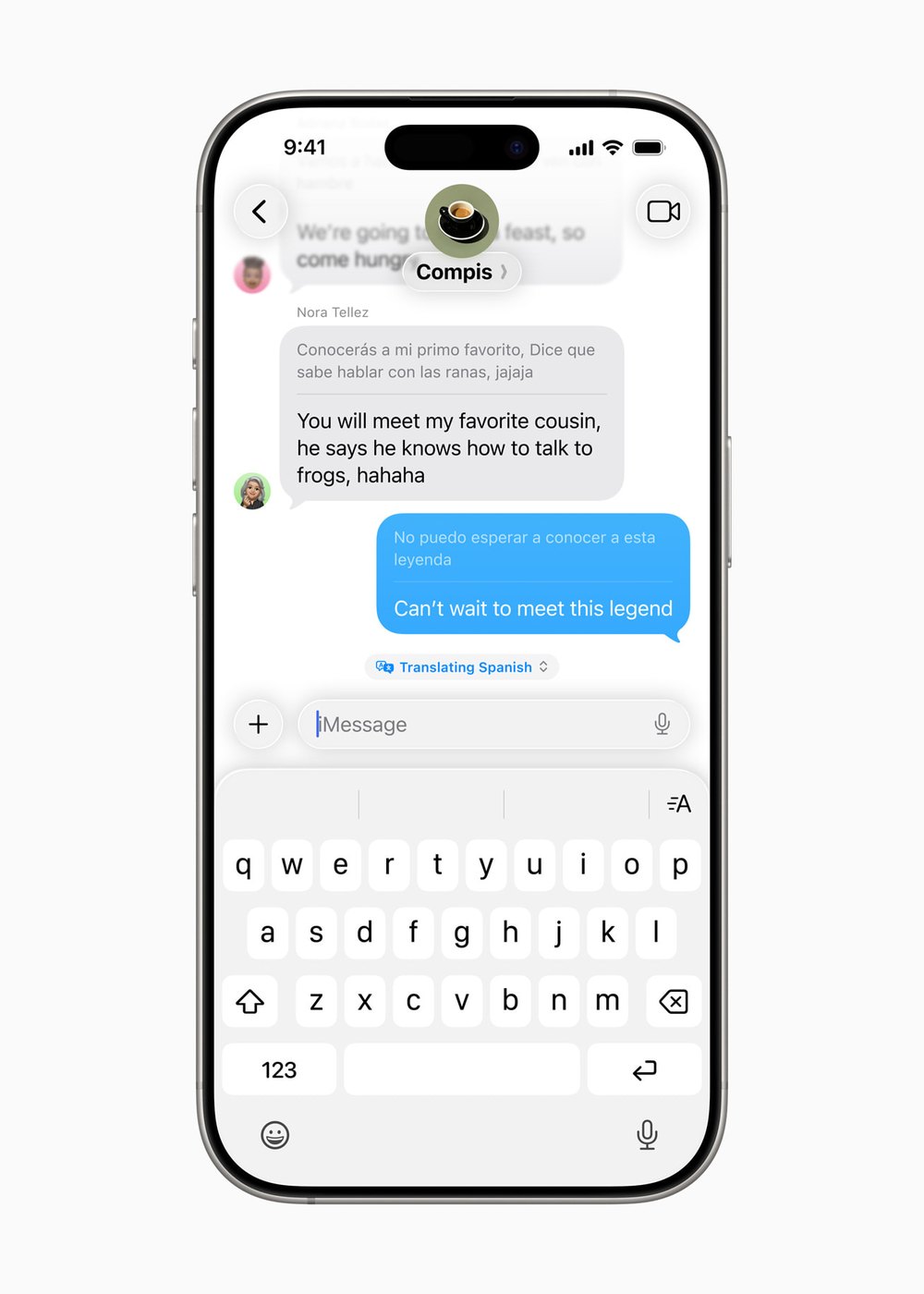
Photo: Apple
7. Turn Summarize Messages on or off
Apple Intelligence can summarize unread conversations, and the summary replaces the normal message preview in the list. Not everyone wants that.
The switch is Summarize Messages in Settings, Apps, Messages. On iOS 27 it needs an Apple Intelligence-enabled iPhone 15 Pro, iPhone 15 Pro Max or iPhone 16 model or later, in a supported language.
8. Set Keep Messages before storage fills up
Settings, Apps, Messages, scroll to Message History and tap Keep Messages. Choose 30 days, 1 year or Forever.
Pick anything but Forever and older conversations, attachments included, are removed on a rolling basis. Deleted items wait in Recently Deleted for up to 30 days before they are gone. To clear big files by hand, tap the contact or group icon in a chat, then a category such as Photos.
9. Check Messages in iCloud and Text Message Forwarding
Tap your name in Settings, then iCloud, then Messages, and make sure "Use on this iPhone" is on. Your full history then stays in sync on every device with the same Apple Account, including SMS, MMS and RCS threads. Deleting a message on iPhone also deletes it on those devices.
It uses iCloud storage. If you have seen the iCloud Backup "not enough storage" warning, start there. Without iCloud sync, Settings, Apps, Messages, Text Message Forwarding still sends green-bubble texts to your iPad or Mac. Planning to move to a new iPhone with Quick Start? Apple says Messages in iCloud keeps the history up to date on a new device too.
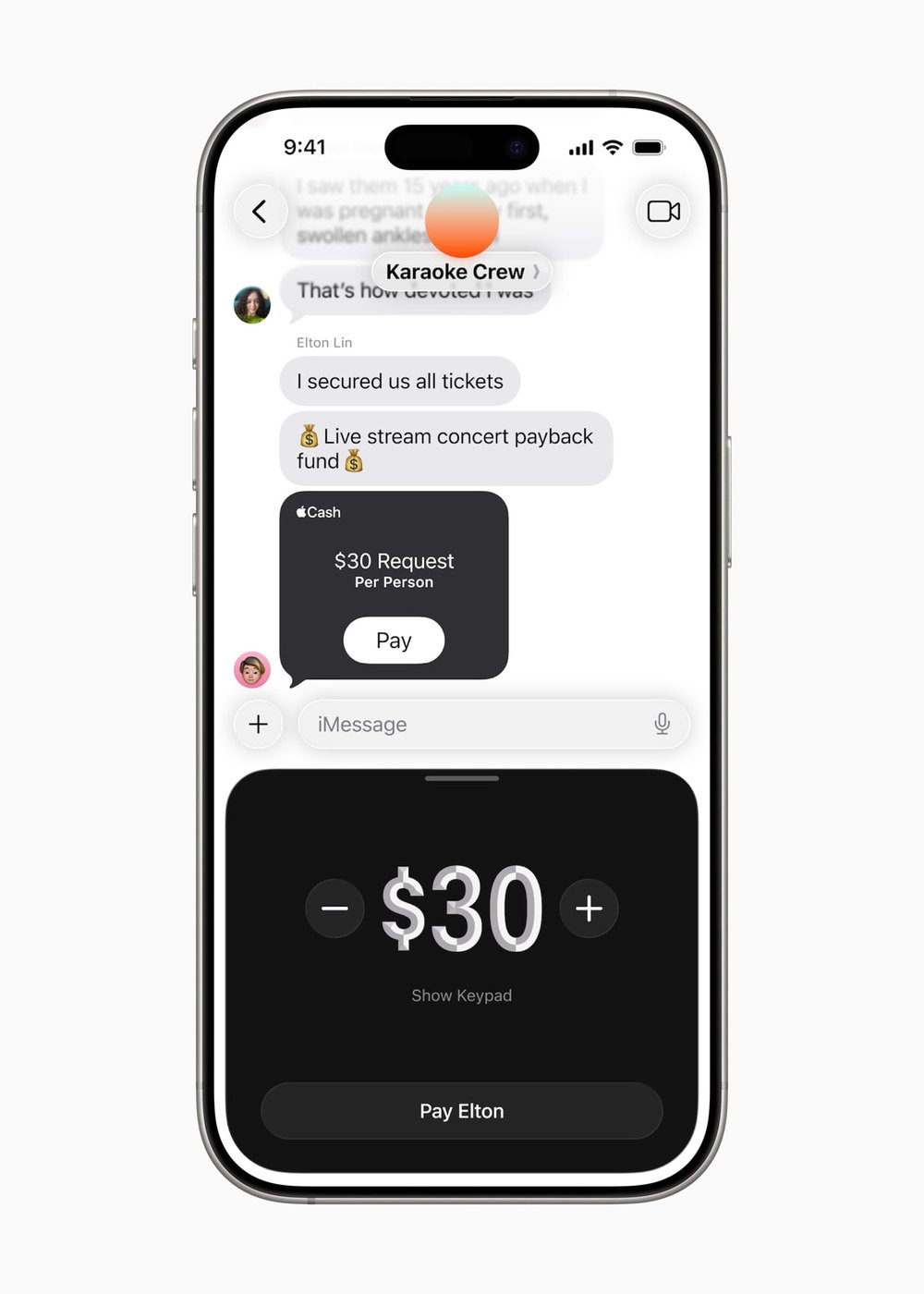
Photo: Apple
10. Set up Name and Photo Sharing
In Messages, tap Edit at the top of the conversation list, then Set Up Name & Photo. Choose how you look, turn on Name and Photo Sharing, then pick Contacts Only or Always Ask under Share Automatically.
Contacts Only gives saved contacts your chosen name and image. Always Ask lets you decide person by person. To change it later, tap Edit, then Name & Photo. Apple says it may not show as expected on non-Apple phones, and availability varies by region.
Photo: Apple Newsroom / customer with iPhone 18 Pro at Apple The Exchange TRX, Kuala Lumpur (September 2026); Live Translation and Apple Cash in group chats in Messages (June 2025)
Source: Apple iPhone User Guide for iOS 27 (Screen and filter text messages; Report spam and block senders; Turn read receipts on or off; Stop, mute, and change message notifications; Keep track of messages; Delete messages and attachments; Set up Messages); posts on X