A doorbell rings while you have headphones on. The washer finishes in the other room. Someone at the office says your name twice. iPhone can listen for these sounds and put a notification on the screen. The feature is Sound Recognition, and in iOS 27 it shares one menu with Name Recognition.
Apple built it for people who are deaf or hard of hearing. Anyone who misses alerts at home can use it too.
Settings > Accessibility > Sound & Name Recognition
Open Settings and tap Accessibility. Tap Sound & Name Recognition, then Sound Recognition, and turn on the switch.
Wait a moment after this step. Apple's guide says iPhone may need to download the available sounds first.
Then tap Sounds. Apple groups them as alarms, household alerts and other sounds. A siren, a doorbell and a baby crying are on it. Each one has its own switch. In Apple's own setup video, a sound like Door Knock is turned on, and then Alert Tones lets you pick the tone that plays when iPhone hears it. Pick a different tone for each sound. You can tell the doorbell from the oven timer without looking.
Custom Alarm and Custom Appliance or Doorbell
Many doorbells and dryers do not match the built-in sounds. Apple announced training for them in May 2022.
Go to Settings > Accessibility > Sound & Name Recognition > Sound Recognition > Sounds. Tap Custom Alarm, or tap Custom Appliance or Doorbell, and enter a name. Put iPhone near the device and cut background noise. TV off, window closed. Tap Start Listening and follow the screen.
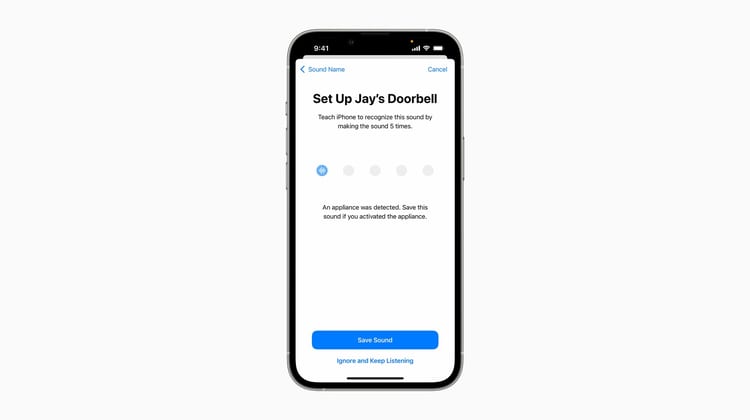
On Apple's setup screen for a custom doorbell, iPhone asks for the sound 5 times and offers Save Sound or Ignore and Keep Listening. Ring the bell yourself. Do not wait for a courier.
Name Recognition, and the orange dot
Name Recognition came with iOS 26. It listens for your name and sends a notification when it hears it. Apple says it is only available in select languages.
Path: Settings > Accessibility > Sound & Name Recognition > Name Recognition, then tap Set Up Name Recognition. You type your name. iPhone makes a pronunciation by itself, or you or a friend can record it. Apple's video asks for the name three times. A nickname goes in with Add Name.
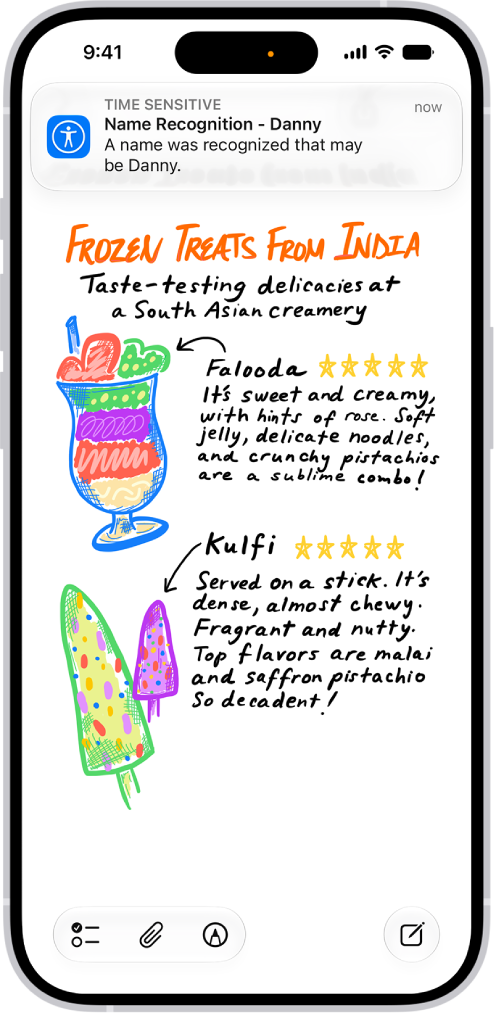
Photo: Apple Support
While Name Recognition is on, an orange dot shows at the top of the screen. That is the normal sign the microphone is in use.
Both features have a Control Center button. Our guide to adding controls and resizing Control Center tiles shows how to put them there. Turn listening off before a meeting, on again at home.
Common mistake: switch on, nothing picked
People turn on Sound Recognition, see the switch go green, and stop. Under Sounds every item still has its own switch. If none is on, iPhone has nothing to listen for, and no alert comes.
The second mistake is trust. Apple's guide is direct here. Do not rely on iPhone to recognize sounds where you may be harmed or injured, in high-risk or emergency situations, or for navigation. A smoke alarm still needs a real alarm. For emergencies on the phone side, check your Emergency SOS and Crash Detection settings instead.
Sound Recognition in CarPlay
CarPlay has its own copy. In CarPlay, go to Settings > Accessibility, select Sound Recognition and turn it on. Then choose the sounds. Apple lists car horns, sirens and a baby crying, and the alert appears on the car's touchscreen. It needs a supported iPhone model, and CarPlay is not offered in every country or region.
Apple Watch is next. Apple has said Sound Recognition is coming to Apple Watch Series 12 as part of Audio Intelligence, marked for later this year.
Photo: Apple
Source: Apple Support, iPhone User Guide (Recognize sounds using iPhone; Have iPhone notify you when your name is called; Get notified about sounds in CarPlay; Accessibility features for hearing on iPhone), Apple Support video, Apple Newsroom