Reading in the back seat is fine for some people. For others, five minutes of email and the stomach turns. iOS 27 has a setting for this. It is called Vehicle Motion Cues, and it sits under Accessibility, not Display.
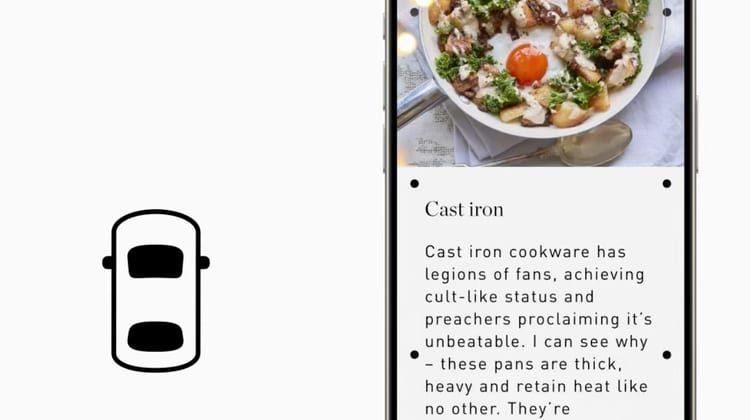
Apple announced the feature in May 2024 for iPhone and iPad. Its explanation is short. Motion sickness often comes from a conflict between what you see and what you feel. Your eyes are on a still screen. Your body feels the car brake and turn. The cues bring that movement onto the screen.
Where Vehicle Motion Cues is in Settings
Open Settings, tap Accessibility, then tap Motion. Tap Vehicle Motion Cues. There are three choices: on, off, or automatic.
With Automatic, animated dots show up when iPhone detects you are riding in a car or other on-road vehicle. When the motion stops, the dots hide again. Apple says iPhone uses its built-in sensors to recognize this.
The dots sit on the edges of the display and move with changes in the vehicle's motion. Text, video and apps stay where they are underneath.
Add the Vehicle Motion Cues button to Control Center
Automatic suits people who ride every day. Some only want the dots on a long trip. For them, Control Center is quicker than Settings.
Open Control Center and tap the Add button in the top-left corner. Tap Add a Control at the bottom of the screen, then scroll. Apple groups the extra controls by category, including accessibility and vision. Tap the Vehicle Motion Cues control to add it. Next time, tap that button in Control Center and pick an option.
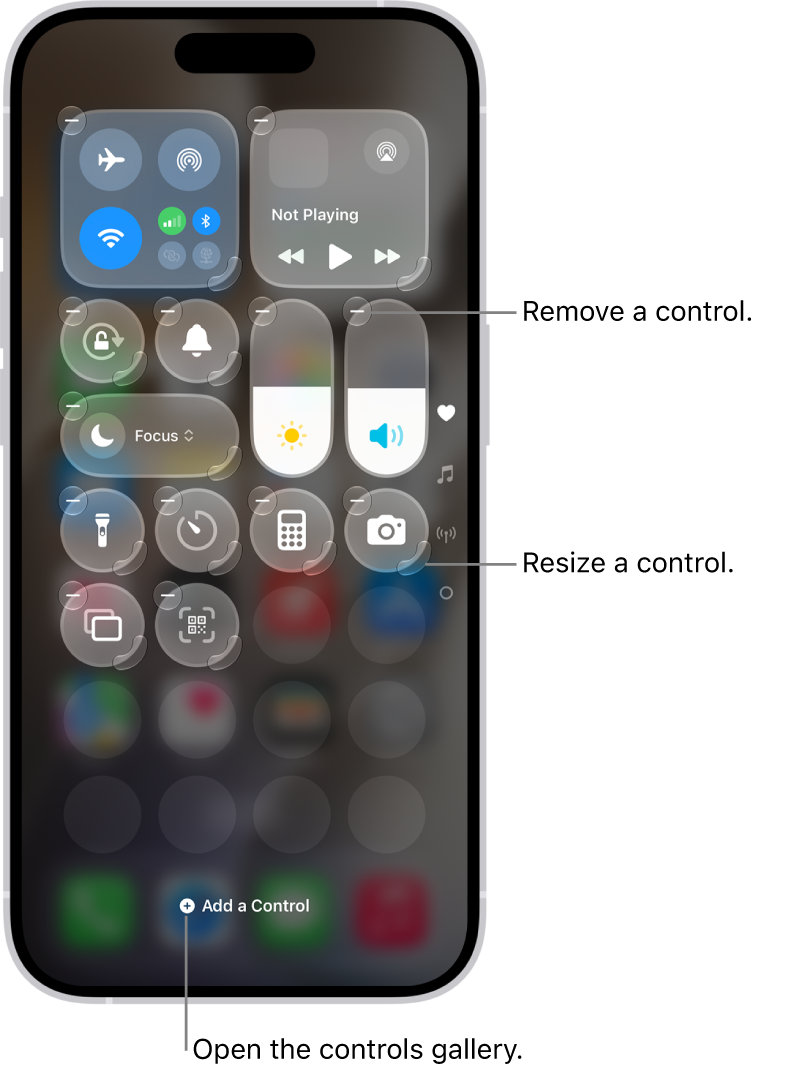
Photo: Apple Support
Our earlier guide to adding and resizing Control Center tiles shows the edit screen in more detail. Apple's guide also says a shortcut can turn the cues on or off. If you already use Back Tap for screenshots and Shortcuts, a double or triple tap on the back of iPhone can open an accessibility feature of your choice.
Customize Appearance: pattern, color and dot size
If the dots are hard to see, or too busy, change them. Go to Settings > Accessibility > Motion > Vehicle Motion Cues, then tap Customize Appearance.
Pattern has two options. Regular is stable and predictable. Dynamic moves more, and Apple calls it a more engaging visual experience. Color lets you pick a tint. iPhone adjusts the saturation by itself so each dot keeps contrast with the content behind it.
Visibility has Larger Dots and More Dots. One makes them bigger, the other adds more.
Start with Regular. Change one thing per trip.
Common mistake: Reduce Motion is a different switch
Reduce Motion lives in the same Motion menu, so the two get mixed up. They do different jobs. Reduce Motion cuts interface movement, such as motion effects on wallpaper, screen transitions and the fluid morphing of Liquid Glass. It shows nothing about the car. Turning it on will not give you the dots.
Two more limits from Apple's guide. Vehicle Motion Cues works best when you sit facing forward. It is also for passengers only. Apple says it should not be used while operating a moving vehicle.
Going on a long drive this weekend? Download Offline Maps before you lose signal too. And for long reading sessions, Screen Distance warns when you hold iPhone too close to your face.
Photo: Apple
Source: Apple Support, iPhone User Guide (Use iPhone more comfortably while riding in a vehicle; Customize onscreen motion; Use and customize Control Center; Quickly turn accessibility features on or off), Apple Newsroom