watchOS 27 posts on X this week were mostly about apps. One post listing the new Readiness, Find My and Siri apps passed 29,000 views. The replies were less happy. One owner said Siri on an Ultra 3 struggles since the update. Another said the watch lags more than before.
The Settings app has more to change than the new app grid. Each path below was checked against Apple's Apple Watch User Guide for watchOS 27 in October 2026. watchOS 27 runs on Apple Watch Series 9 and later, SE 3 and Ultra 2 and later. The full list of changes is in our watchOS 27 feature rundown.
1. Shorten Wake Duration
Open the Settings app on the watch and tap Display & Brightness. Wake Duration sets how long the screen stays on after it wakes. Wake on Wrist Raise and Wake on Crown Rotation are on the same screen.
For a cinema or a concert, there is no need to change all three. Theater Mode stops wrist-raise wakes for a while.
2. Limit what Always On shows
Display & Brightness, then Always On. With it on, the watch face and time stay visible when the wrist is down. Show Complication Data, Show Notifications and Show Apps decide what appears on the dimmed screen.
Turning Show Notifications off means fewer previews on a screen other people can see. Always On is not available in Low Power Mode.
3. Pick a Return to Clock time
Settings, General, Return to Clock. The choices are Always, After 2 minutes and After 1 hour. Apps can get a custom time each.
Some apps also have Return to App. Music, Maps, Podcasts, Timers and Workout are on the list. Turn it on and the watch goes back to the app instead of the face.
4. Use Low Power Mode with a time limit
Press the side button for Control Center, tap the battery percentage, then Low Power Mode. Turn On For lets you set a duration, so it does not stay on all day by mistake. The watch also asks by itself at 10 percent.
Low Power Mode turns off Always On, background heart rate and blood oxygen readings, and heart rate notifications. Other notifications can arrive late. iPhone owners can compare with our iPhone battery settings list.
5. Turn off Background App Refresh
Settings, General, Background App Refresh. Switch it off for all apps, or scroll down and switch it off one app at a time.
Apps with complications on the current watch face keep refreshing anyway. So check the face too.
6. Set Low Power Mode for workouts
watchOS 27 adds Extended Workout. In the Workout app, turn the Digital Crown to a workout, open its options and tap Extended. Pick Extended Workout or Max Extended Workout.
Extended turns on Low Power Mode for the whole session, and some running metrics go away. Max Extended is only for Outdoor Walk, Outdoor Run and Hiking, and some metrics and splits drop out. To do this for every workout, go to Settings, Workout, and turn on Low Power Mode.
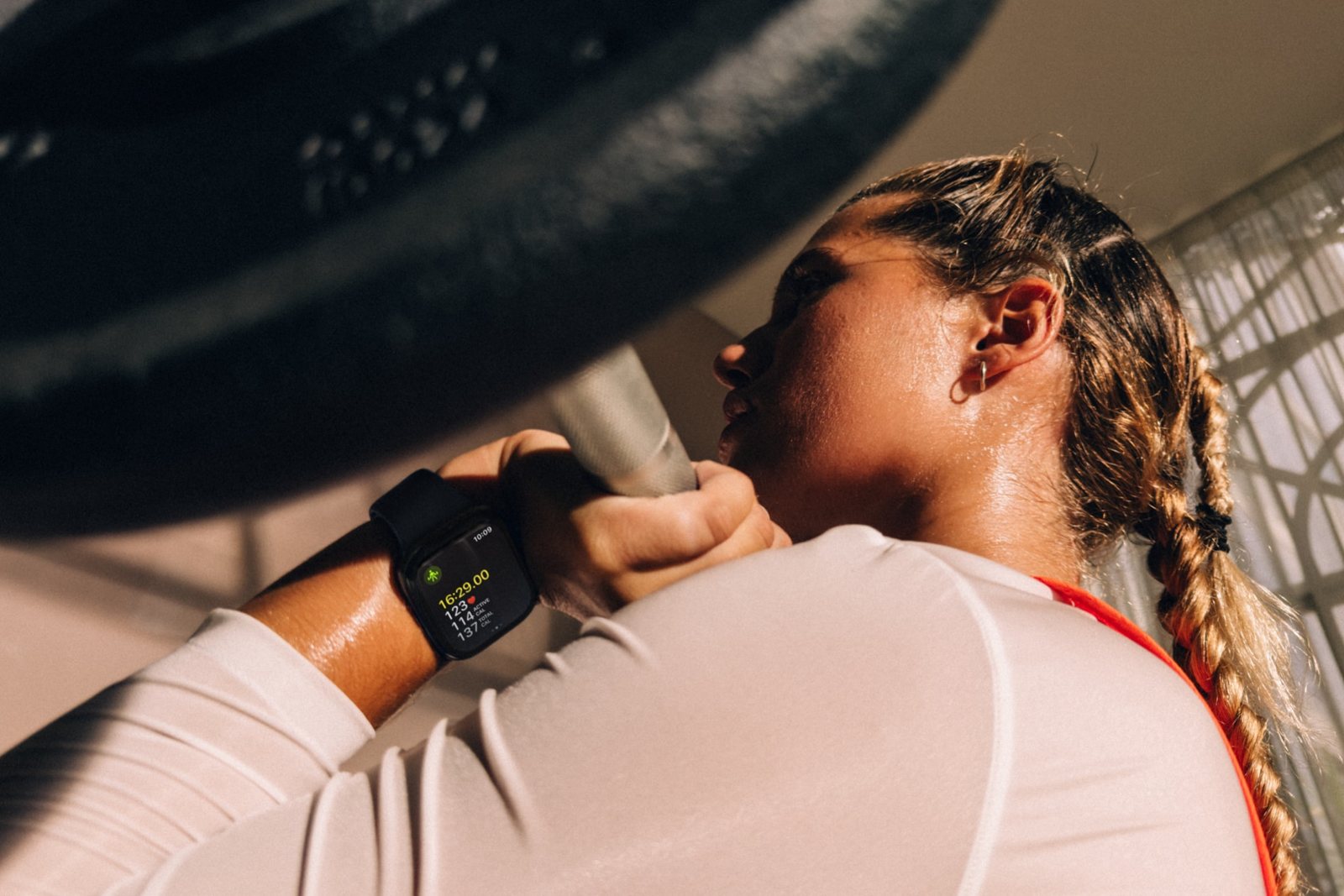
Photo: Apple
7. Set what double tap does
Settings, then Tap Gestures. Playback chooses Play/Pause or Skip for a double tap while media plays. Ignore Tap Gestures is for use with Apple Vision Pro. Off turns the gestures off.
New in watchOS 27 is a single tap. In the Smart Stack, tap index finger and thumb together once to open a widget. Double tap does not work in Low Power Mode, during Sleep Focus or when the watch is locked.
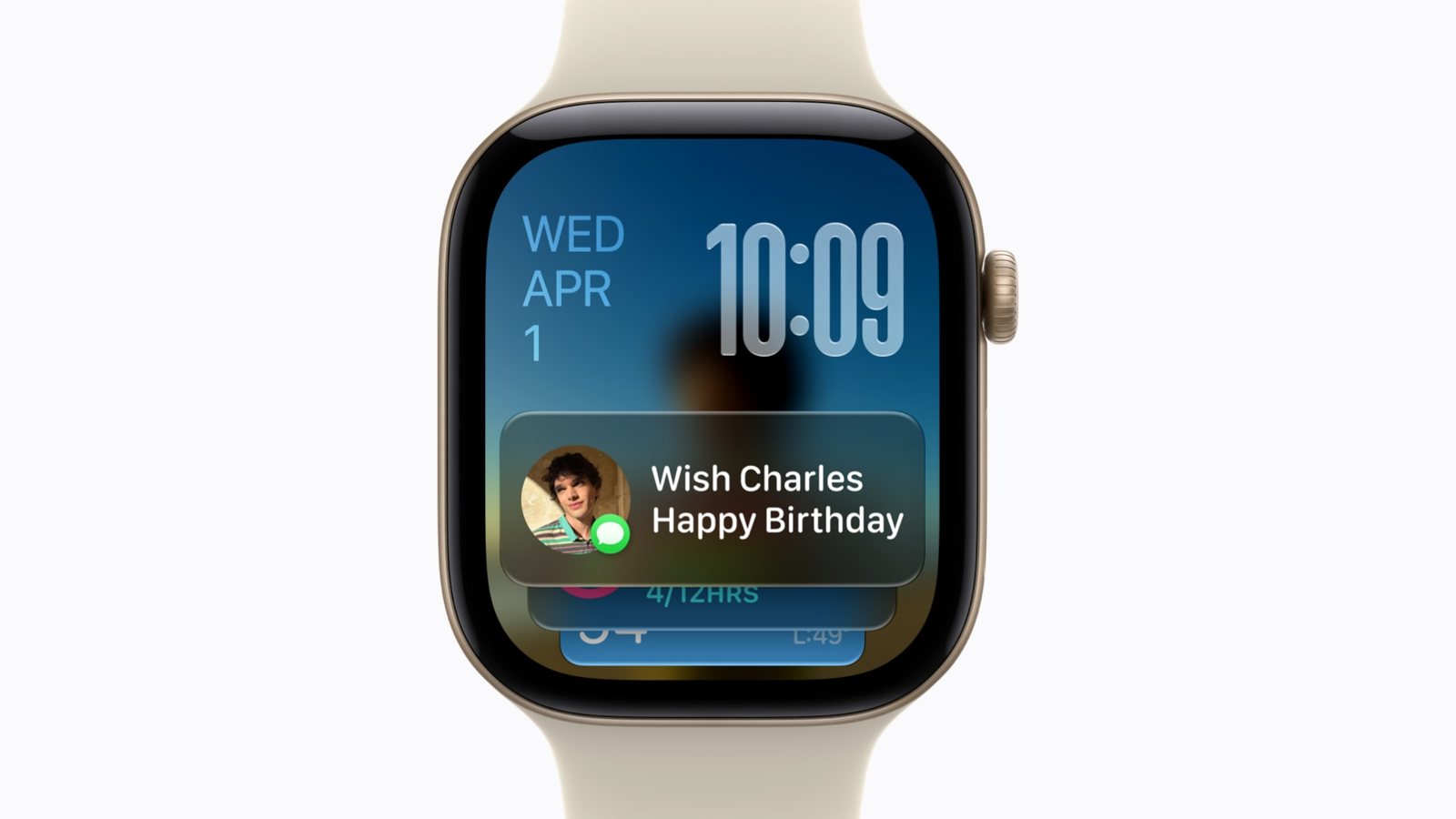
Photo: Apple
8. Check Wrist Flick and Cover to Mute
Both are on by default, and both are under Settings, Gestures. Wrist Flick is turning the wrist over and back. It mutes calls, stops timers, dismisses notifications and goes back to the watch face.
Cover to Mute needs a palm on the display for at least 3 seconds. A haptic tap confirms it. If alerts vanish before you read them, this screen is the first place to look.
9. Turn on Find My network for the watch
Find Devices, Find People and Find Items are now one Find My app in watchOS 27. For the watch itself, go to Settings, tap your name, scroll to the watch, tap Find My Watch and turn on Find My network.
The ping button in Control Center makes the iPhone play a sound. Touch and hold it and the iPhone flashes too. Series 9, Ultra 2 and iPhone 15 or later get Precision Finding with a heading and distance, but not iPhone 16e or iPhone 17e. For AirPods and AirTag, set up Notify When Left Behind on the iPhone.
10. Check Fall Detection
Settings, SOS, Fall Detection. Choose Always on, or Only on during workouts.
Apple says a new watch set up by someone aged 18 to 55 gets the workouts-only setting automatically. A watch upgraded from older watchOS needs it turned on by hand. Wrist detection must stay on, or the watch will not call emergency services after a hard fall. In the Health app on iPhone, set up Medical ID and turn on Share During Emergency Call.
Photo: Apple Newsroom / Apple Watch Series 12, watchOS 27
Source: Apple Watch User Guide for watchOS 27 (What's new in watchOS 27; Adjust the display settings; Extend the battery life; Start a workout; Use tap gestures; Use gestures for notifications and alerts; Set up Find My; Ping your iPhone; Manage Fall Detection); posts on X