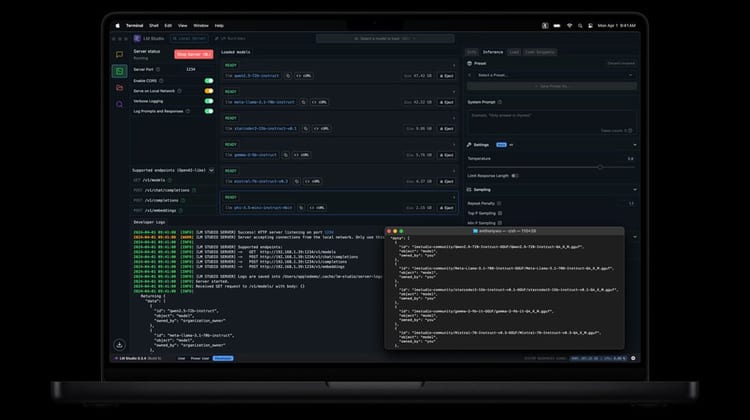
LM Studio has a command line tool, lms. It ships with the app, so there is no separate install. On an Apple silicon Mac it can download a model, load it with a set context length, chat, and start the local server, all from Terminal. The LM Studio window does not need to stay in front.
For Mac, LM Studio lists Apple silicon (M1 and later) and macOS 14.0 or newer. Intel Macs are not supported. The docs recommend 16GB of RAM or more. On an 8GB Mac, stay with small models and modest context sizes. If the app is not on your Mac yet, start with our LM Studio install tip.
Open LM Studio once, then run lms
The docs say LM Studio must be opened at least one time before lms works. After that, open Terminal and type:
lms --helpThe help screen groups the commands. Local models has chat, get, load, unload, ls, ps and import. Then come server, log and runtime.
Download a model with lms get
lms get --mlxWith no model name, lms get shows staff picks. The --mlx flag keeps only MLX models in the results. --gguf does the same for GGUF. To get one by name, the docs use this example:
lms get llama-3.1-8b
lms get llama-3.1-8b@q4_k_m
The part after @ picks a quantization. Files go to the LM Studio models folder, the same one set in the My Models tab. Run lms ls to see what is on disk and copy the model key from there.
Photo: Apple
Check memory with --estimate-only, then load
Before a large model, ask for an estimate first:
lms load --estimate-only <model_key>It prints estimated GPU memory and total memory, then exits. Nothing is loaded. It also honors --context-length and --gpu, so test the real settings here. Then load for real:
lms load <model_key> --context-length 4096 --ttl 3600 --identifier "my-model"--ttl is in seconds. After one hour with no use, this model unloads by itself. --gpu max asks for all layers on the GPU and --gpu off turns offload off. Leave the flag out and LM Studio decides. The identifier is the name apps and later commands use.
lms ps shows what is in memory now. lms unload --all frees it. The Ollama side has the same idea with ollama ps and ollama stop.
Chat or pipe a file from Terminal
lms chat my-model -p "Summarize this release note"
cat notes.txt | lms chat my-model -p "Summarize this, please"
-p sends one prompt, prints the answer to stdout and exits. Without it the chat stays interactive. -s sets a system prompt. --stats prints prediction statistics after each reply. The docs list a default TTL of 3600 seconds after the chat ends, and --ttl changes it.

Photo: Apple
Start the server on 127.0.0.1
lms server start
lms server stop
Without --port, the server takes the last used port. The default bind is 127.0.0.1, so only this Mac can reach it. --bind 0.0.0.0 opens it to the local network. LM Studio warns that any bind other than 127.0.0.1 exposes the server beyond localhost and recommends turning on authentication. --cors stays off unless you add it.
Apps then use the same OpenAI-compatible endpoints from our LM Studio API tip. The model runs on the Mac, and LM Studio says the app can work fully offline once model files are downloaded.
No LM Studio window at all is also possible. The docs list lms daemon up, which starts llmster, the headless mode. lms daemon status checks whether it is running.
Photo: Apple
Source: LM Studio Docs (lms CLI, lms get, lms load, lms chat, lms ps, lms server start, lms daemon up, System Requirements); Apple Newsroom (MacBook Pro with M4 running LM Studio, 14-inch MacBook Pro M5 lifestyle podcast and business scenes)