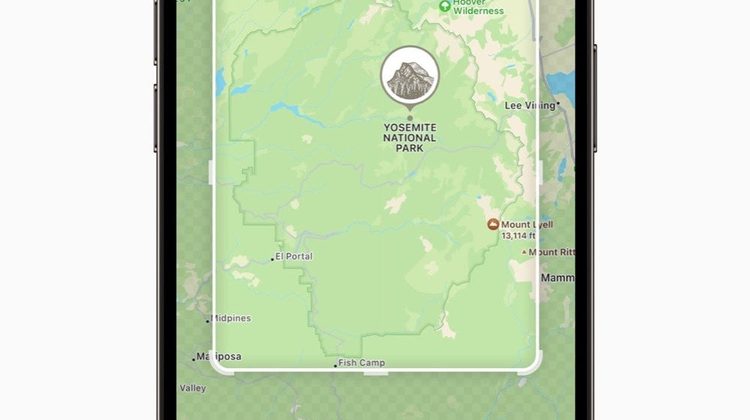
Cell bars drop. Maps spins. The blue route never loads. You needed that map before you left Wi‑Fi.
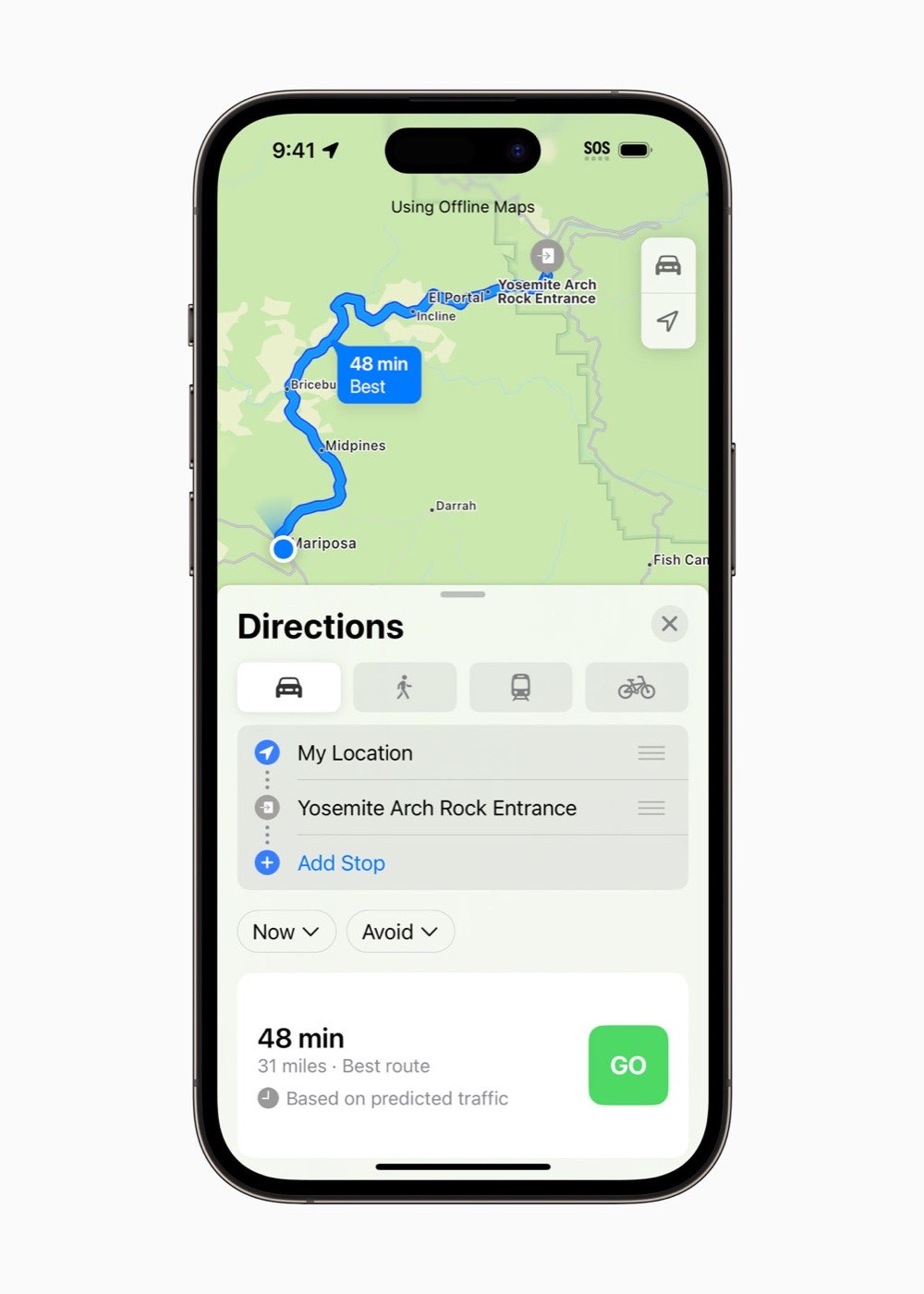
Apple Maps can store a region on the phone. Turn‑by‑turn, ETA, place hours and ratings stay usable without a signal. Apple documents the steps under How to download maps to use offline on your iPhone (HT213606 / support 105084).
Offline maps need iOS 17 or later. They do not sync to your other devices. Coverage varies by country and region. Maps shows the download size before you commit.
Open Offline Maps and download an area
Open the Maps app. Tap your picture or initials next to the search field. Tap Offline Maps.
Tap the Add button, or pick a map Maps already suggests. Enter a city, airport, or park, or tap Current Location. Pinch the preview to grow or shrink the box. Watch the size number. Tap Download.
Stay on Wi‑Fi if you can. Large regions eat storage fast. A downtown core may be a few hundred megabytes. A whole metro area can pass a gigabyte.
Three ways to start a download
Search works too. Find a place, open the card, then tap Download when it appears. Or tap More, then Download Map. Adjust the box, then Download again.
You can also touch and hold an unmarked spot until a pin drops. Tap Download on the pin card. Same resize step. Same confirm.
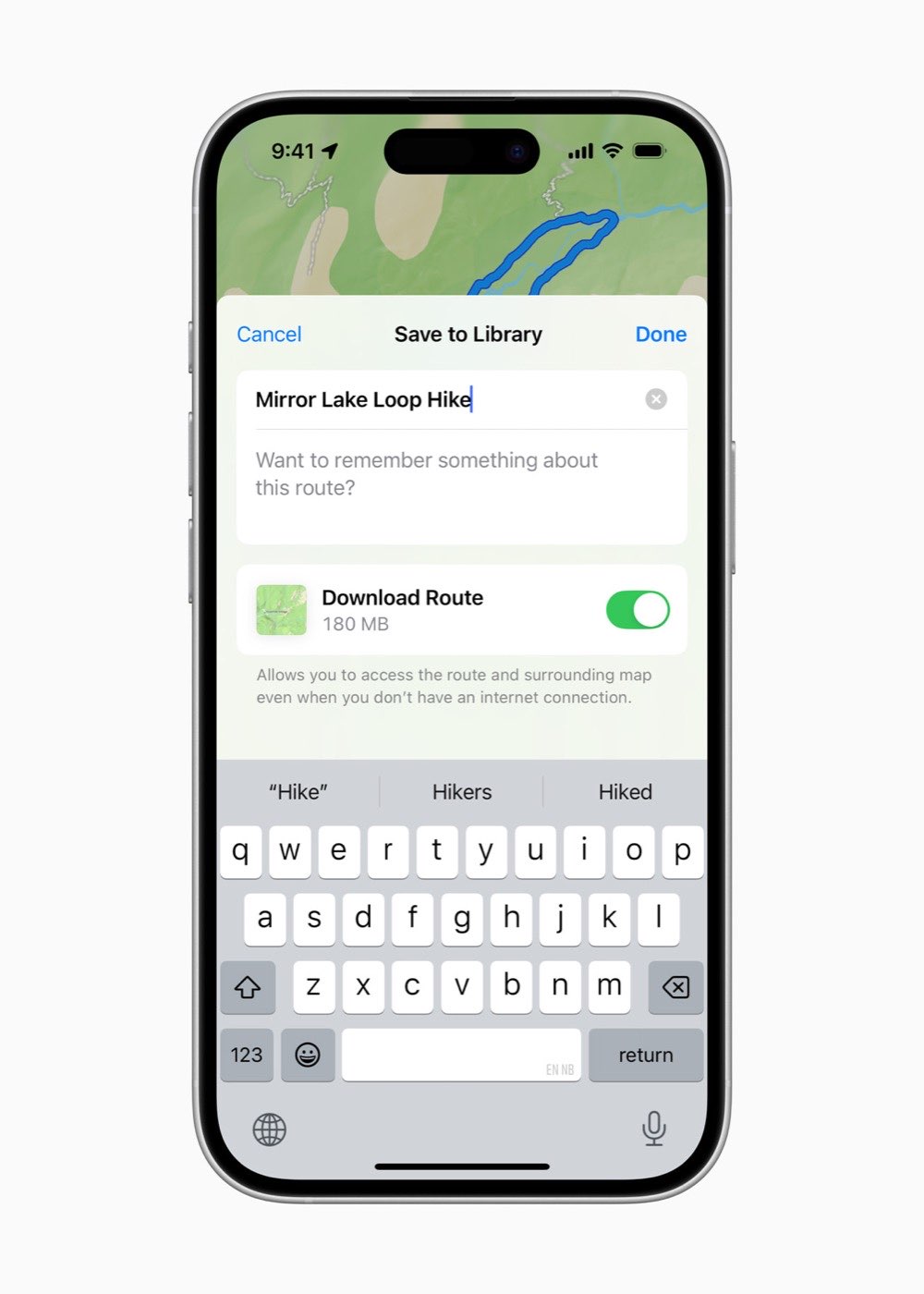
National park hikes and some custom walking routes can be saved for offline use as well. That path still starts in Maps. It does not live under Settings > General.
Downloads, Automatic Updates, and Only Use Offline Maps
Back in Offline Maps, open Settings under the list. Tap Downloads to choose Wi‑Fi Only or Wi‑Fi + Cellular. Leave Wi‑Fi Only on unless you are already on a plan that can absorb the hit.
Automatic Updates stays on by default. Maps refreshes street names and business details when you are connected. Turn on Optimize Storage if unused offline maps should delete themselves after a while.
Only Use Offline Maps forces the app to stay on what you already downloaded, even when cellular returns. Handy when you want to stop roaming data. Turn it off when you need live traffic again.
If Storage Almost Full blocks the download, clear space first with the Storage Almost Full fix. A stuck Wi‑Fi join before the download starts is covered in the Wi‑Fi greyed out tip.
One common mistake
People download a tiny box around a hotel pin, then drive outside it. Directions fail at the edge. Expand the region so the whole day trip fits. Recheck the size. Redownload if you cut it too small.
Another miss: hunting for Offline Maps inside Settings. The switch is not there. It sits inside the Maps app under your account picture. Settings > Apps > Maps has other Maps options. Not this download list.
Spam calls still ring while you navigate. Pair this with the Call Screening tip if unknown numbers keep interrupting the drive. Current shipping builds are tracked in the iOS 27.0.1 firmware note.
Quick check after you finish
Open Offline Maps again. Confirm the new map shows a Finished state and a real file size. Put the phone in Airplane Mode. Open the downloaded area. Pan, search a known street, start a short drive or walk route.
If the map is blank outside your box, that is expected. Resize or add a second region. Delete old trips you no longer need so storage stays free for the next update.
Photo: Apple Newsroom Maps offline / Yosemite route / download for offline use
Source: Apple Support - How to download maps to use offline on your iPhone (105084)