Walk out of a café and leave an AirTag on the keys or AirPods on the table. Notify When Left Behind is the Find My alert that fires when the phone sharing your location pulls away from that item or device.
The switch is not in Settings. It lives inside the Find My app. Apple documents the item path under User Guide topic iph5fe280d90 and the device path under support page 102414, checked October 2026.
Turn it on for an AirTag or Find My item
Open the Find My app on iPhone.
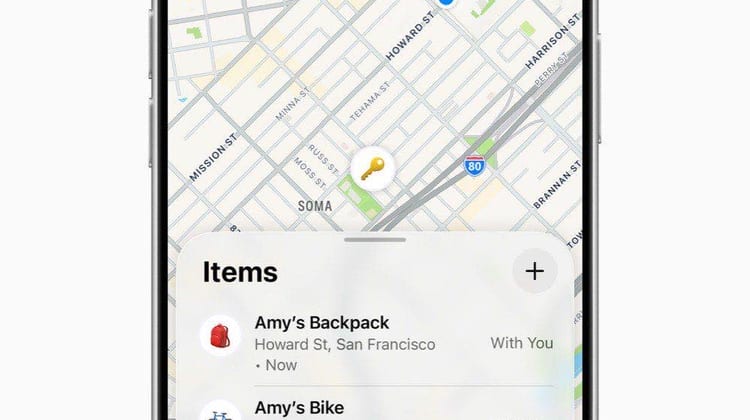
Tap Items at the bottom. Tap the name of the AirTag or other Find My network item.
Below Notifications, tap Notify When Left Behind. Turn Notify When Left Behind on.
Add a Trusted Location if you want. Apple lists suggested places, or tap New Location, pick a spot on the map, then tap Done. Home and work are the usual picks so the alert stays quiet where you leave bags on purpose.
Tap Done when the sheet is set.
Turn it on for AirPods or another Apple device
Same Find My app. Tap Devices instead of Items.
Tap the AirPods, iPad, Mac, or other supported device. Below Notifications, tap Notify When Left Behind. Turn the switch on and follow the prompts.
You set this from the device that is sharing your location. The alert fires when that sharing device separates from the one you selected. AirPods need Find My network turned on for the case.
Apple’s note covers iPhone or iPad on iOS 15 or iPadOS 15 or later, Mac with Apple silicon on macOS 12 or later, and AirPods on the Find My network. MagSafe iPhone Wallet with Find My uses a different row called Notify When Detached.
Sound tweaks for the buds sit elsewhere. See the AirPods settings roundup.
What the alert actually does
When the phone sharing your location leaves the item or device behind, Find My sends a notification. Open Find My and check the last known spot on the map.
Trusted Locations stop those pings in places you mark. Leave keys at home without noise. Leave the same keys on a train and the alert should show.
Notifications for Find My must be allowed. If Find My alerts are off, the separation switch does nothing useful. Open Settings, Notifications, Find My, and confirm Allow Notifications is on.
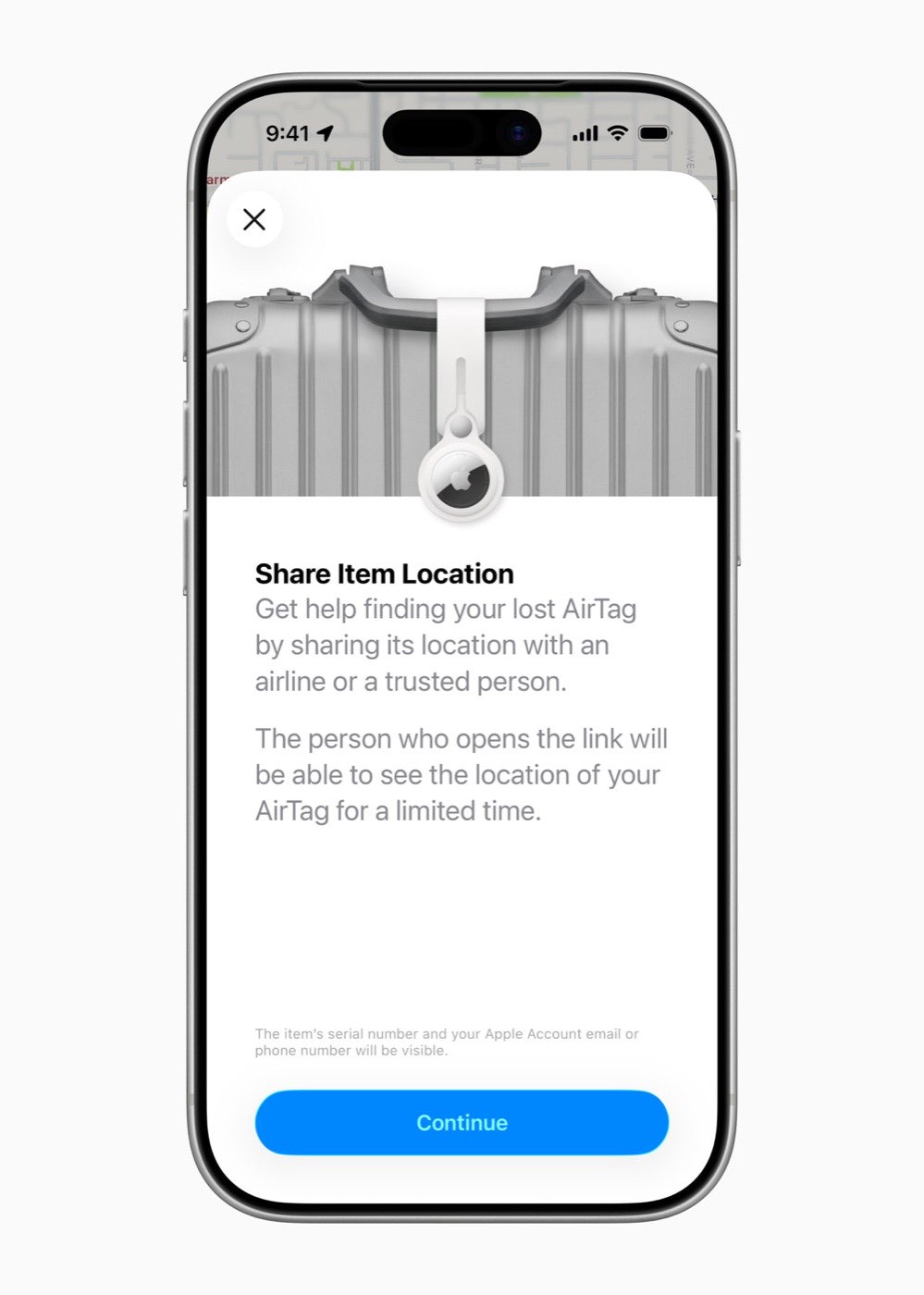
This is not Share Item Location for airlines. That flow temporarily shares a lost item’s position with a partner. Separation alerts are for you, before the item goes fully missing.
One common mistake
People hunt for Notify When Left Behind under Settings, Privacy & Security, or the AirTag battery row. It is not there. Open Find My, then Items or Devices, then the specific object.
Another miss is skipping Trusted Locations. Without them, home and office can spam alerts every time you walk to another room while the bag stays put. Add the places you leave gear on purpose.
A third mix-up is treating the MagSafe Wallet alert like Left Behind. Wallet uses Notify When Detached under the wallet’s Devices entry. Apple says the ping comes about one minute after it separates from the phone.
For a travel safety check next to Find My habits, see the Check In tip. Broader Lock Screen and account hardening steps are in the security settings checklist.
Quick check after you flip the switch
Leave Find My. Put the AirTag or AirPods somewhere you can walk away from. Walk out of Bluetooth range with the phone that shares your location. Wait for the Left Behind notification.
If nothing arrives, confirm Notify When Left Behind still shows On. Confirm Find My notifications are allowed. Confirm you are not standing inside a Trusted Location.
Then walk back and open Find My to see the pin update. Medical details on the Lock Screen are a separate emergency setup in the Medical ID tip.
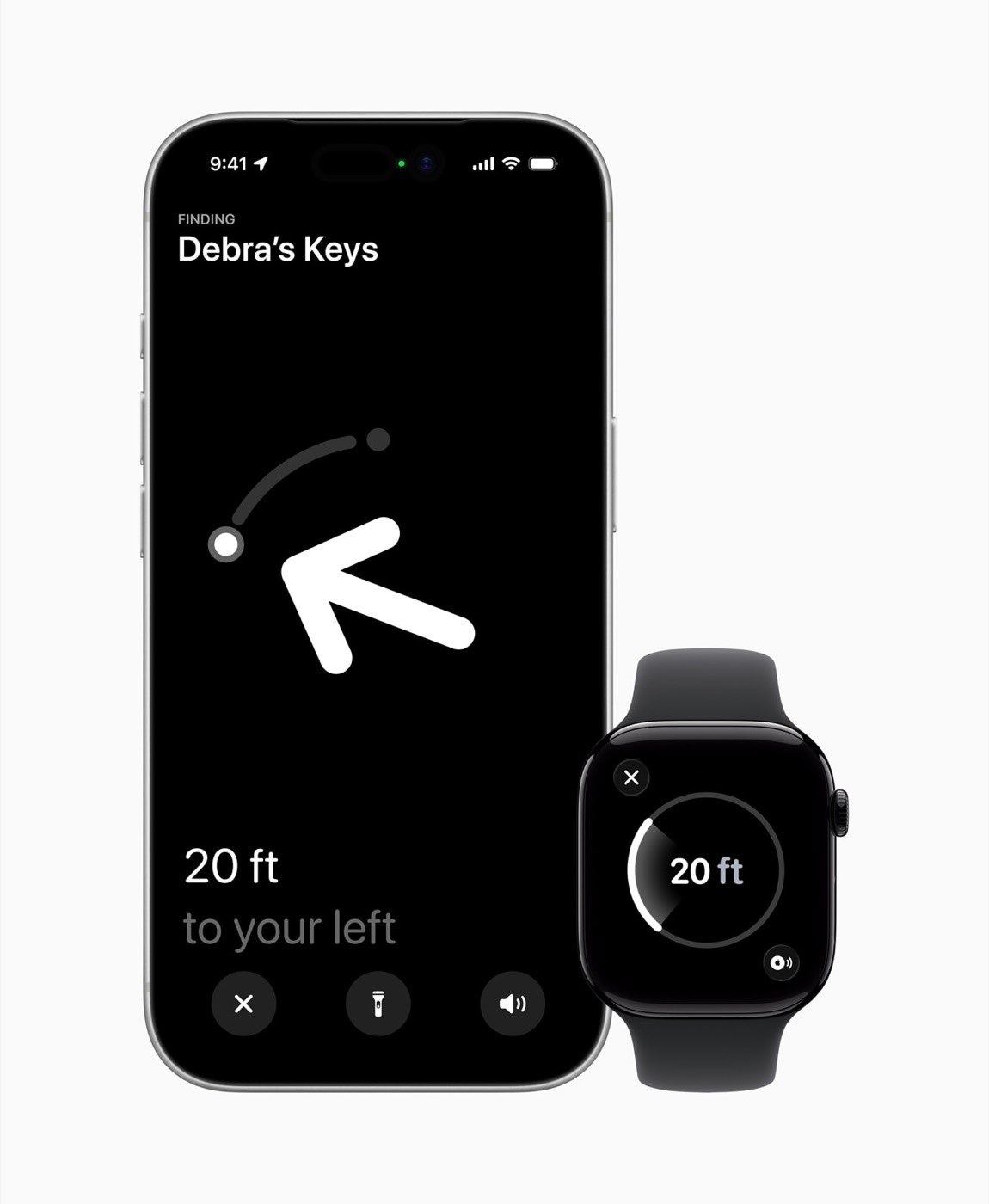
Photo: Apple Newsroom / AirTag Find My items, Precision Finding, Share Item Location
Source: Apple Support - Set separation alerts for an AirTag or item (iph5fe280d90); Set separation alerts for a device (102414)