Callers say your voice is muffled. FaceTime goes quiet on your end. Voice Memos play back silence. Apple Support 101600 keeps the checks short. Clear the openings. Test each microphone. Then open Settings → Privacy & Security → Microphone for a single app that fails.
This is not a speaker crackle walkthrough, and it is not a Face ID reset. For accessories that steal the audio path, start with Bluetooth won’t connect or accessory won’t pair. A frozen screen that blocks Settings needs a force restart when the screen freezes or goes black first.
Clear cases, films, and debris
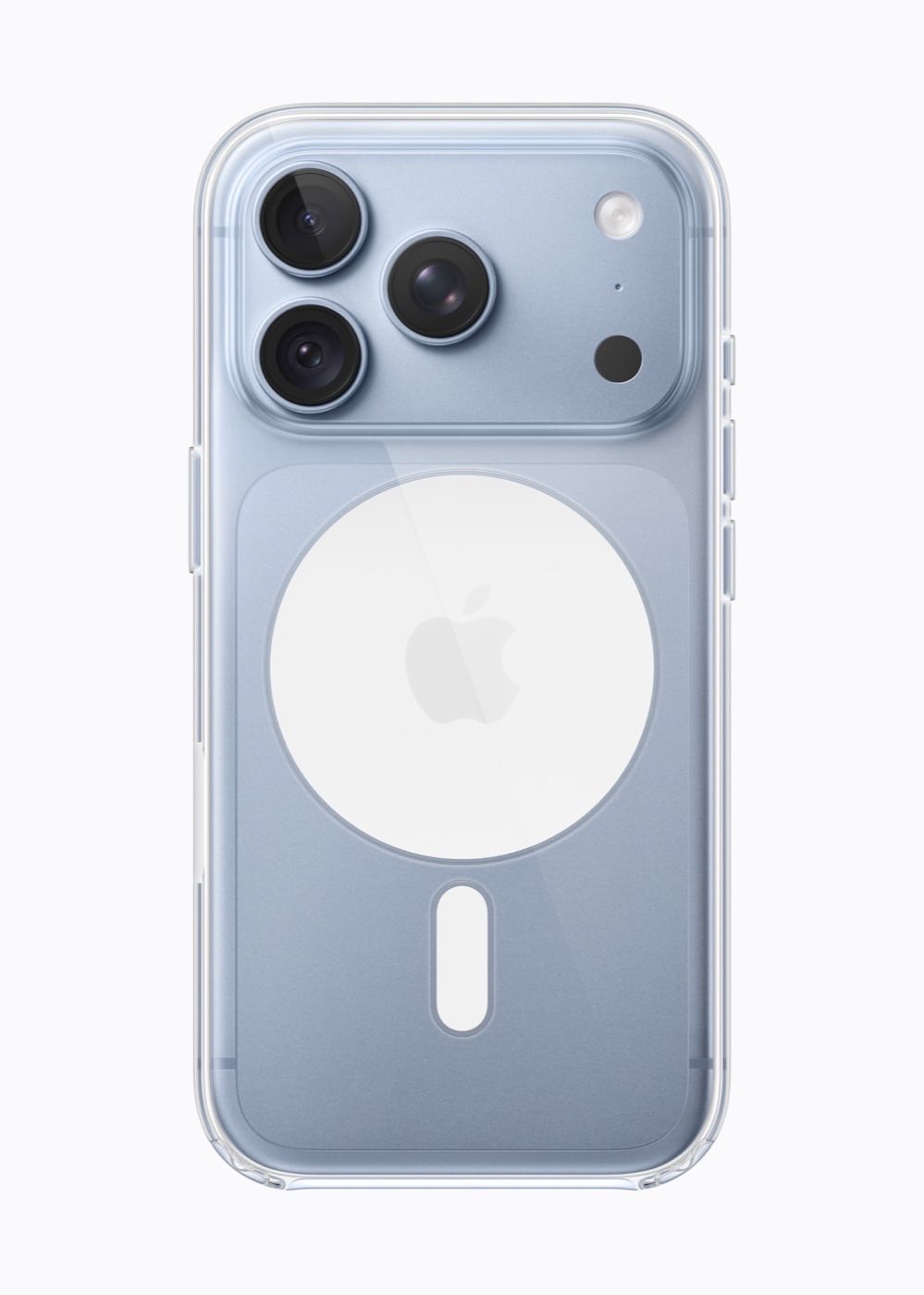
Apple’s first step is physical. Remove any screen protector, film, or case from the iPhone. Look at the microphone openings. Clear lint or debris from those holes. Do not poke hard objects into the ports.
Cases that cover the bottom edge or the top receiver area can mute a call even when the phone looks fine. Test once with the case off before you change any software switch.
Test the bottom mic with Voice Memos
When people cannot hear you on phone or FaceTime calls, Apple says to check the bottom microphone first. Open the Voice Memos app. Tap Record. Speak near the bottom of the phone. Stop the recording.
Play the memo back. You should hear your voice clearly. Soft or empty playback points to that bottom mic, or to something still covering it. Disconnect wired headsets and Bluetooth headsets before this test so the phone uses its built-in mics.
Test the top mics with Camera video
Speakerphone and video use other mics near the top. Open the Camera app. Record a short video while speaking toward the top of the iPhone. Switch cameras with the camera chooser. Record again while speaking at the top.
Play both clips. Clear voice on playback means those mics work. Silence or heavy muffling after you already cleared the openings is the point where Apple moves toward service.
One app fails: check Microphone permission
If calls and Voice Memos sound fine, but one third-party app stays mute, open Settings. Tap Privacy & Security. Tap Microphone. Turn the switch on for that app.
Apple says if the app already has permission, or it never appears in the list, contact the app developer. This screen does not fix a dead hardware mic. It only restores access an app already asked for.
When Apple says get service
Support 101600 ends at Get service when voice still sounds unclear on calls, recordings, or apps after the steps above. Book a Genius Bar or mail-in repair rather than hunting menus that do not exist.
Software Update stalls are a different path (software update won’t install on iOS 27). Hotspot share failures belong under Personal Hotspot not working on iOS 27. Keep mic checks on the Voice Memos and Camera tests Apple lists.
Photo: Apple Newsroom
Source: Apple Support 101600 (If the microphones on your iPhone aren't working), March 27, 2026