Late train. First date. A long walk home after dinner. Check In in Messages tells one friend when your iPhone reaches the place you named. If it does not get there, that friend gets details to act on.
Both people need iOS 17 or later. Labels below follow the Apple Support page "Use Check In on iPhone to let your friends know you've arrived" in the current iPhone User Guide, checked October 2026 on iOS 27.
Send a Check In from Messages
Open Messages. Start a new chat with the Compose button, or open an existing conversation with the friend.
Tap the Apps button next to the text field. Tap More, tap Check In, then tap Edit.
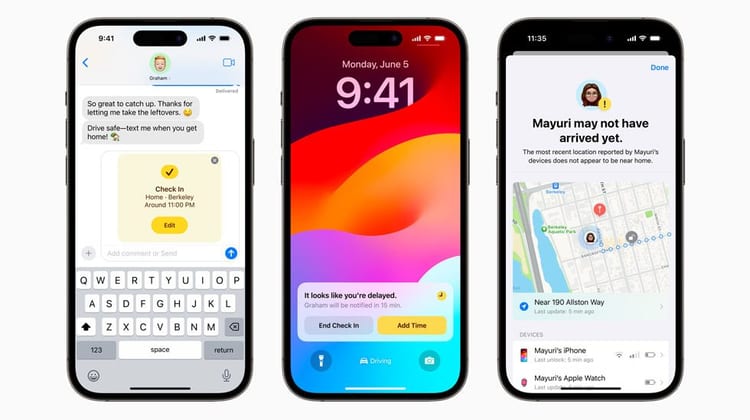
Two modes are on the sheet. When I Arrive asks for a destination and how you travel: driving, transit, or walking. You can add extra time if the trip usually runs long. After a timer is for a set period, for example meeting someone new. Pick one, then tap the Send button.
With When I Arrive, Check In watches the trip. If your iPhone stops making progress for an extended period, or does not reach the destination as expected, your friend is notified. When you arrive, the Check In ends by itself and your friend gets an arrival notice. Nothing else to tap.
With After a timer, you have to end it yourself before time runs out. If you do not, the friend is notified.

Photo: Apple
Add time or cancel on the way
Traffic happens. Open the same conversation in Messages. On the Check In message, tap Details, tap Add Time, and pick an option.
Plans change too. To stop early, tap Details on the Check In message, then tap Cancel Check In and confirm. Your friend is told the session ended.
Apple's own iOS 17 screenshots show a Lock Screen prompt when a trip runs late: "It looks like you're delayed," with End Check In and Add Time buttons. If you ignore the prompts and the iPhone never arrives, the journey details go to your friend.
Check In pairs well with a map that works without signal. The Offline Maps download guide covers that part of the walk home.
Settings > Apps > Messages > Check In Data
This screen decides what the friend sees if the Check In is not completed. Go to Settings, tap Apps, tap Messages. Scroll down and tap Check In Data.
Limited shares your current location, plus network signal and battery details for your iPhone and Apple Watch.
Full shares the same data and adds the route you traveled. It also adds the last time you unlocked your iPhone or removed your Apple Watch. For a friend trying to find you, the route is the useful part. Choose this before you leave, not on the street.
On the receiving side, a friend whose Check In fails can view that person's location, battery percentage, cellular signal, and more, per Apple.
Photo: Apple
One common mistake
Sending a Check In to someone who is not on iOS 17 or later. Apple's note says both sender and recipient need it. A friend on an older iPhone, or on a phone that is not an iPhone, is the wrong pick. Choose a contact who can actually receive the alert.
The second trap is signal. Apple says if you lose service or your iPhone powers off during a Check In, the friend may get a delayed or early notification. Charge before a long trip. A dead battery halfway home can turn a normal walk into an early alert.
If you often message the same person before heading out, Send Later in Messages can queue a "leaving now" text. For a phone that could be taken on the trip, Stolen Device Protection adds a Face ID wall away from familiar places.
Photo: Apple Newsroom (iOS 17 Check In)
Source: Apple Support, iPhone User Guide