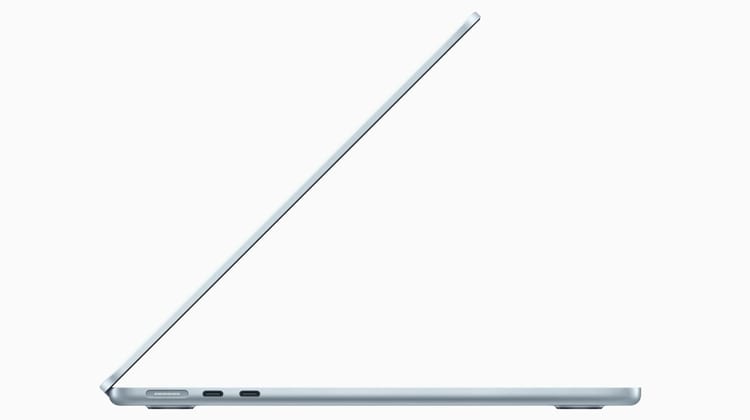
Local models are big files. Ollama's own macOS page says the models "can be tens to hundreds of GB in size." On a MacBook Air with a small internal SSD, three or four models can fill the disk fast. Ollama can keep them on an external drive instead. The setting is in the Mac app now, and the old Terminal way still works.
This tip is for a Mac that already runs Ollama. Setup is in our Ollama on Apple silicon tip. Ollama lists macOS Sonoma 14 or newer. On Apple M series chips it uses CPU and GPU, on Intel Macs CPU only.
~/.ollama/models is the default folder
On a Mac, the Ollama FAQ gives the model folder as ~/.ollama/models. The wider ~/.ollama folder also has configuration, and logs in ~/.ollama/logs. Only the models part needs to move.
Check what you have first:
ollama list
du -sh ~/.ollama/models
The first line prints each model with its size. The second gives the total for the folder. Apple Intelligence keeps its own models in a different place, as in our Apple Intelligence storage tip, so this number is Ollama only.
Model location in Ollama Settings
Plug in the external SSD and make a folder on it, for example ollama-models. Open Settings in the Ollama app. There is a field named Model location, with the description "Location where models are stored." The field itself is read-only. Click Browse next to it and choose the new folder.
In the Ollama source on GitHub, the app passes this folder to its server as the OLLAMA_MODELS variable. To be safe, quit Ollama from the menu bar and open it again after the change. New downloads with ollama pull or ollama run then go to the drive. Custom models made with ollama create, like in our Ollama Modelfile tip, also land there.
Photo: Apple
Copy old models before you delete anything
In the app code, the setting only points Ollama at the new path. Old downloads stay in the old folder. Quit Ollama, then copy the contents of the old folder to the new one in Terminal:
cp -R ~/.ollama/models/ "/Volumes/YourDrive/ollama-models/"
Change YourDrive to the drive name in Finder. The slash at the end of the first path copies what is inside the folder, not the folder itself. Open Ollama again and run ollama list. The same model names should come back. Then test one with ollama run. Only after that, move the old ~/.ollama/models folder to the Trash. Leave the rest of ~/.ollama where it is.
launchctl setenv for the same variable
The FAQ way still works too. When Ollama runs as the Mac app, server variables are set with launchctl, then the app is restarted:
launchctl setenv OLLAMA_MODELS "/Volumes/YourDrive/ollama-models"
A value from launchctl setenv is cleared at reboot, so you have to run it again after every restart. The Settings field is easier for a drive you keep plugged in.
If the drive is not mounted
The app code checks the folder before start. If the path cannot be read, Ollama writes a warning, "models path not accessible, using default", and goes back to ~/.ollama/models. Nothing breaks. But ollama list looks empty or old, and a new pull fills the internal disk again. Mount the drive first, then open Ollama. If models seem missing, look at app.log and server.log in ~/.ollama/logs.
A slow USB stick also makes the first load of a big model slower. A fast SSD on USB-C or Thunderbolt is the better choice. To see which model is loaded in memory and unload it, use our ollama ps and ollama stop tip.
Photo: Apple
Source: Ollama documentation (macOS page, FAQ on model storage and environment variables on Mac); Ollama app source on GitHub (Settings, server); Apple Newsroom (MacBook Air with M4)