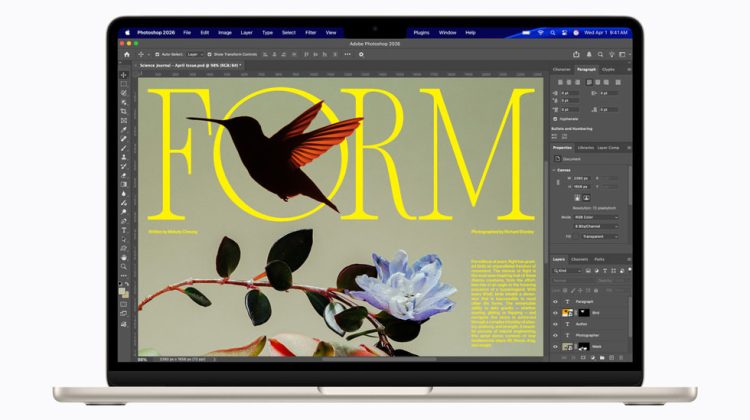
Local large language models on a Mac are no longer a lab-only setup. Ollama ships a macOS app and a CLI. On Apple silicon it can use the GPU. On Intel Macs it stays on the CPU. Official docs put the floor at macOS Sonoma 14 or newer.
You keep the weights on your disk. Chat stays on localhost unless you point a tool at a cloud model. That is a different path from the Siri AI English beta that runs through Apple’s assistant stack.
Install Ollama on macOS
Two official routes. Download from ollama.com/download/mac and run the installer script in Terminal:
curl -fsSL https://ollama.com/install.sh | sh
Or mount the DMG and drag Ollama into Applications. On first launch the app checks for the ollama CLI. If it is missing from your PATH, it asks for permission to add a link under /usr/local/bin.
Apple M-series Macs get CPU and GPU support. x86 Macs are listed as CPU only. Keep free space for models. Docs say weights can take tens to hundreds of GB over time. Models and config land under ~/.ollama. Logs sit in ~/.ollama/logs.
If your home volume is tight, free apps first. The same storage pressure shows up in the Offload Unused Apps tip on iPhone. On Mac, check About This Mac, Storage, before you pull a big model.
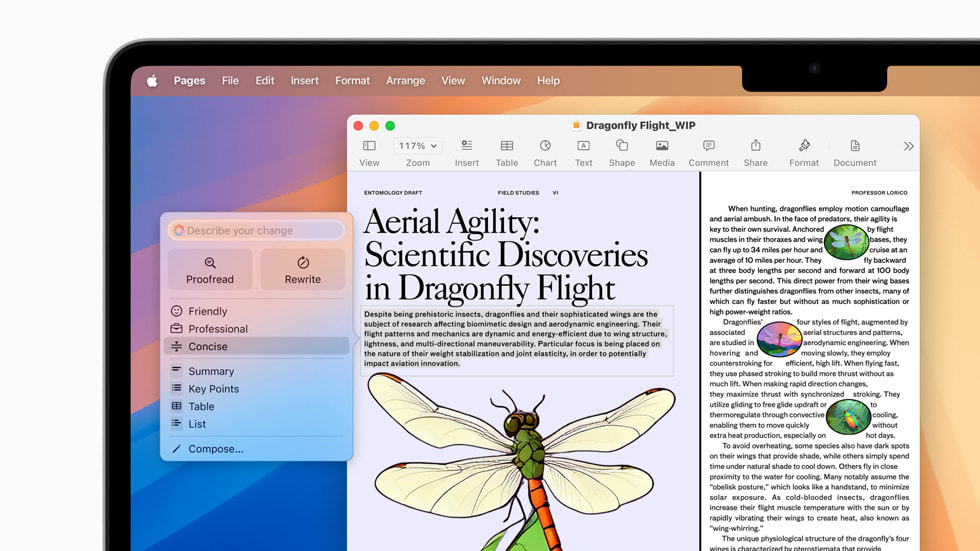
Run a local model in Terminal
Open Ollama so the local server is up. Then pull and chat with one command:
ollama run gemma4:e2b
Ollama downloads the model and opens a chat in the terminal. Type /bye when you want to leave.
Official quickstart notes that gemma4:e2b is about a 7.2 GB download. It recommends about 8 GB of available VRAM, or unified memory on a Mac. Larger context windows need more memory. With less headroom, Ollama can spill into system RAM. Answers may feel slower.
To download without chatting yet:
ollama pull gemma4:e2b
Then talk to the local server at http://localhost:11434. No API key for that local path. Cloud models are a separate sign-in flow on ollama.com.
Connect Claude or ChatGPT Desktop
On macOS, open Ollama and select Apps. Official docs say you can connect Claude Desktop or ChatGPT Desktop. Follow the prompts to install or restart the desktop app.
Pick your Ollama models under Settings, Apps. Claude Desktop can use Ollama models. ChatGPT Desktop can use them in Codex mode. Regular Chat and voice still use your usual ChatGPT connection.
That split matters for privacy. Local weights stay on the Mac. Cloud chat still leaves the machine. Treat it like any other account toggle, the same way readers already weigh cloud features against on-device limits in pieces such as the iOS 27 child safety update.
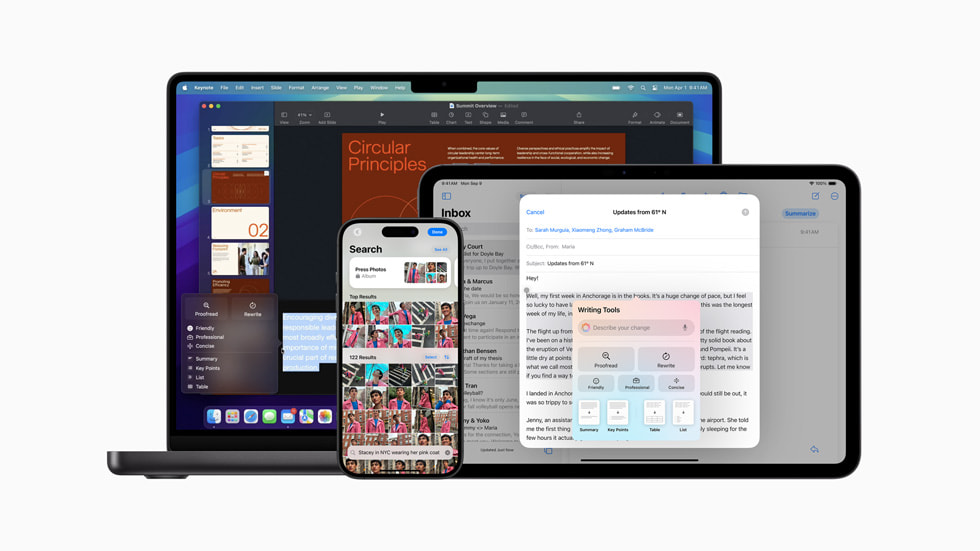
Disk, logs, and a clean uninstall
When a run fails, open ~/.ollama/logs. app.log covers the GUI. server.log covers the server. The CLI binary lives inside the app bundle under Contents/Resources/ollama.
To remove Ollama fully, Apple’s partner docs on the Ollama macOS page list the usual targets: delete /Applications/Ollama.app, the /usr/local/bin/ollama link, Application Support and cache folders, and ~/.ollama. That last folder is where the models live. Delete it only if you want the weights gone too.
After a big macOS or iOS train, it is worth confirming the app still launches. Today’s firmware note on iOS 26.7 build 23H24 and iOS 27 build 24A437 is a reminder that software floors move. Ollama’s own floor remains Sonoma 14.
Start with a small local model. Confirm ollama run replies offline. Add desktop Apps only after that works.
Photo: Apple
Source: Ollama docs (macOS, Quickstart), ollama.com/download/mac, Apple Newsroom (MacBook Air, Apple Intelligence)