Plug iPhone into the Mac and nothing happens in Finder. No sidebar entry, no sync button, no local backup. The phone may still charge, which makes it more confusing. Steps below follow Apple's page "If your computer doesn't recognize your iPhone or iPad", updated August 12, 2026, plus two related Apple documents.
Two alerts, one on each screen
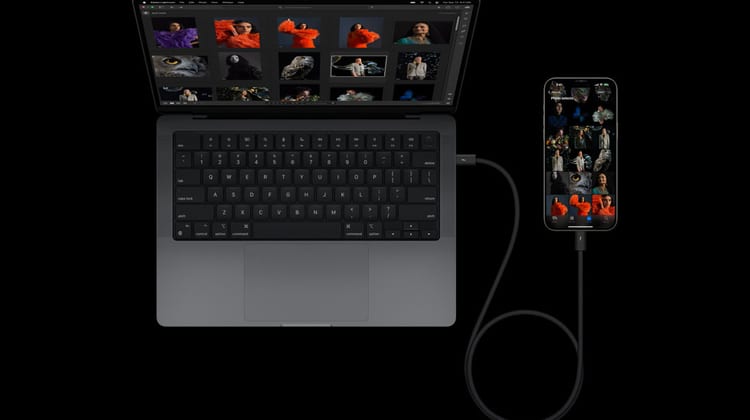
Connect iPhone to the Mac with a USB cable. On a Mac laptop with Apple silicon, the first alert can show on the Mac, not the phone. It reads "Allow accessory to connect?" Click Allow.
Then iPhone asks "Trust this Computer?" Unlock it with your passcode and tap Trust. After that, the phone should appear in the Finder sidebar.
Charging is not proof of a data link. Apple says accessories can still charge even if you choose Don't Allow, but the Mac won't recognize the accessory or give it access to data. The next connection asks again. If the Mac has been locked for 3 or more days, you might need to unlock it before a phone you allowed earlier works again.
The rule lives in System Settings > Privacy & Security > Accessories, in the menu next to "Allow accessories to connect". Apple lists four choices. Always ask. Ask for new accessories, which is the default. Automatically allow when unlocked. Always allow.
Don't Trust tapped by mistake, or no Trust alert
Pick Don't Trust and the computer is blocked from content on the phone. The alert then comes back on every connection to that computer. With iOS 16 and later it also shows when you back up, and every time you connect if automatic backups are on.
If the alert never shows, or the Mac ignores your answer, Apple gives an order. Try again after each step.
- Update the Mac to the latest macOS.
- Disconnect and reconnect the iPhone.
- Restart the Mac, then restart the iPhone.
- On iPhone, go to Settings > General > Transfer or Reset iPhone > Reset > Reset Location & Privacy. Every computer you trusted before will ask again.
- Last, Reset Network Settings in the same menu. This also clears saved Wi-Fi networks and passwords, cellular settings, and VPN and APN settings.
Phone is connected but the Finder sidebar is empty
Sometimes the sidebar itself is missing. In Finder, choose View > Show Sidebar.
Sidebar there, phone not? The macOS User Guide says to open Finder > Settings, click Sidebar, and under Locations select the CDs, DVDs, and iOS Devices checkbox. The same page says the iPhone should be unlocked with the Home Screen visible when you check.
Cable, port and security software
Listen for the chime or feel the vibration when the cable goes in. No chime and no vibration means unplug and look in the charging port for debris. If the phone shows a liquid alert instead, that is a separate block, see our Liquid Detected fix.
Then swap things one at a time. Another cable first. Apple says it must support both data and charging, so a cable that only charges will not do. Another USB port next, or another Mac.
VPN apps and third-party security software are on Apple's list too. Check whether one is running, and test without it. Last, check that the Mac has the latest macOS and the iPhone has the latest iOS, in Settings > General > Software Update.
Still not recognized after all of it
Apple's page ends here. If the computer still doesn't recognize the device, it might need service, and you contact Apple Support.
The data on the phone is not stuck in the meantime. An iCloud backup does not need the cable, see iCloud Backup failed fix if that one also stops. A few photos can go over AirDrop, and our AirDrop not working guide covers the usual blocks there.
Source: Apple Support, "If your computer doesn't recognize your iPhone or iPad" (108643), "About the 'Trust This Computer' alert message" (109054), "Allow USB and other accessories to connect to your Mac" (102282); macOS User Guide
Photo: Apple