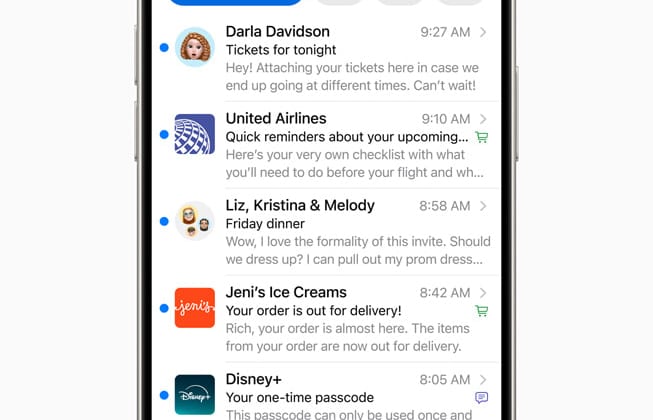
Mail opens. Inbox stays empty. Or the app asks for a password again and again. New messages never land.
Apple Support documents this on HT102578, “If you can’t receive email on your iPhone or iPad,” updated May 28, 2026. Current iOS path: Settings, then Apps, then Mail. Labels below match that page.
Start with the network and the password. Then check Fetch New Data. Remove and re-add only after you confirm mail still exists on the provider’s website.
Check internet and the account password
Confirm the iPhone is online. Open Safari. Load any page. If the browser fails, fix Wi-Fi or cellular first. Apple also says to ask the email provider whether a service outage is underway.
If Mail prompts for a password, verify it is correct. Sign in on the provider’s website from another browser. Wrong password on the site means wrong password in Mail.
Username or password errors that persist after a correct web login often need the provider. Two-step verification may require an app-specific password. Apple notes that restriction in the same support article.
Wi-Fi that drops mid-sync can look like a Mail bug. The Reset Network Settings fix covers the full network reset path when radios misbehave.
Photo: Apple
Fetch New Data and Mail notifications
Open Settings. Tap Apps. Tap Mail. Tap Mail Accounts. Tap Fetch New Data.
Pick Automatically or Manually, or set a schedule. Provider defaults still matter. If Push is not offered for that account, iPhone falls back to Fetch.
On iOS 11 and later, Automatically is the default. Background fetch then runs only while charging and on Wi-Fi. Leave the phone on a charger overnight if daytime mail arrived late under Automatically.
For iCloud Mail, HT102562 adds Push in the same Fetch New Data screen. Turn Push on. Keep Automatically under Fetch. Only one account can use Push at a time. Tap the iCloud account and enable Push there if several accounts share the list.
Also check alerts. Open Settings, tap Notifications, tap Mail. Adjust Alerts, Sounds, and Badges. Mail can still download while banners stay off. A quiet Lock Screen is not proof that download failed.
Low-priority app noise held for later is a different switch. See the Scheduled Summary tip. Keep Mail on Immediate Delivery when you need inbox alerts on time.
Photo: Apple
Delete Account and set it up again
Apple’s last step is remove, then re-add. Sign in on the provider’s website from a computer first. Confirm every message you need is still there, or saved somewhere other than the iPhone. An iCloud or computer backup stores Mail settings, not the messages. Changing or deleting the account can wipe previously downloaded mail from the device.
On the iPhone, open Settings. Tap Apps. Tap Mail. Tap Mail Accounts. Tap the account. Tap Delete Account.
Add the account again with the same address and current password. For iCloud, also confirm Mail is on under Settings, your name, iCloud, then Mail, with Use on this iPhone enabled, per HT102562.
Form sign-ups that flood the real inbox pair poorly with a broken download path. The Hide My Email tip keeps throwaway addresses out of the primary mailbox.
One common mistake
Leaving Fetch on Manually, then never opening Mail. No manual pull, no new mail. Or leaving Automatically on, never plugging in, never joining Wi-Fi, and assuming Push failed.
Another mix-up: dumping Mail into a Focus or notification digest, then deciding receive is broken. Focus can silence banners. Scheduled Summary can delay non-urgent apps. Neither replaces Fetch New Data. Review both if alerts feel missing after mail already sits in the mailbox.
Privacy locks on Safari do not fix Mail sync. For browsing habits beside inbox cleanup, see the Safari Private Browsing Face ID tip.
After changes, send a test message from another address. Wait through one fetch cycle or open Mail while on Wi-Fi and charging. If nothing arrives and the provider site shows the message, contact the email provider with the iPhone settings they require.
Photo: Apple
Source: Apple Support - If you can't receive email on your iPhone or iPad (HT102578); If iCloud Mail isn't working (HT102562)