Touch ID will not unlock the Mac. Or it skips password autofill. Or Apple Pay asks for the login password every time. Apple Support 102356, “If Touch ID isn't working on Mac,” dated March 18, 2026, is the checklist. The Mac User Guide page on using Touch ID matches it.
This is the Mac sensor on a built-in keyboard or on Magic Keyboard. It is not Face ID on iPhone. For locking private shots behind Face ID on the phone, see the Hidden album tip from today.
Clean the finger and the sensor first
Apple puts this at the top for a reason. Moisture, lotion, sweat, oils, cuts, or dry skin can break recognition. That includes after exercise, a shower, swimming, or cooking.
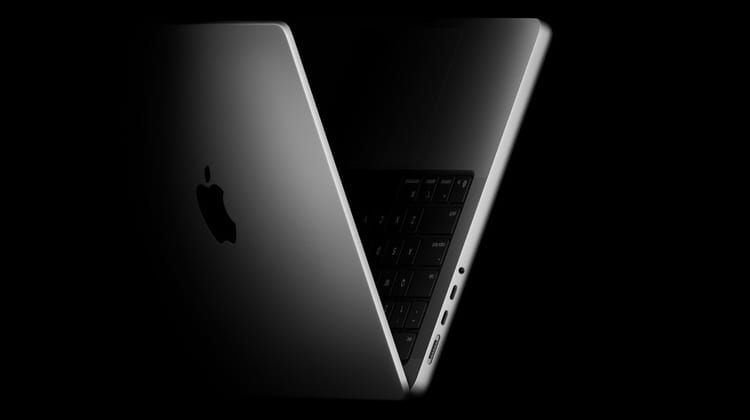
Wipe the Touch ID sensor. Dry your finger. Try again. The sensor sits at the top right of the keyboard on MacBook models that include Touch ID, and on Magic Keyboard models that have it.
If Touch ID works for unlock but fails for Apple Pay or store buys, open System Settings. Click Touch ID & Password in the sidebar. Turn on the feature you need. Apple lists Unlock your Mac, Apple Pay, iTunes Store / App Store / Apple Books, Autofill passwords, and Fast user switching as separate switches.
Update macOS, restart, then re-enroll the fingerprint
Install the latest macOS update from System Settings, General, Software Update. Restart the Mac.
If it still fails, delete the fingerprint and add it again. Or add a different finger.
Path: Apple menu, System Settings, Touch ID & Password. Click the fingerprint, unlock with your password, then Delete. Click Add Fingerprint and follow the prompts. You can store up to three fingerprints on a user account, and up to five on the Mac overall, per Apple’s User Guide.
A Mac that will not finish a backup is a different problem. See the Time Machine backup failed fix before you wipe disks chasing a sensor issue.
Extra steps for Magic Keyboard with Touch ID
Built-in MacBook sensors and external Magic Keyboard sensors share most of the list above. Apple adds a few checks for the external keyboard.
Confirm the Mac meets the keyboard requirements. Magic Keyboard with a USB-C port needs a Mac with Apple silicon and macOS Sequoia 15.1 or later. Magic Keyboard with a Lightning port needs Apple silicon and macOS Big Sur 11.4 or later.
Turn the keyboard off and back on. Connect it with a USB cable straight to the Mac. Wait at least 10 seconds. Then try setup or unlock again.
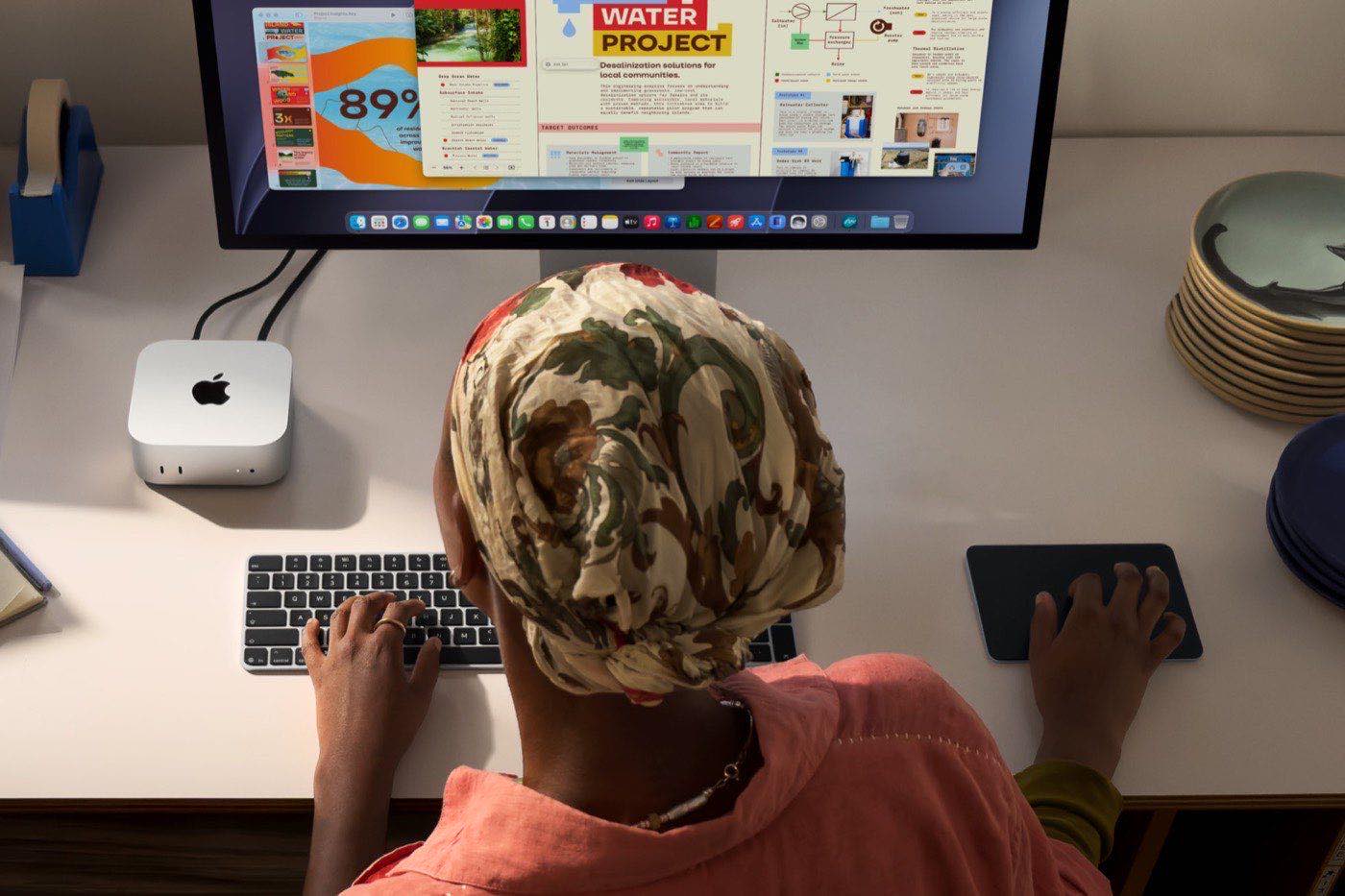
If Touch ID only fails when the keyboard is wireless, check for wireless interference. Apple’s separate Wi-Fi and Bluetooth interference page covers crowded 2.4 GHz rooms and poorly shielded USB gear. A desk Mac mini with Magic Keyboard is a common setup; see the Disk Utility First Aid fix if the machine itself is unstable and Touch ID is only one of several symptoms.
When macOS still asks for your password
That is often policy, not a broken sensor. Apple lists cases where the password is required on purpose.
You have not logged in since the last logout, including after a shut down or restart. You have not unlocked the Mac in more than 48 hours. You are changing Touch ID settings. The fingerprint failed five times in a row. Or the Mac is set to log in automatically.
Enter the password once. Touch ID can resume after that for unlock and purchases, if the feature switches are on.
Broader account hardening on iPhone sits in the security settings checklist. On Mac, Touch ID settings stay per user. An administrator cannot edit another user’s fingerprints.
Photo: Apple Newsroom / MacBook Pro M5 hero, MacBook Pro lifestyle, Mac mini desk
Source: Apple Support - If Touch ID isn't working on Mac (102356); Mac User Guide - Use Touch ID on Mac