Wi-Fi will not join. The toggle looks grey. Or the phone joins and still shows No Internet Connection. Apple Support 111786 keeps the order simple. Check Settings first. Then the router. Reset Network Settings only when earlier steps fail.
This path covers iPhone on current iOS 27 wording. Apple now labels the reset entry Transfer or Reset iPhone. Photos and apps stay. Only saved network data is cleared.
If the screen is frozen and you cannot open Settings at all, fix touch first. Our note on force restart when the screen freezes or goes black is that case, not a Wi-Fi menu problem.
Check Wi-Fi settings first
Open the Settings app. Tap Wi-Fi. Make sure Wi-Fi is turned on. Tap a network name to join. Look for a blue checkmark next to the network. That mark means the phone thinks it is connected.
If you still cannot connect, go back to Settings and turn Airplane Mode off. Open Wi-Fi again. Make sure Connectivity Assist is off. Apple says if the Wi-Fi setting appears dimmed or greyed out, restart the device, then try again.
A message like No Internet Connection after join points past the simple toggle. Apple moves you to the router and network checks next.

VPN apps and one network only
If a VPN or security app is installed, Apple’s next step is to uninstall that software. Restart the iPhone. Test Wi-Fi again. If the connection returns only after removal, contact the VPN or security provider before you reinstall.
Also check whether the fault is only on one network. If your home SSID never appears, the network may be hidden, or it may not meet Apple’s recommendations. When you do not manage the router, Apple says contact the ISP for configuration help.
Restart the router and try another band
See if other devices can join the same Wi-Fi. If they can, the router and network are working. Update router firmware when the maker provides it. Keep the router on and within range.
If the router offers separate frequencies, try 5 GHz instead of 2.4 GHz, or the other way around. Restart the router and cable modem. Unplug both. Plug them back in. Apple notes this refreshes the link and can clear minor faults.
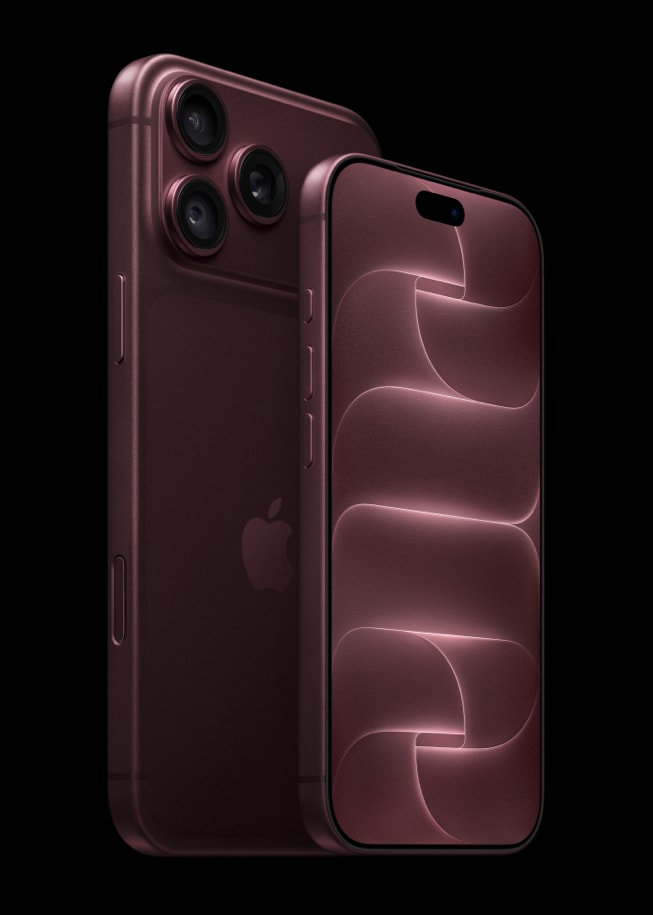
Reset Network Settings on iOS 27
Use this only after the steps above fail. Resetting removes saved home, work, and school Wi-Fi setups, plus cellular, VPN, and APN settings. If a school or business manages the phone, ask IT before you reset.
Open Settings. Tap General. Tap Transfer or Reset iPhone. Tap Reset. Tap Reset Network Settings. Enter the passcode when asked. The phone restarts. Rejoin Wi-Fi with the password again.
If the phone shows it is on Wi-Fi but still cannot reach the internet after the reset, Apple says contact the ISP. Trying another location helps tell a home outage from a phone that will not join any network. When no Wi-Fi works anywhere, contact Apple.
Storage full warnings and stalled Safari pages are separate. Free space under iPhone Storage when updates refuse to install (Storage Almost Full fix). Clear site data when pages hang (Safari history and website data). Today’s tip on Call Screening for unknown callers does not change Wi-Fi menus.
Photo: Apple
Source: Apple Support 111786 (If you can’t connect to Wi-Fi on your iPhone or iPad), published September 14, 2026