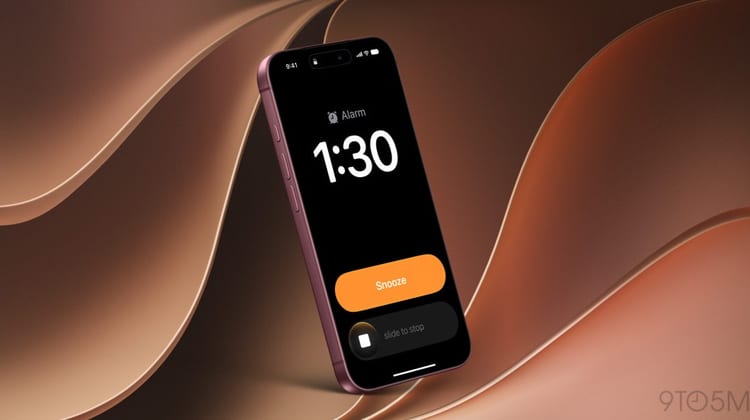
Your iPhone alarm can be loud without pushing every ringtone and notification to the same level. iOS 27 has a separate alarm volume for that. The catch is Match Ringtone Volume: it is on by default, so one ringtone volume still sets everything until you turn the toggle off. The setting has been in iOS 27 since September 14, 2026, and many users still have not found it. 9to5Mac pointed at the screen again on November 23, after readers kept sleeping through quiet alarms.
Where the alarm volume slider sits in iOS 27
Apple documents the path on its alarms support page 118444, updated November 16, 2026.
- Open Settings, then tap Sounds & Haptics.
- Under Alarms and Timers, turn off Match Ringtone Volume.
- Drag the slider to the volume you want. It applies to alarms and timers only, so alarms can be loud while ringtones stay where they are.
Two details on that screen. Apple's support page calls the section "Alarms and Times", while the iPhone User Guide page for sounds and vibrations calls it "Alarms and Timers". Same control, two spellings on Apple's own pages. A second Match Ringtone Volume toggle sits under Alerts and System Sounds. Turn it off to give texts, keyboard clicks and the camera shutter their own slider too.
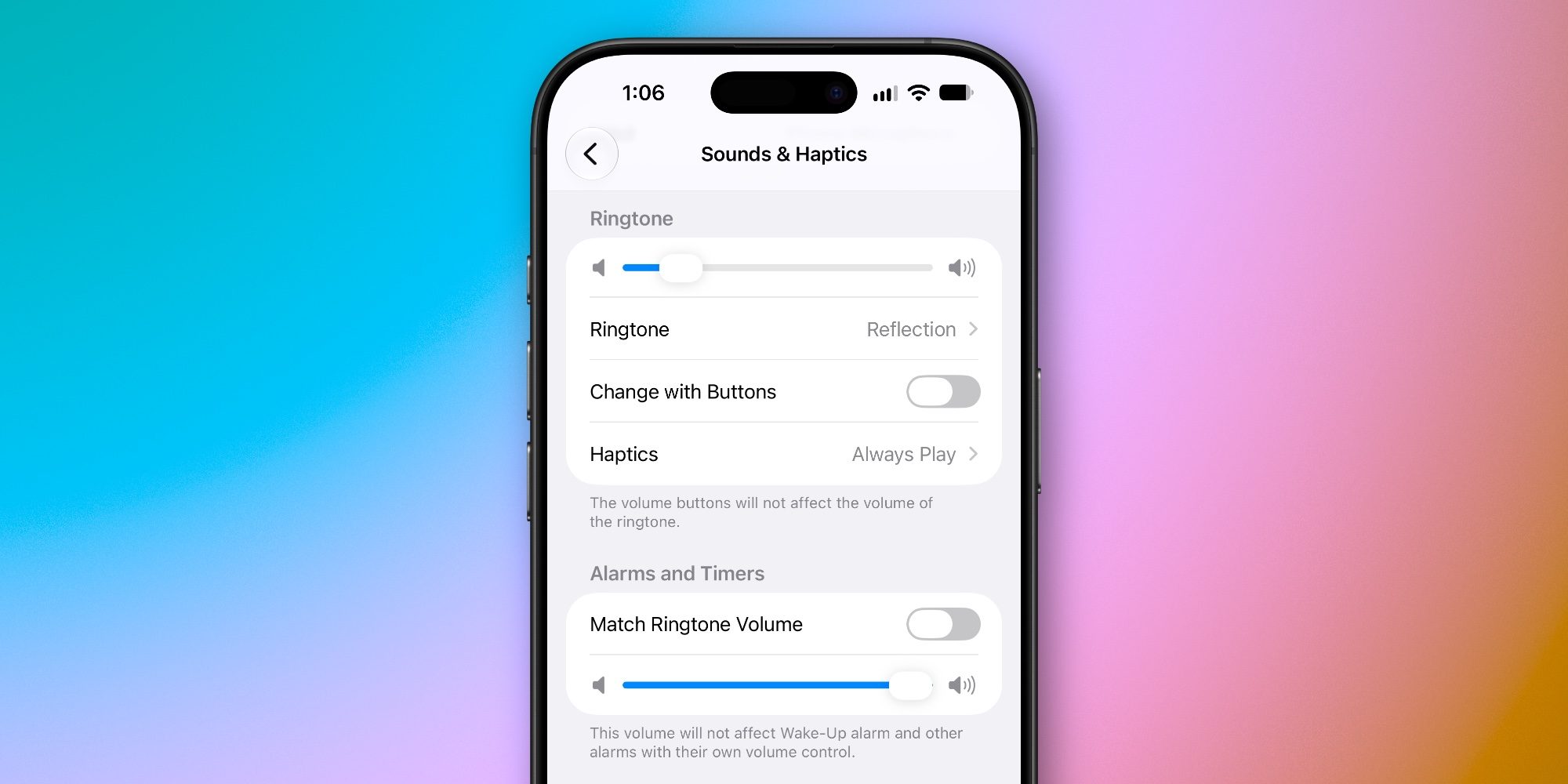
To change alarm volume with the volume buttons, turn on Change with Buttons. With it off, Apple says the buttons only control media playback.
The slider is not new in the iOS 27.3 beta
It came with iOS 27 on September 14, 2026. MacRumors ran the same how-to that day, and 9to5Mac described both volume sections on June 8, right after WWDC. The November 23 piece is a rediscovery, not a release. As of November 24, 2026 the public build is still iOS 27.2.1 (24B156), and 27.3 stays on developer beta 2 (24C5049f, November 19). We covered it at launch in our iOS 27 tip on separate volumes for alarms and timers.
What Match Ringtone Volume does not change
The slider covers Clock alarms and timers. It does not touch alarms that carry their own volume control. Apple's wording, quoted by 9to5Mac on June 8: when Match Ringtone Volume is off, "this volume will not affect Wake-Up alarm and other alarms with their own volume control". A sleep-schedule wake-up alarm is the main case. For that one, open Clock > Alarms > Change and use the Alarm volume slider under Alarm Options. There is no per-alarm slider; one slider covers all regular Clock alarms, and a Clock alarm is separate from a Health sleep schedule.
If the alarm is still quiet after the slider goes up
Apple lists the causes in order on support page 118444. Make sure the alarm Sound is not set to None: Clock > Alarms > Edit, tap the alarm, then tap Sound. With StandBy on, haptics for alarms are disabled, so a None sound means nothing at all. For a song instead of a ringtone, see how to make any video sound your alarm on iPhone.
Silent mode, the Ring/Silent switch, the Action button, Do Not Disturb and other Focus modes do not silence a Clock alarm. With headphones connected it plays at a set volume through the built-in speakers and the headphones. What can still cap it: Built-In Speaker Volume Limit, Reduce Loud Sounds, and Headphone Safety's Reduce Loud Audio. Attention Aware is separate: Apple says iPhone lowers the volume of alerts when it detects your attention, and the wording is alerts, not Clock alarms. Our Face ID checklist covers what to check when alarms go quiet on iOS 27.
Turn the toggle off tonight and drag the slider once before bed. If a morning still goes quiet, the list above follows Apple's own order.
Photo: 9to5Mac (Ryan Christoffel), Apple
Source: 9to5Mac, Apple Support 118444, iPhone User Guide