Agent Remote Control in LM Studio Bionic lets one Mac run an agent session while you create, manage, and continue that work from a second device. LM Studio shipped the feature on Nov 16, 2026. Sessions travel over LM Link, the end-to-end encrypted device network LM Studio built with Tailscale. Setup is two steps: allow control on the machine being controlled, then add that machine from the device you work on. Here is the path on a Mac, what each control does, and the limits you hit today.
Bionic is a separate app from the classic LM Studio chat window
The official Bionic docs state it plainly: "Bionic is a new, separate app from LM Studio." The classic LM Studio app stays installed for low-level configuration, and LM Studio says the two can run side by side. So the Remote control button and the Allow remote agent control toggle live in Bionic, not in the old chat window. A Bionic session can use frontier open models in LM Studio Secure Cloud with Zero Data Retention, local models on the computer, or remote models from another device through LM Link.
On a Mac this matters before anything else: the official announcement from the LM Studio Team, dated Nov 16, 2026, assumes Apple silicon. LM Studio's system requirements page lists Apple Silicon (M1/M2/M3/M4) and macOS 14.0 or newer, 16GB of RAM recommended, and says Intel-based Macs are currently not supported. If you previously set up local models on this site's guide to running a local LLM with LM Studio on Apple silicon, your machine already clears that bar.
Turn on Allow remote agent control on the Mac you want to control
Install Bionic on the machine that will do the work. The Mac Apple silicon build served from the download page on Nov 18, 2026 was Bionic 1.2.1-10. Get it from lmstudio.ai/download, where the page shows "Download Bionic for macOS" on a Mac browser.
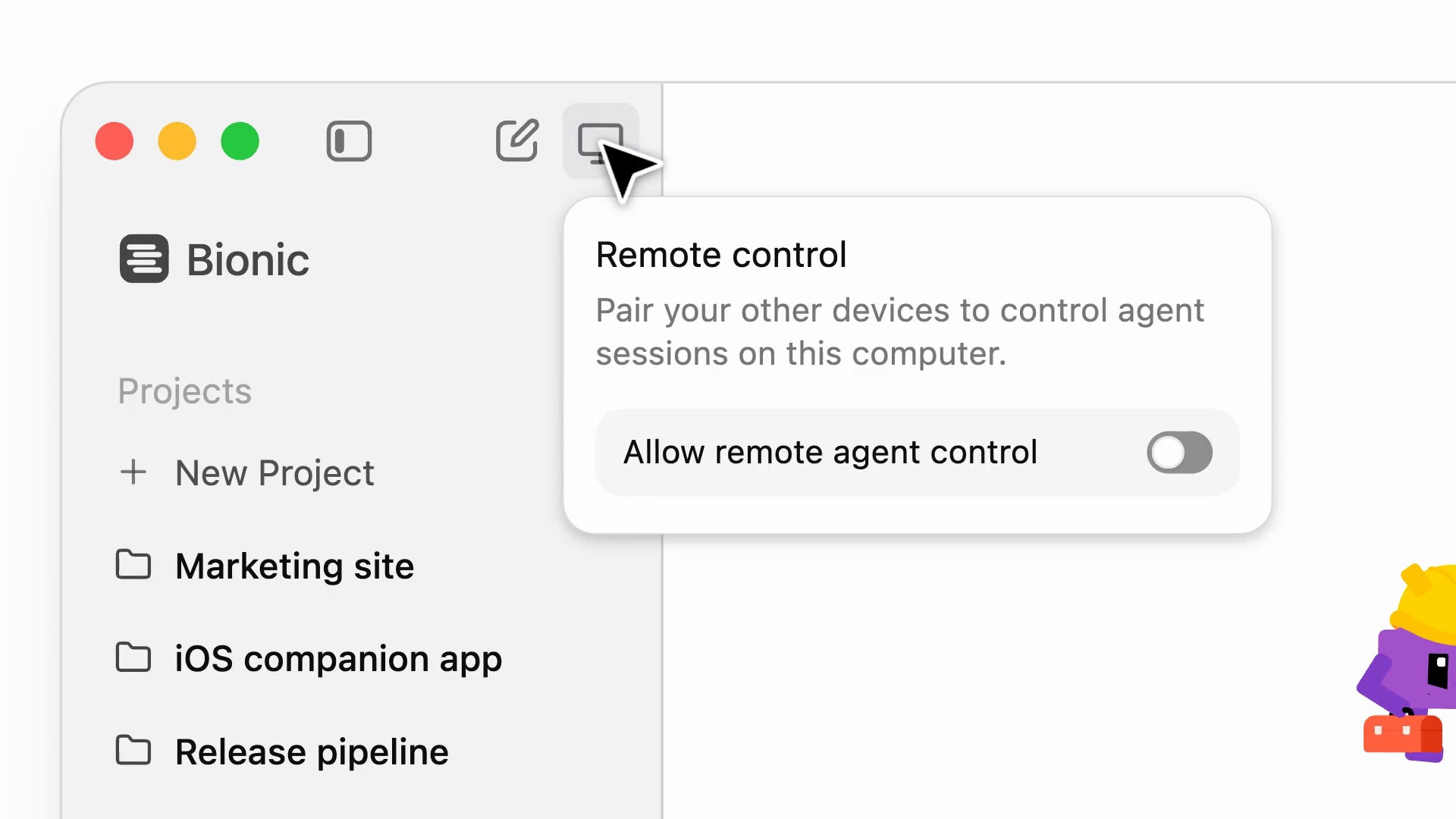
On that machine, click the Remote control button at the top of the sidebar and turn on Allow remote agent control. Machines without a display are covered too. The blog says to use llmster, the headless daemon, instead of the app window.
Settings > Devices > Remote Machines adds the second Mac
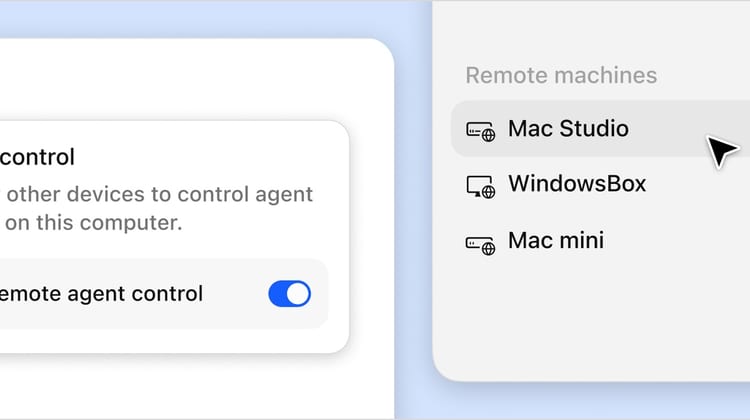
On the device you work from, go to Settings > Devices > Remote Machines. If you have not linked machines before, create your device network first, then start adding machines. When you create a project, pick the device it runs on. Every machine in the network is listed there, with whether it is online.
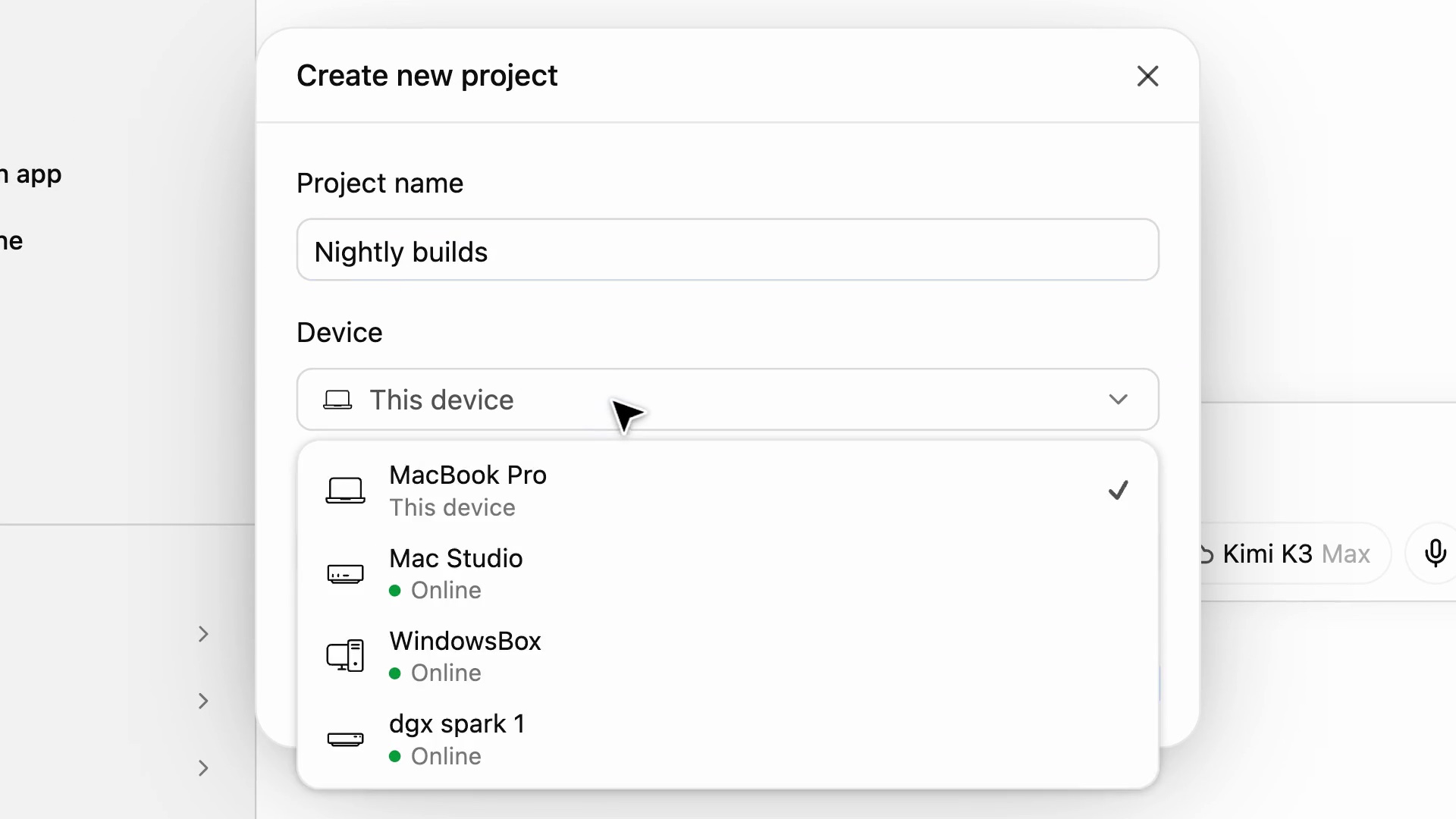
Machines then appear under Remote machines in the sidebar. Expand one to see its projects and chats, or hover over it to start a new project there. Remote sessions update in real time as the agent works, and you can resume any session where you left off. One more dispatch path: type @ in the composer and pick a device. Bionic starts a session on that machine and waits for it, and the message on the remote machine shows which session sent it.
Headless Macs use llmster: lms login, then lms link enable
For a Mac without a display, the official add-device doc gives the exact terminal path. Install the daemon, log in, then enable the link:
curl -fsSL https://lmstudio.ai/install.sh | bashlms login, then follow the instructions in the terminal outputlms link enable
That is the text from LM Studio's add-a-device documentation. After that, devices discover each other over the link automatically. One caution: the docs cover linking a headless machine, but they do not list a terminal switch named "Allow remote agent control". Treat that toggle as a Bionic GUI step. The lms command family is documented for model work in our earlier tip on running LM Studio from Terminal with the lms command.
LM Link is still a Preview, and remote control inherits that
Remote control rides on LM Link, and the LM Link page still states: "LM Link is in Preview. We are rolling out access in batches." If a second Mac does not show up in Remote Machines yet, that rollout is the reason to check back for. The same page describes the transport: devices connect over custom Tailscale mesh VPNs, end to end encrypted, and are never exposed to the public internet. LM Studio's FAQ adds that LM Link runs in userspace, does not change global device settings, and can sit next to an existing Tailscale VPN.
The changelog listed Bionic 1.2.1 at the top with no date header above it when checked on Nov 18, 2026. The entry before it, Bionic 1.2.0, is dated Nov 16, 2026. For tasks that outlive a laptop, the blog's own pitch is the part worth testing first: hand off a long job like performance optimization, close your Mac, and let the agent finish on the remote machine. If you tune local models for that kind of work, our guide to speeding up a big local model in LM Studio with a draft model still applies on the host side.
Photo: LM Studio blog screenshots. Source: LM Studio Team, Nov 16, 2026.