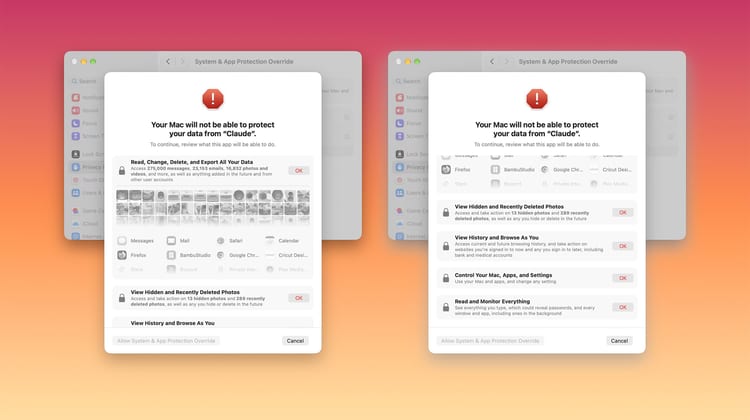
Short answer: when an AI or automation app on a Mac asks for Full Disk Access in macOS 27.3, click Choose Folder or Choose Apps, hand it only the protected folders it needs, and save Bypass System Protections for the rare app you fully trust. Apple published the walkthrough in support document 149699 on November 16, 2026. The prompts ship in the macOS 27.3 developer seed, build 26C5047e. They are not in the public macOS 27.2.1 tip.
What changed in macOS 27.3 beta 2 (26C5047e)
Apple's developer news of November 16 puts it plainly: "In macOS 27.3 beta 2 today, we're introducing increased transparency and more granular options." Device Control and Data Access now splits into two settings, System & App Protection Override and Accessibility. Accessibility is what screen readers and voice control tools ask for. System & App Protection Override is what an app asks for when it wants to control other apps, and it is the one AI agents and automation tools are after.
Permissions you already granted stay in effect. The new prompts appear only when you approve a fresh request. A Full Disk Access flag surfaced in macOS 27.3 beta 1 earlier this month; beta 2 turns it into prompts. Apple first warned about this class of access on October 2, saying some developers use Full Disk Access in ways that can expose files, mail, messages, and browsing history, and that tighter controls were coming as AI agents get more capable. The November 16 note also says backup apps and assistive technologies can request entitlements to keep the old experience on new installs. Known apps keep it for now without one.
Full Disk Access lives in Privacy & Security settings
The path in support document 149699 is short. From the Apple menu, choose System Settings. Click Privacy & Security in the sidebar, then click Files & Folders, Full Disk Access, or System & App Protection Override. Backup apps, disk cleaners, file indexers, and security apps show up here. So do local AI tools, such as the TensorFold 1.2.9 local model server, when they ask for protected data at all. You can review every grant later with the Remove button (−), the Info button (i) followed by Done, or the Add button (+). For a wider privacy pass over the system, check these eight Mac privacy settings.
Choose Folder or Choose Apps, then Ask First
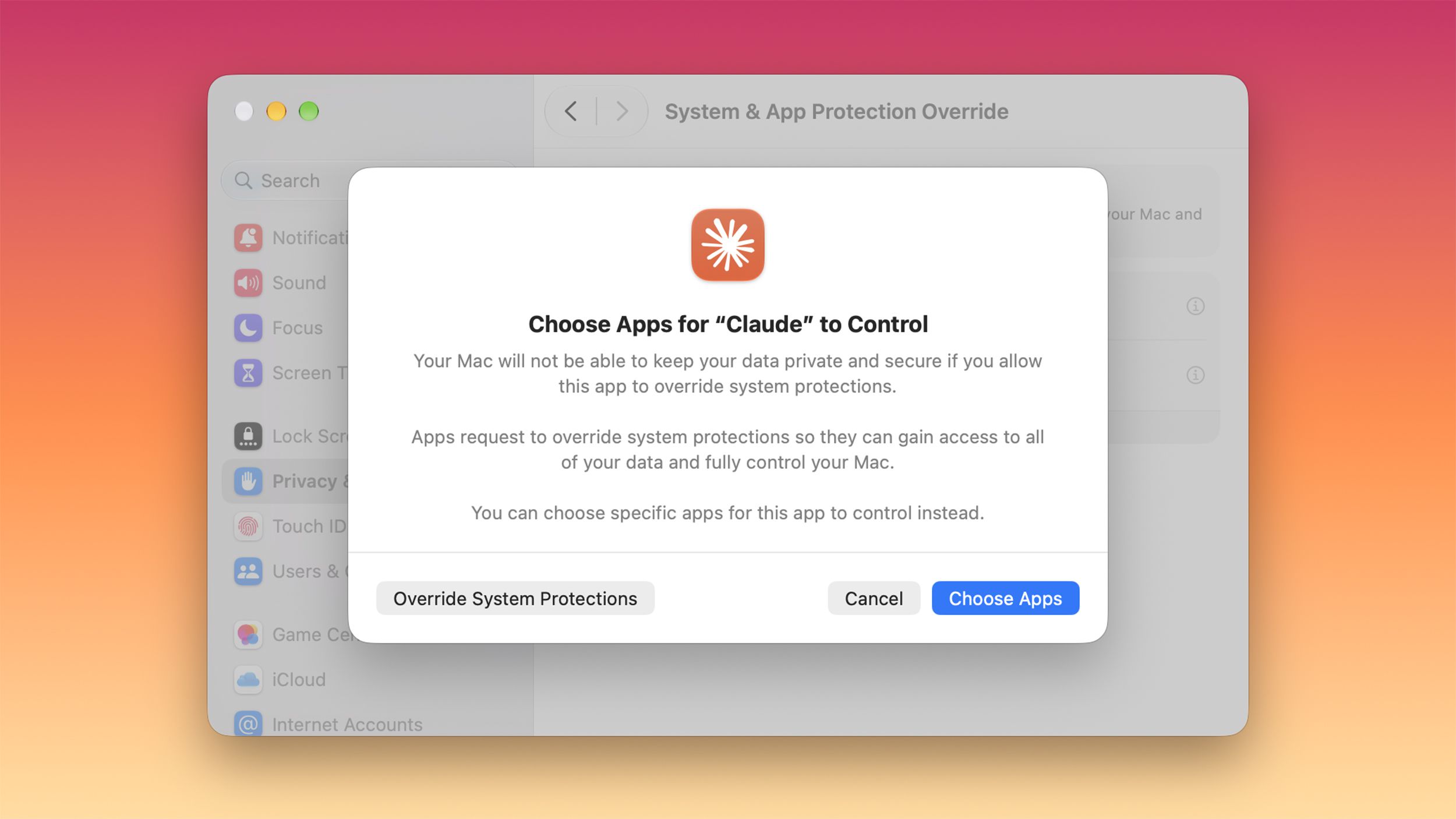
When the prompt appears, click Choose Folder or Choose Apps. Apple's instruction: check the app's setup instructions for which protected folders or apps it needs, then choose only those. For System & App Protection Override, a menu sits next to each app you allow. Pick Ask First and the app must ask before it controls that app. Pick At Any Time and it will not ask again. Apple also tells you to contact the app developer if you are unsure which folders to select, and to wait rather than guess.
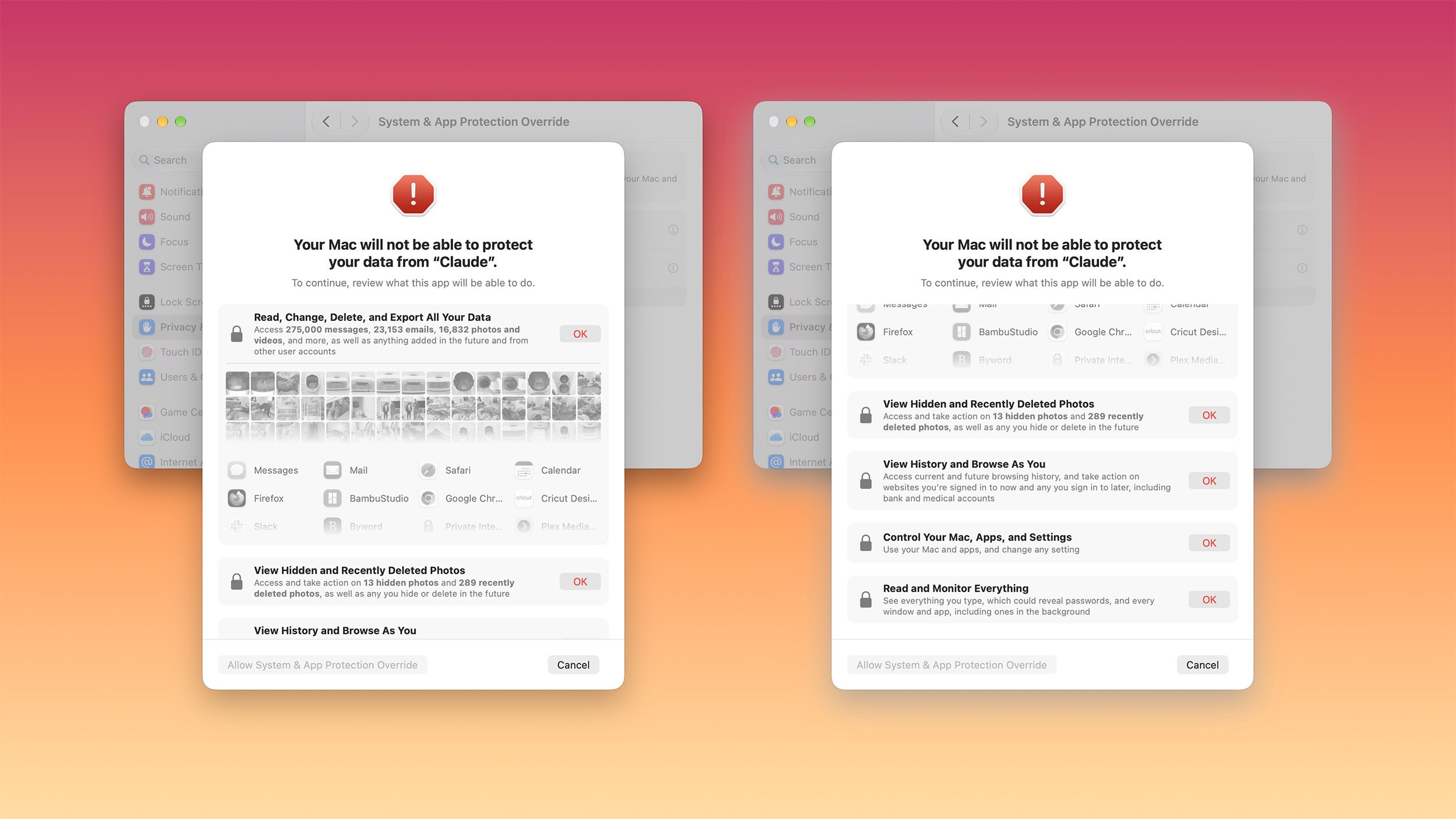
What Bypass System Protections grants, in Apple's words
The confirmation dialog is blunt because the access is blunt. Full Disk Access: Read, Change, Delete, and Export All Your Data; View Hidden and Recently Deleted Photos; and Browse As You on Websites. System & App Protection Override: the same list, plus Control Your Mac, Apps, and Settings; and Monitor Everything You Do. Apple adds that an app with the override "can see every window and app, including ones in the background, and capture every keystroke." If the app truly needs it, click Turn On Full Disk Access or Allow System & App Protection Override, enter your password, and click Modify Settings.
Narrow an app that already has full access: Remove, then Add
A full grant cannot be trimmed in place. Select the app, click Remove (−), confirm with your password and Modify Settings, then click Add (+) and choose specific folders or apps when prompted. Apple warns the app might not work as expected after removal, so check its setup guide first. The developer note says users will see the transparency indicator when one app is controlling another through System & App Protection Override. Apple only calls it a transparency indicator. MacRumors reports the indicator sits in the Mac menu bar, and 9to5Mac and AppleInsider say the same. Do not confuse this setting with Accessibility, and skip the unofficial FeatureFlags tricks circulating on X. They are not an Apple path.

The prompts are already the biggest Mac story of the week on X. Developer ldt's warning video passed 316,649 impressions and 1,903 likes by Tuesday noon, and Mark Gurman quoted it with his own line that Apple "starts marketing their own AI agent two years in advance." That is Gurman's read, not an Apple roadmap.
Photo: MacRumors (warning prompts), Apple Developer (graphic). Source: Apple support document 149699, Apple Developer News, November 16, 2026.