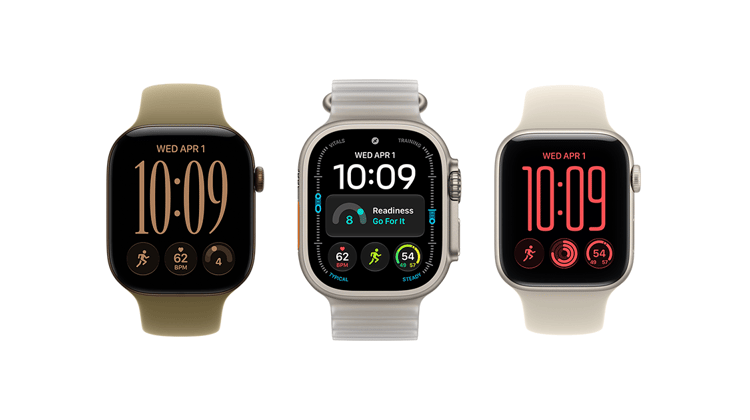
If your Apple Watch shows the wrong hour after daylight saving, look at the dimmed screen before you touch any setting. Apple says the incorrect time appears only on the Always On display when your wrist is down. Tap the screen or raise your wrist, and the hour jumps to the correct one. Clocks went back across most of the U.S. on Sunday, November 1, and MacRumors reported the same complaints from Europe the week before, when clocks went back there.
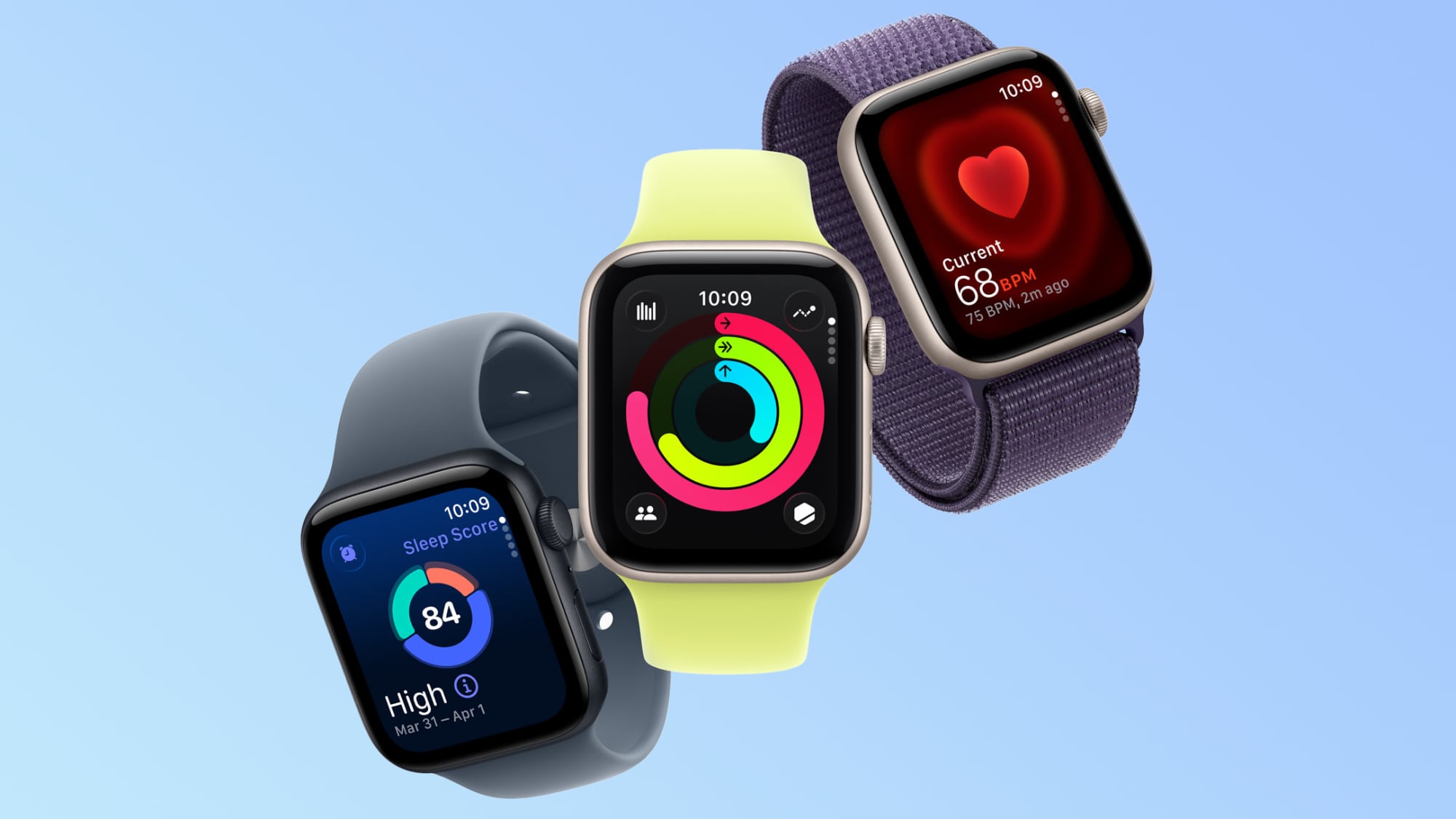
Only the dimmed Always On face is wrong, and alarms are not affected
The bad hour lives on the low-power face and nowhere else. Raise the wrist and the watch reads right again. Alarms, notifications and everything else keep correct time, so nothing you scheduled is late. Apple published its advice in support document 149603 on October 30, 2026, two days before the U.S. change, after reports from the European time change piled up on watchOS forums.
Fix one: switch to any other watch face, then switch back
Press the Digital Crown to open the watch face gallery. Swipe to any other face, press the Crown to set it, then swipe back to the face you actually use. Apple's wording is short: switch to any other watch face, then switch back to your preferred watch face. The dimmed face refreshes about once a minute, so wait a moment before deciding it failed.
Fix two: restart the Apple Watch, off the charger
Press and hold the side button until the sliders appear. Tap the power icon, drag Power Off, then hold the side button until the Apple logo shows. One rule from the Apple Watch User Guide: you can't restart the watch while it is charging. If the watch won't turn off at all, hold the side button and the Digital Crown together for at least 10 seconds until the logo appears. Apple says do this only when a normal restart is not possible.
What this bug is not: alarms, the +0 min Clock setting, and a broken watch
Three wrong turns to skip. Do not change Date & Time on the paired iPhone while the raised-wrist face already reads the right hour. And do not confuse this with the deliberate offset in Settings > Clock > +0 min, where you can run the watch face a few minutes ahead on purpose; alarms and World Clock still match real time there (support document 105035, paths checked 2026-11-02). Always On itself is healthy. It defaults to on for Apple Watch Series 5 and later, SE 3, and Ultra and later, it lives in Settings > Display & Brightness > Always On on the watch, and it drops out in Low Power Mode or Theater Mode. Apple names no specific models or watchOS builds as affected, so a hardware fault is the wrong conclusion. If the hour is still wrong after midnight following the time change, update the software: Apple Watch app on iPhone > My Watch > General > Software Update. That is also where any real fix for the dimmed display will land. For the rest of the settings worth a look on current models, see the 10 Apple Watch settings to check after the watchOS 27 update, 10 Apple Watch tricks Apple buried in settings, and the full watchOS 27 feature list.
Photo: Apple (apple.com/apple-watch) / MacRumors
Sources: Apple Support 149603, Apple Support 105074, Apple Watch User Guide, Apple Support 105035, MacRumors