Apple HomeView arrives November 13, and most of the setup happens on your iPhone before the box shows up. We checked the Apple HomeView tech specs, the October 13 Newsroom release, and Apple Support pages against the 10 steps below. Do them in order and delivery day is mostly unboxing.
1. Update your iPhone to iOS 27.2 or your iPad to iPadOS 27.2
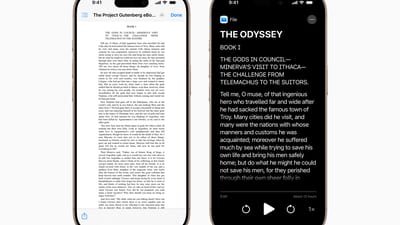
The tech specs list the system requirements plainly: iPhone with iOS 27.2 or later, or iPad with iPadOS 27.2 or later, and Wi-Fi internet access. Without an updated paired device the HomeView setup flow cannot finish, so run the update now instead of on delivery day. As of November 2, iOS 27.2 build 24B119 is the current public release.
2. Turn on iCloud Home so accessories sync
On the paired iPhone open Settings, then Apple Account, then iCloud, and switch on Home. This keeps accessories, hubs, and automations in sync across your devices and it is what remote control depends on. Households that skip it end up with accessories visible on one device and missing on another.
3. Check Home Hubs & Bridges and pick a preferred hub
Open the Home app, tap More, then Home Settings, then Home Hubs & Bridges. Your active hub sits at the top; turn off Automatic Selection if you want a specific HomePod or Apple TV to stay in charge. One requirement people miss: Matter accessories need a home hub at all, and Thread accessories need a Thread-enabled hub such as HomePod mini or Apple TV 4K (3rd generation) Wi-Fi + Ethernet.
4. Add up to six Residents to your shared home
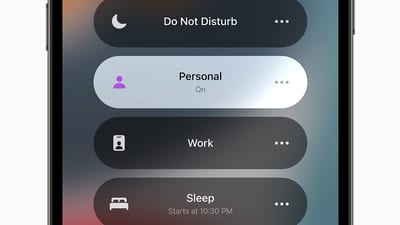
HomeView recognizes up to six people by face and gives each a personal Home Screen with their own apps and widgets. In the Home app use Add, then Add People, and give each person the Resident role. They need an Apple Account and a compatible iPhone or iPad, and they must accept the invite before face recognition brings up their Messages and Calendar. Guests without an invite can still run accessories, timers, weather, and music.
5. Prep a Shared Album for the Photos face
Apple says selecting a shared album turns HomeView into a living photo frame that loved ones near and far can help fill. Make or tidy one iCloud Shared Album this week, and pull in the relatives who should be able to add photos. On delivery day you pick the album straight away instead of hunting loose pictures.
6. Decide which face goes in each room
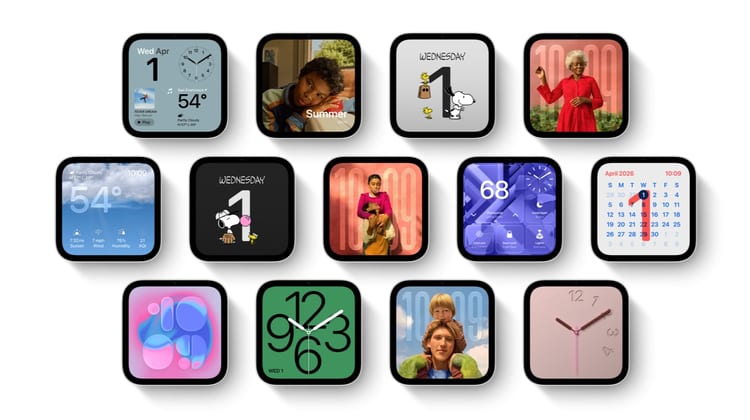
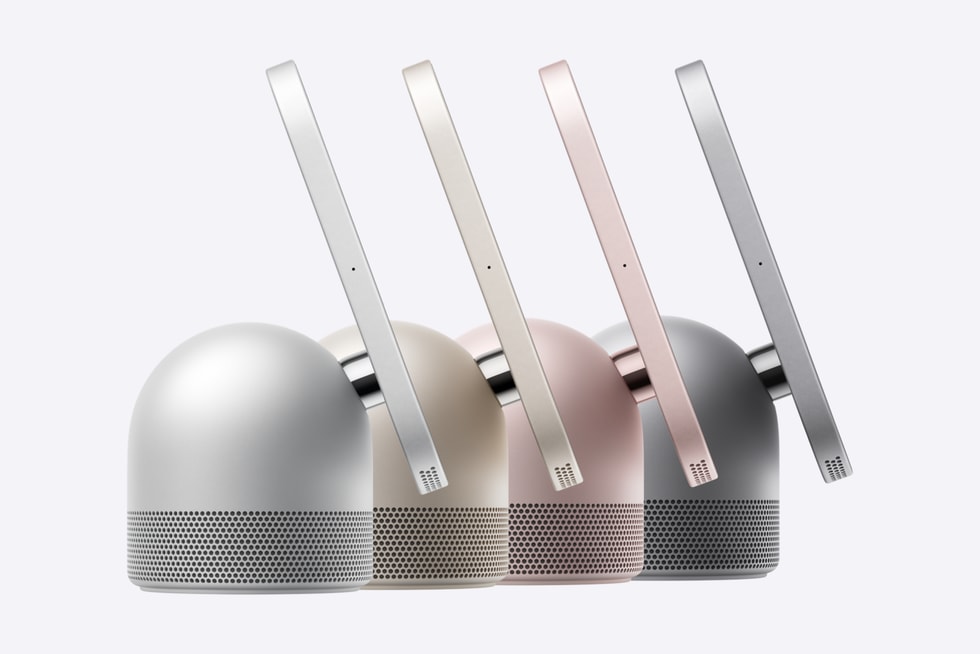
The face lineup: Photos, Flow (reacts to physical movement with light), Snoopy (animations follow time of day, weather, sports, and holidays), Calendar, Weather, Home Modular for favorite accessories, and Home Camera for up to nine video streams at once. Pick a default per room before the box arrives. A kitchen wants timers and recipes; a hallway wants Home Camera, and you can also set Apple's official HomeView wallpapers on your iPhone Lock Screen to match.
7. Review who can use Intercom
Intercom broadcasts a quick message to one room or the whole house. It reaches other HomeView and HomePod speakers, plus family iPhone, iPad, and Apple Watch. Home Settings, then Intercom, sets who can send and which speakers play. Configure it before day one unless every kitchen shout should land on every device.
8. Set camera permissions for the Home Camera face
With a supported iCloud+ subscription, compatible cameras get end-to-end encrypted recognition of people, familiar faces, pets, packages, and vehicles, and HomeView can summarize what happened in a clip without watching it. The Home Camera face streams up to nine feeds at the same time. Check Home Settings, then Cameras & Doorbells, and give each household member the right camera access.
9. Set Speaker & TV access for multiroom audio
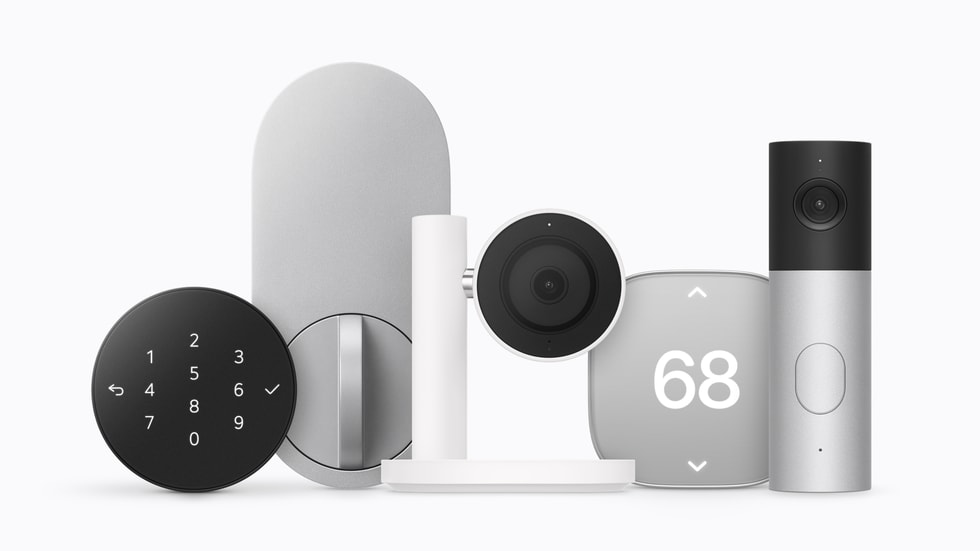
Home Settings, then Speaker & TV, decides who can AirPlay to household speakers and TVs. HomeView joins multiroom audio with HomePod, Apple TV 4K, and AirPlay-compatible speakers, and Apple requires the latest AirPlay software on those speakers. Move the kitchen and living room speakers into the same Home first, then set the access rule once.
10. Explain the face and unlocked iPhone gate to your family
Personal content in Messages and Calendar only appears when HomeView recognizes an enrolled face and the paired iPhone or iPad is present and has been recently unlocked; Apple's product FAQ adds that the paired device must be on the same Wi-Fi network. Camera and microphone data is processed in Secure Exclaves on the A18 chip, which Apple says cannot be accessed by the HomeView software, the user, or Apple itself. One footnote worth knowing: if the paired device drops off Wi-Fi, personal information may stay visible when the device has active cellular, is in the same location, and was recently unlocked. Warn the family. Nobody wants a surprise text on the kitchen screen.
Do the system update and iCloud Home tonight, faces and permissions this weekend. The hardware part on November 13 should take minutes. Note that HomeView ships with six-month-old software 26.5 out of the box, so expect a day-one update.
Photo: Apple (Apple HomeView collection of faces; color family; Apple Home Collection lineup). Source: Apple tech specs, Apple Newsroom (October 13, 2026), Apple Support.