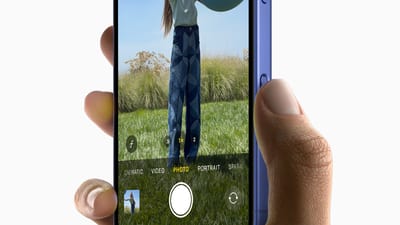
A leaf in a park shot. A dog on the sofa. A statue on a trip. Visual Look Up turns that photo into a short identity check without leaving Photos. Apple's Look up what's in a photo page says it works on iPhone with iOS 15 or later, and also inside Notes, Mail, Messages and Safari when an image is selected.
The control is not under Settings. You open the picture, then watch the Info button. A star on that button means Visual Look Up found something it can name.
Photos: open the photo, tap the starred Info button
Open the Photos app. Tap a photo so it fills the screen. When stars appear on the Info button, Visual Look Up is ready.
Tap the starred Info button. At the top of the photo information, tap Look Up. Results come from on-device recognition plus Siri Knowledge and the web, as Apple describes in the same Support article. You might see a leaf icon for plants, a dog icon for animals, or a label for art and landmarks.
Tap a result to read more. Close the Look Up panel, then swipe down on the photo to leave the information sheet. Apple's Identify objects in your photos and videos guide lists landmarks, statues, art, plants, pets, books and food. Food results can suggest related recipes.
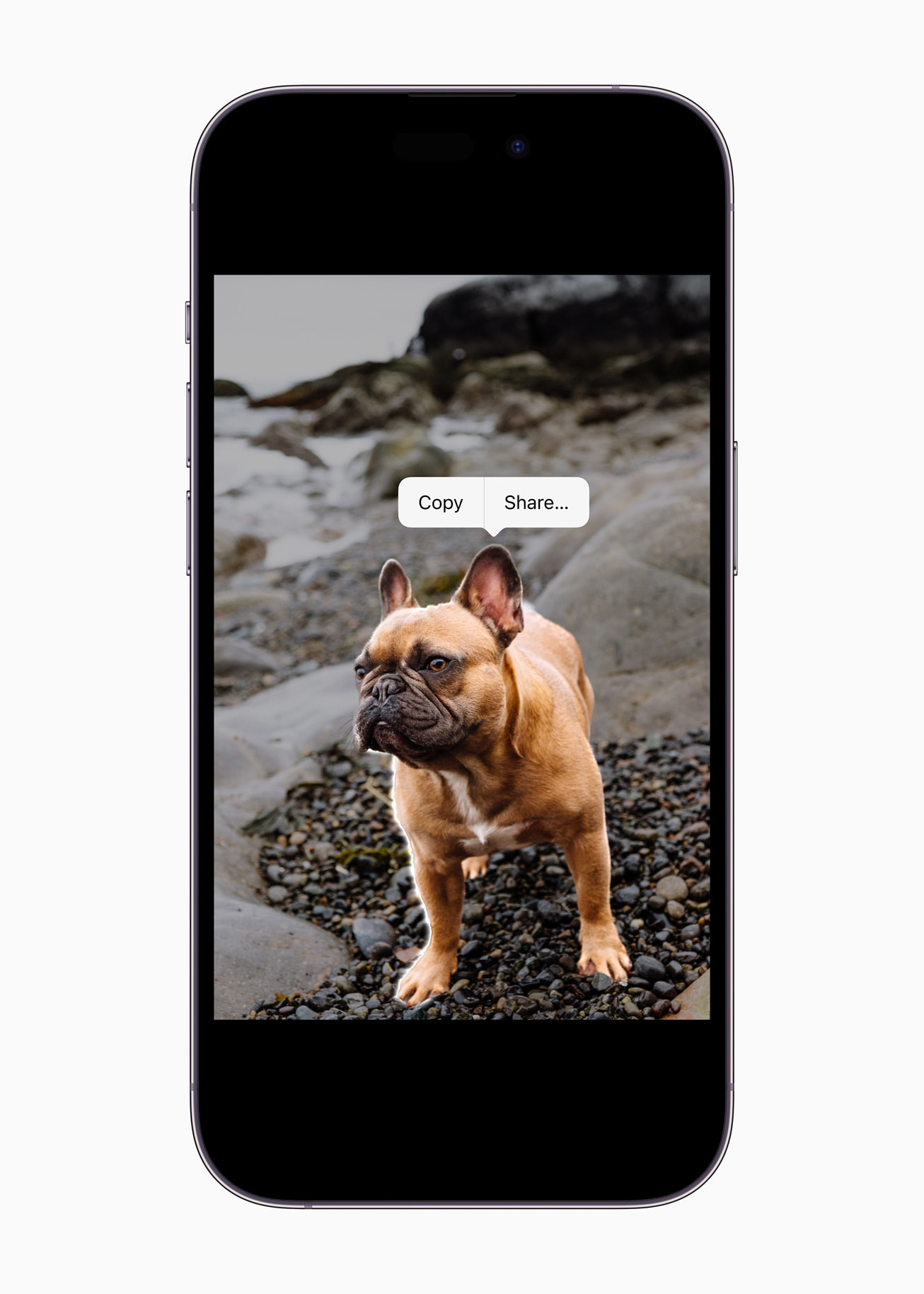
Photo: Apple. Visual Look Up on iPhone
No star on Info means Look Up is not ready
Common mistake: tapping Info on every photo and expecting Look Up. If the Info button has no star, Visual Look Up is not available for that image yet. Blurry shots, heavy crops, dark night frames and unusual angles often stay unmarked. Try another photo of the same plant or pet, or take a clearer frame with more of the subject in view.
Availability also depends on region and language. Apple links the feature-availability list from that Support guide. Do not invent a Settings toggle to "enable" Visual Look Up. The star on Info is the signal.
Storage tips sit elsewhere. If the library feels full while you hunt for a better plant shot, see our Photos and iCloud Photos settings checklist. Hidden album controls are covered in the Hidden album tip.
Pause a video, then Look Up one frame
Visual Look Up works on video too. Open a clip in Photos. Pause on the frame you care about. If the Info button shows stars, tap it, then tap Look Up the same way as a still photo.
That helps when a bird or storefront only appears for a second. Keep the pause steady so the frame stays sharp enough for recognition.

Photo: Apple. Live Text in Photos, related image tools
Touch and hold to lift a subject, or Look Up from the outline
Apple's Lift a subject from the photo background steps start the same way: open the photo or pause the video. Touch and hold the subject. When an outline appears, you can Copy Subject into Mail or Messages, drag it into another app, or tap Look Up to learn more about that subject.
Lift and Look Up share the outline gesture. Lift pastes the cutout. Look Up names what you held. Do not confuse that with Live Text, which selects words inside an image so you can copy or translate them.
Camera capture settings are a separate habit. Before the next shoot, the Camera settings checklist and the Camera Preserve Settings tip cover Photo mode and filters. Visual Look Up starts after the file is already in Photos or another app that shows the image.
Start with the starred Info path. No star means try another frame. For a cutout, touch and hold, then Copy Subject. For the plant or landmark name, tap Look Up.