An app icon sits grey on the Home Screen. It says Waiting, or the bar does not move. Or the App Store update just fails. Apple has a short checklist for this on its page If you can't download or update apps on your iPhone or iPad. Most of the steps are about the app itself. Some are about the account behind it.
Two side checks first. For a shaky network, our Wi-Fi fix guide for grayed out or No Internet Connection covers it. For space, if iOS 27 already warns you, see the 10 iPhone storage settings to check when storage is full.
Prioritize Download on the stuck icon
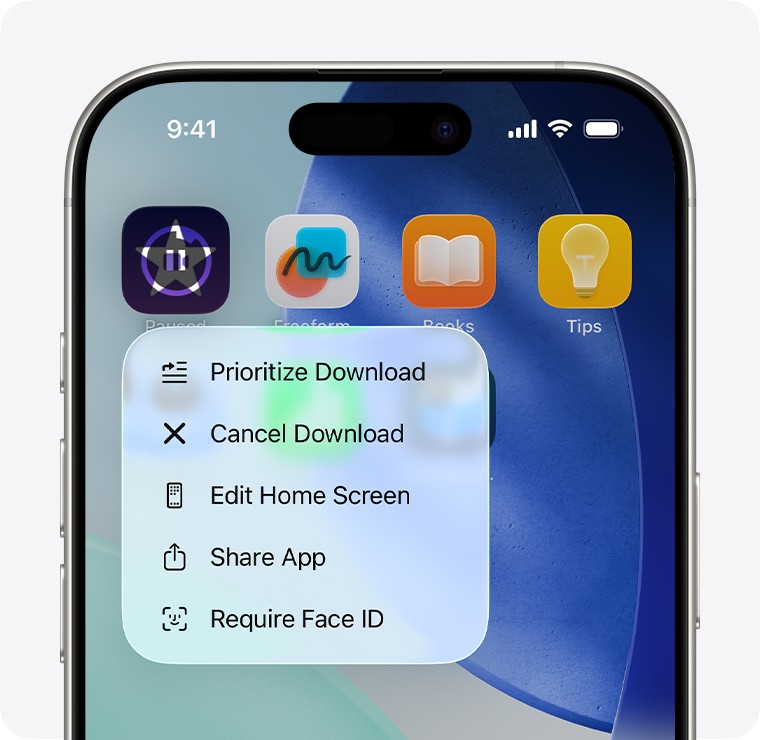
This is the fastest one. Go to the Home Screen. Touch and hold the app that is waiting. A menu comes up. Choose Prioritize Download.
On Apple's screenshot the same menu also shows Cancel Download, Edit Home Screen and Share App.
Update by hand from the App Store account page
Automatic updates are on by default. When one app does not update, Apple says you can do it manually. The steps are on the page How to manually update apps from the App Store:
- Open the App Store.
- Tap the My Account button or your photo at the top of the screen.
- Tap App Updates. Then tap Update next to one app, or tap Update All.
To check the automatic setting, open Settings, tap Apps, tap App Store, and look at App Updates. If it is off, the App Store will send a notification each time a new version comes out, and you update by hand.
Payment method and unpaid balance
This part surprises people. Apple says you might need a valid payment method on file even when the app is free. To add one, open Settings, tap your name, then tap Payment & Shipping. Tap Add Payment Method, enter the details, and tap Done. The name and billing address should match what your bank has.
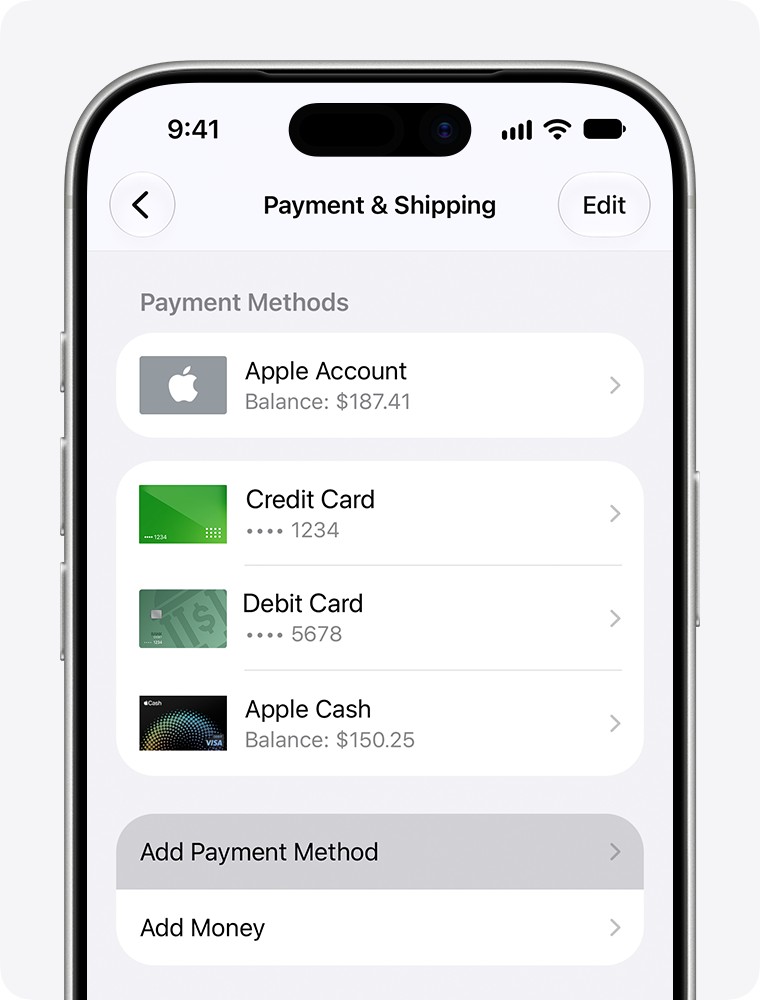
A different message points to money owed. According to Apple's page on 'billing problem with a previous purchase' or 'verification required', Apple could not charge your payment method for an earlier purchase. Until the balance is paid, you might be unable to make new purchases, download free apps or use subscriptions.
The fix is in the same place. Settings, your name, Payment & Shipping, then Fix Payment Information. Tap Try Again to retry the purchase. Another way is to add a new valid card and remove the old one. The new card is charged automatically. In a Family Sharing group with purchase sharing on, the organizer's payment method is charged, unless the family member has a valid payment method.
Restart, then age confirmation
Restart the iPhone or iPad and try the download again. Apple lists it as a separate step on the page.
For some apps the block is legal, not technical. In certain countries, regions and US states, you have to confirm you are an adult before downloading an app rated 18+. Apple accepts a credit card in your name or a scan of an ID. Debit cards and gift cards are not supported. You can see the status in Settings: tap your name, then Personal Information, then Age Confirmation.
If downloads still fail
On the age page, Apple's first advice for a failed confirmation is to update the software. If that system update is stuck too, our guide on software update won't install on iOS 27 goes through it. After that, Apple's last step is to contact Apple Support.
Source: Apple Support