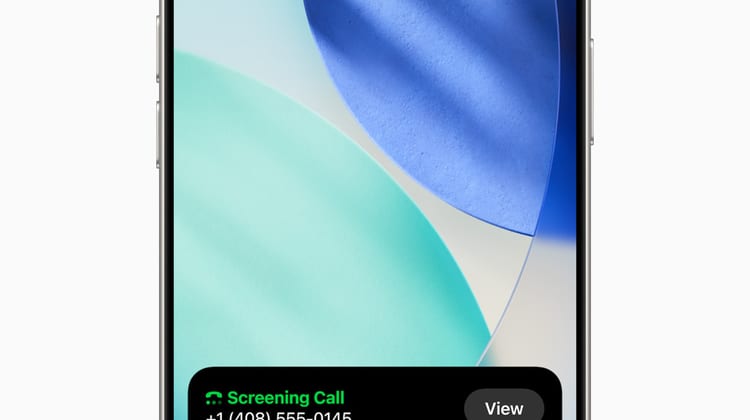
Unknown rings are noisy. Live Voicemail turns the message into text on the screen while the caller still talks. You read first, then answer or ignore. Apple documents the switch under Settings > Apps > Phone in the current Set up Voicemail guide. The feature needs a supported carrier, country and language.
Calling and data rates may apply while a message is transcribed. Keep that in mind on metered plans.
Settings > Apps > Phone > Live Voicemail
Open Settings. Tap Apps, then Phone. Find Live Voicemail and turn it on.
That is the whole path on current iOS. Older menus put Phone higher in Settings. On iOS 27 the Phone controls sit under Apps with the other system apps.
When a caller hits voicemail, your screen shows the words as they speak. The caller cannot hear you, and you cannot hear them, until you answer. Tap Answer if the text looks real. Tap Stop if you want the recording to end without answering or blocking the number.
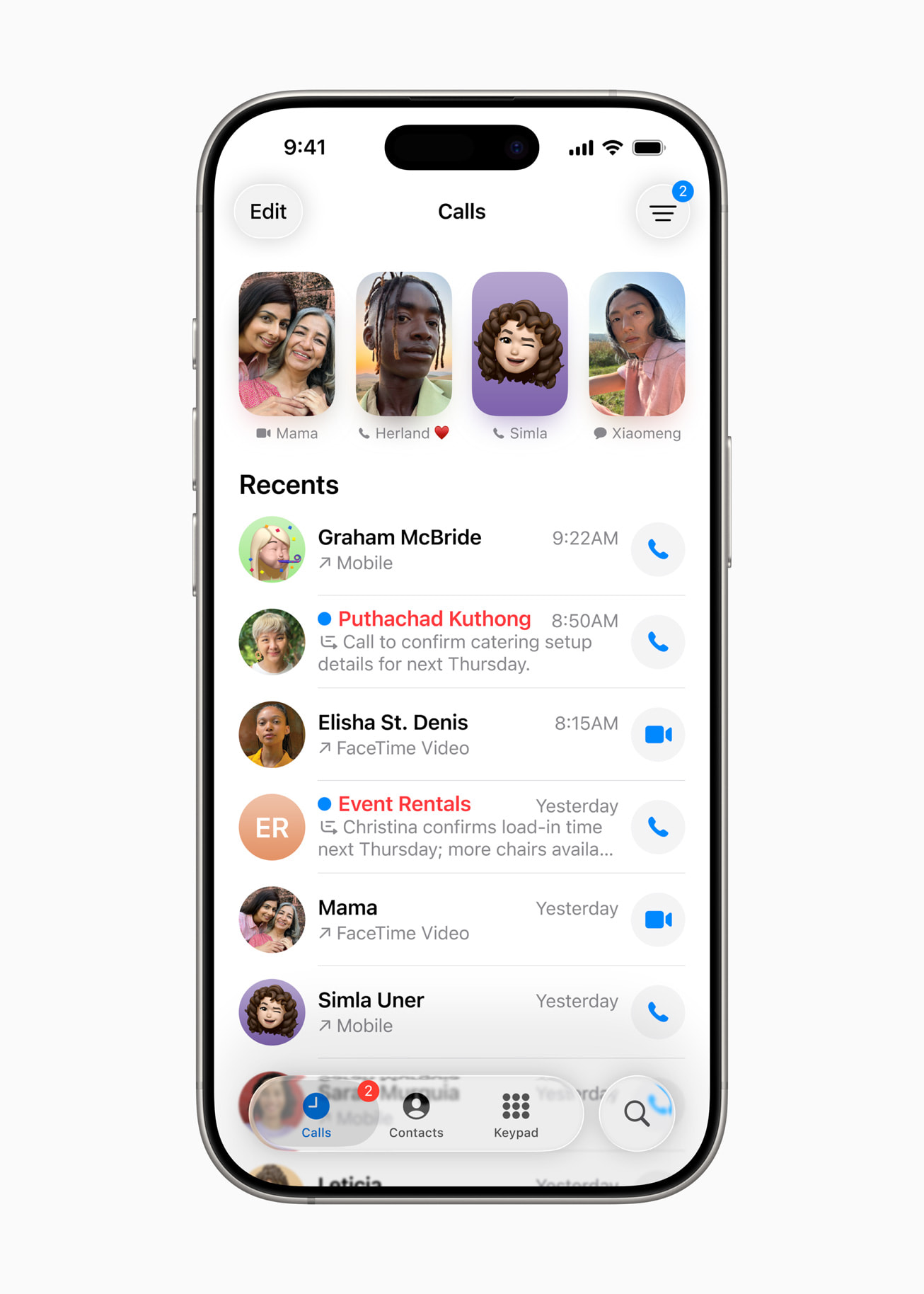
Photo: Apple. Phone unified layout with Voicemails
Silence unknown callers sends numbers to Live Voicemail
Apple's Manage unknown callers page puts Screen Unknown Callers under the same Settings > Apps > Phone screen. Choose Silence. Calls from numbers not in Contacts are silenced, sent to voicemail, and listed in Recents.
With Silence on, Apple says unknown numbers go straight to Live Voicemail without ringing first. That pairs with the Live Voicemail toggle. The older Silence Unknown Callers wording still shows up in Apple docs and on our Silence Unknown Callers tip; the control is now the Silence option under Screen Unknown Callers.
Ask Reason for Calling is different. That is Call Screening. The caller must say who they are before your phone rings. Do not mix that path with Live Voicemail alone. Apple's Screen and block calls guide lists Never, Ask Reason for Calling, and Silence as the three choices.
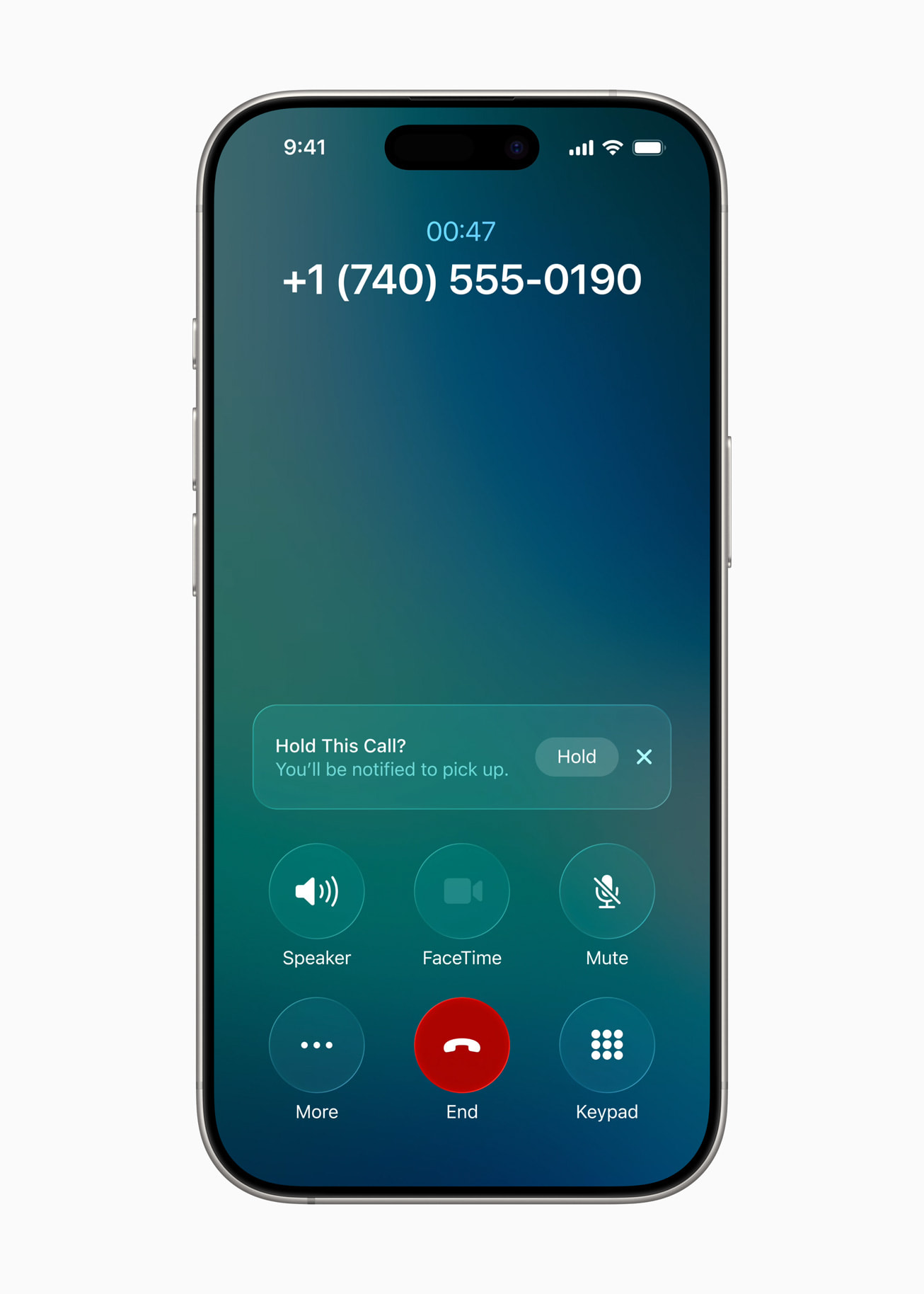
Photo: Apple. Hold Assist in Phone
Common mistake: phone off or out of range
Common mistake: leave Live Voicemail on, then wonder why a missed call never showed a live transcript. If iPhone is powered off or outside your carrier network, Apple sends the call to carrier voicemail when that service is available. No live text appears on a dead or offline handset.
Spam flagged by the carrier is another miss. Those calls are declined at once. They do not open Live Voicemail. Check the Spam filter list in the Phone app if a number vanished without a transcript.
Also save delivery, school and clinic numbers in Contacts before you set Silence. Otherwise those lines skip the ring and land in voicemail text you may not notice in time. Focus modes still mute alerts separately; see the Focus and Do Not Disturb checklist if known contacts still feel quiet after Live Voicemail is set.
Check Visual Voicemail and carrier limits
Open the Phone app and go to Voicemail (Classic layout) or Voicemails under the unified Calls view. Play or delete messages from the list. A badge on the Voicemail icon counts unheard items.
Live Voicemail is not worldwide. Apple points to the iOS and iPadOS Feature Availability site when the toggle is missing. A weak signal can also look like a Phone bug; try Airplane Mode then carrier settings from the No Service fix before chasing voicemail menus.
You can keep Live Voicemail and carrier voicemail in iCloud. Go to Settings, tap your name, tap iCloud, tap See All next to Saved to iCloud, then turn on Phone & FaceTime. For spoken audio written out in other apps, start with Live Captions instead of the Phone voicemail switch.