"Storage full" posts kept coming on X this week. One user said on October 17 that after the iOS 27 upgrade, iOS took 40 GB and System Data 17 GB, and WhatsApp would not open. Others just posted a screenshot and a sigh.
Here are 10 iPhone storage settings to check. Each step was checked against Apple's iPhone User Guide for iOS 27 and Apple Support pages in October 2026. Nothing here needs a cleaner app.
1. Read the bar in iPhone Storage first
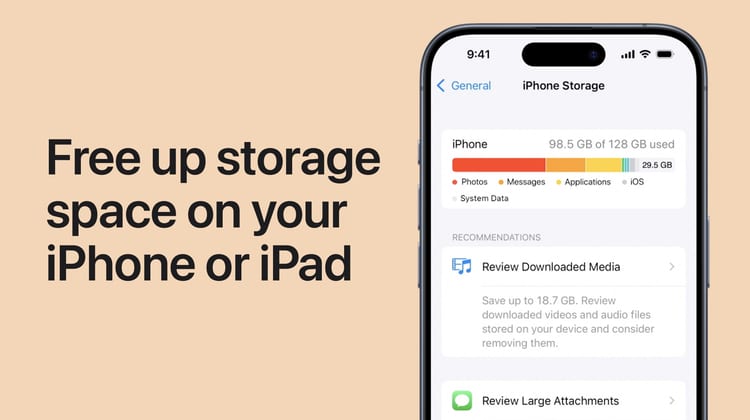
Go to Settings > General > iPhone Storage. The bar at the top shows what is used, by category. Under it are recommendations. Tap Show All, then Enable on one, or tap it to review what would be deleted.
Two categories confuse people. Apple's storage support article says Other is Siri voices, fonts, dictionaries, logs, caches, the Spotlight index and system data like Keychain. System is the operating system itself, and the size varies by model.
2. Offload Unused Apps
Settings > Apps > App Store, then turn on Offload Unused Apps. When storage is low, iPhone removes apps you don't use but keeps their data.
The icon stays on the Home Screen with a cloud symbol. Tap it to reinstall. We covered the switch in more detail in this Offload Unused Apps fix.
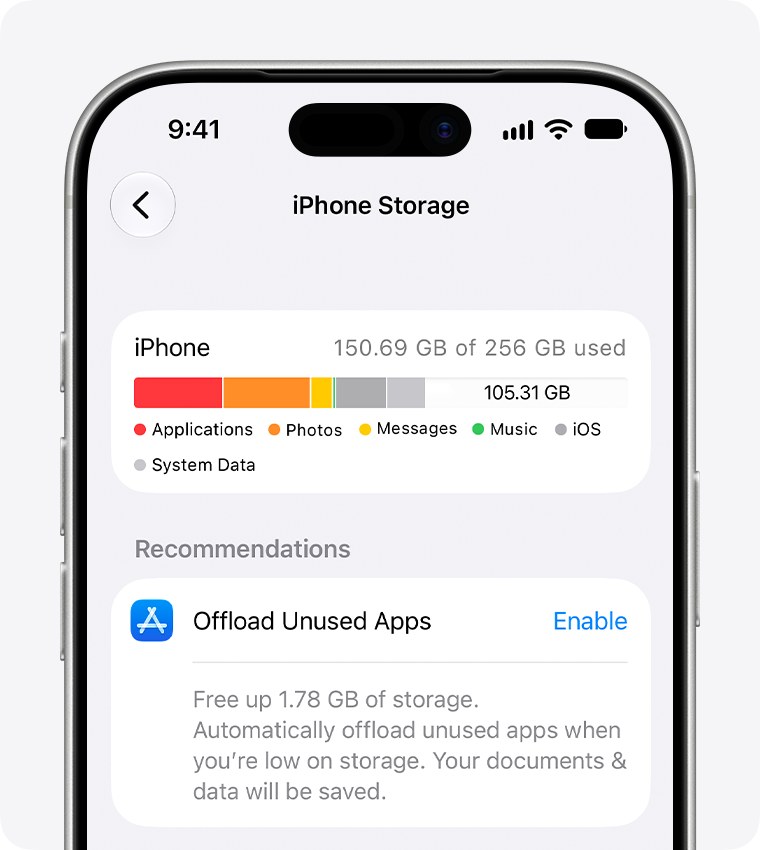
Photo: Apple
3. Offload or delete one app by hand
In the iPhone Storage list, tap an app's name. Offload App frees the app but keeps documents and data. Delete App removes both.
Apple notes cached and temporary data might not count in the number shown. After a delete, free space can take a moment to update. Data the app saved in iCloud is not deleted.
4. Keep Messages: 30 Days or 1 Year
Settings > Apps > Messages, scroll down, tap Keep Messages under Message History. Forever keeps everything.
Pick 30 Days or 1 Year and older conversations go away automatically, attachments too. That is the point, and also the risk. With Messages in iCloud, a deletion on iPhone deletes on your other devices.
5. Clear videos from one big chat
One X post blamed group chat video memes. Fair. Open the conversation and tap the contact or group icon at the top. Tap a category such as Photos.
The Filter button narrows it to Screenshots, Videos or Photos. Tap Edit, Select, mark the items, then tap Delete.
6. Empty Recently Deleted in Messages
Deleted messages and attachments stay in Recently Deleted for up to 30 days. They still use space until then.
In the conversation list, tap the Filter button, then Recently Deleted. Select conversations, tap Delete. This can't be undone.
7. Empty Recently Deleted in Photos
Same 30 days in Photos. Tap Collections, then Recently Deleted below Utilities, View Album, and unlock with Face ID or passcode.
Tap Select, pick items, tap the More button, then Delete. With iCloud Photos on, this removes them from every device. Items you can't find may be in the Recovered collection.
8. Optimize Storage moved in iOS 27
For iCloud Photos users this is the big one. iPhone keeps smaller versions and the full-size originals stay in iCloud.
The path changed. Settings, tap your name, iCloud, then Photos under Saved to iCloud. Tap iPhone Storage, then Optimize Storage. In iOS 26 or earlier there was no extra step, per Apple's iCloud Photos support page. If the library is not uploading, see our iCloud Photos Syncing Paused fix first.
9. Camera Formats: keep High Efficiency
Settings > Camera > Formats. High Efficiency saves photos as HEIF and video as HEVC. Most Compatible switches to JPEG and H.264, which use more space.
Video resolution and frame rate are in Record Video and Record Slo-mo on the same Camera screen. Apple explains the formats in its HEIF and HEVC article.
10. Downloaded videos and old files
Apple's storage guide says to review videos downloaded for offline viewing in the TV app and other streaming apps, and remove ones already watched. Then open Files and delete what you don't need.
Big files can also go to a USB drive or SD card through Files. Apple lists APFS, macOS Extended, exFAT, FAT32 and FAT as supported formats, with a single partition. If storage is so full an update won't install, our Storage Almost Full update fix goes step by step.
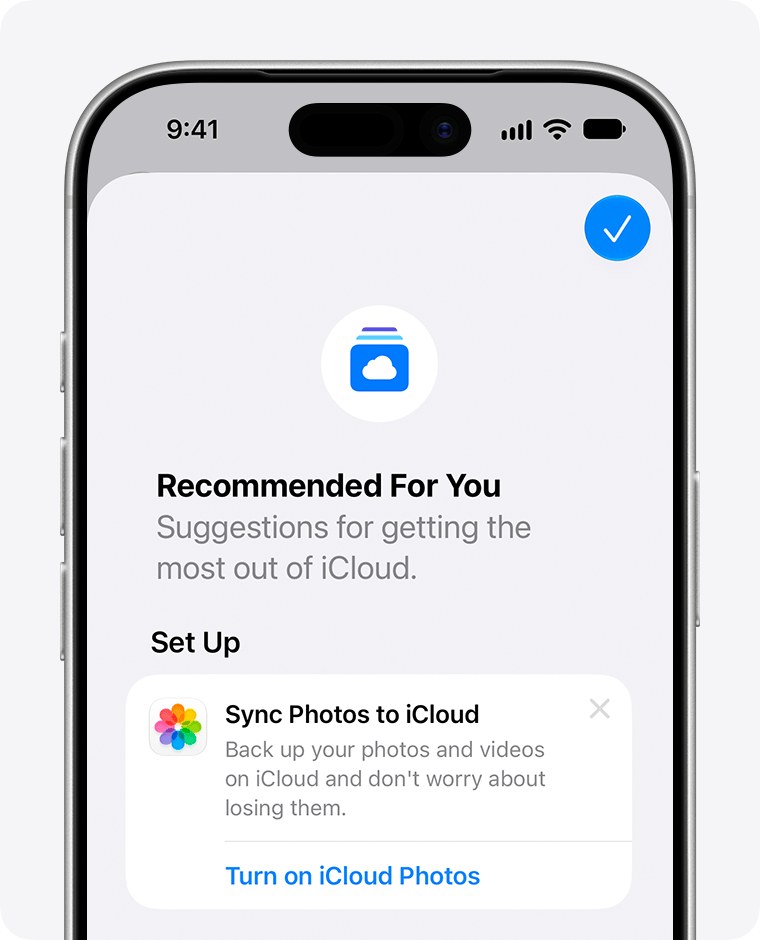
Photo: Apple
iCloud storage is a separate pool, 5 GB free. Settings, your name, iCloud, Recommended for You lists large files and old backups to remove. Backup errors from a full iCloud are in our iCloud Backup fix.
Photo: Apple Support / Free up storage space on your iPhone or iPad; iPhone Storage in iOS 27; iCloud Recommended for You in iOS 27
Source: Apple iPhone User Guide for iOS 27 (Manage storage; Delete messages and attachments; Delete or hide photos and videos; Connect external storage devices); Apple Support articles 108429, 108782, 108922, 116944; posts on X