Wrong person in the To field, or the attachment is missing. Mail on iPhone has a short window to pull the message back, and the window is adjustable. On iOS 27 the setting sits with the other Mail options in the Settings app, not inside Mail.
Below are the steps from Apple's iPhone User Guide, plus two Composing options that help catch a mistake before it goes out.
Undo Send in the inbox
After you tap Send, Apple says you have 10 seconds to change your mind. An Undo Send link shows at the top of the inbox, under the Inbox title. Tap it to pull the message back. Apple's Undo Send page in the iOS 27 user guide covers this in two steps.
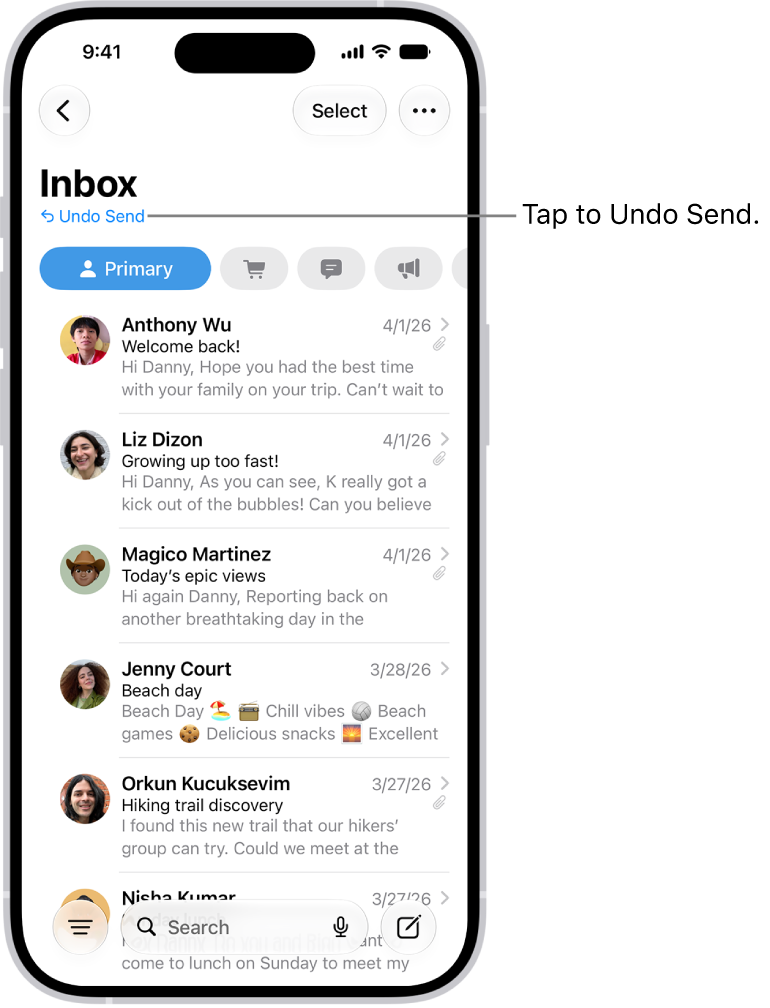
Photo: Apple Support
Once the time runs out, the link is gone. The email is sent.
Settings > Apps > Mail > Undo Send Delay
Ten seconds is short if you notice the problem on the second read. To make it longer:
- Open the Settings app.
- Tap Apps, then tap Mail.
- Tap Undo Send Delay.
- Choose a length of time.
Apple's Mail settings page says the period can be set up to 30 seconds. The delay is for all outgoing email messages, not one account.
If Mail is not receiving new mail at all, this setting will not help. That is a fetch or account problem, see our fix for Mail not downloading email on iPhone.
Send Later and Always Bcc Myself
Some mistakes are about timing, not content. In a draft, touch and hold the Send button, then pick a time. Tap Send Later to see more options. Apple lists this on the Send email page of the same guide. Messages has its own version for texts, one of the items in 10 iPhone Messages settings to check after updating to iOS 27.
Always Bcc Myself is under Settings > Apps > Mail, below Composing. Turn it on and Mail sends a copy of each email to you automatically. To pick which account a message goes from, tap the Cc/Bcc, From field in the draft.
Mark Addresses, and the common mistake
Mark Addresses is also below Composing in Settings > Apps > Mail. When a recipient is outside your organization's domain, the name shows in red. Apple describes it for addressing people outside your organization, so it is mainly a work account setting.
The common mistake is the list itself. It is easy to type the outside domains you want flagged. That is backwards. Apple says to enter the domains that are in your organization, the ones you do not want marked in red. Separate several with commas, for example "apple.com, example.org". Everything else then turns red, in emails you send and ones you receive.
Signature is in the same section. Tap Per Account if each account needs a different one. Signatures are text only.
The steps above are from the iOS 27 guide. The next update, iOS 27.2, is at release candidate as build 24B115.
Photo: Apple, Apple Support
Source: Apple iPhone User Guide (iOS 27)